
Resend an invoice in Konto when the recipient didn't get it
When you need to resend an invoice in Konto — for example because the recipient says they never got it — the fix is straightforward. Open the invoice in Invoice Overview, read the document history to see how and when it was sent, check the recipient's e-mail address and kennitala, then click “Send again”. Large buyers and public bodies often only accept electronic invoices (XML) — Konto supports both methods, on desktop and phone.
- 1
Resend an invoice in Konto: open Invoice Overview
Log in to konto.is and select
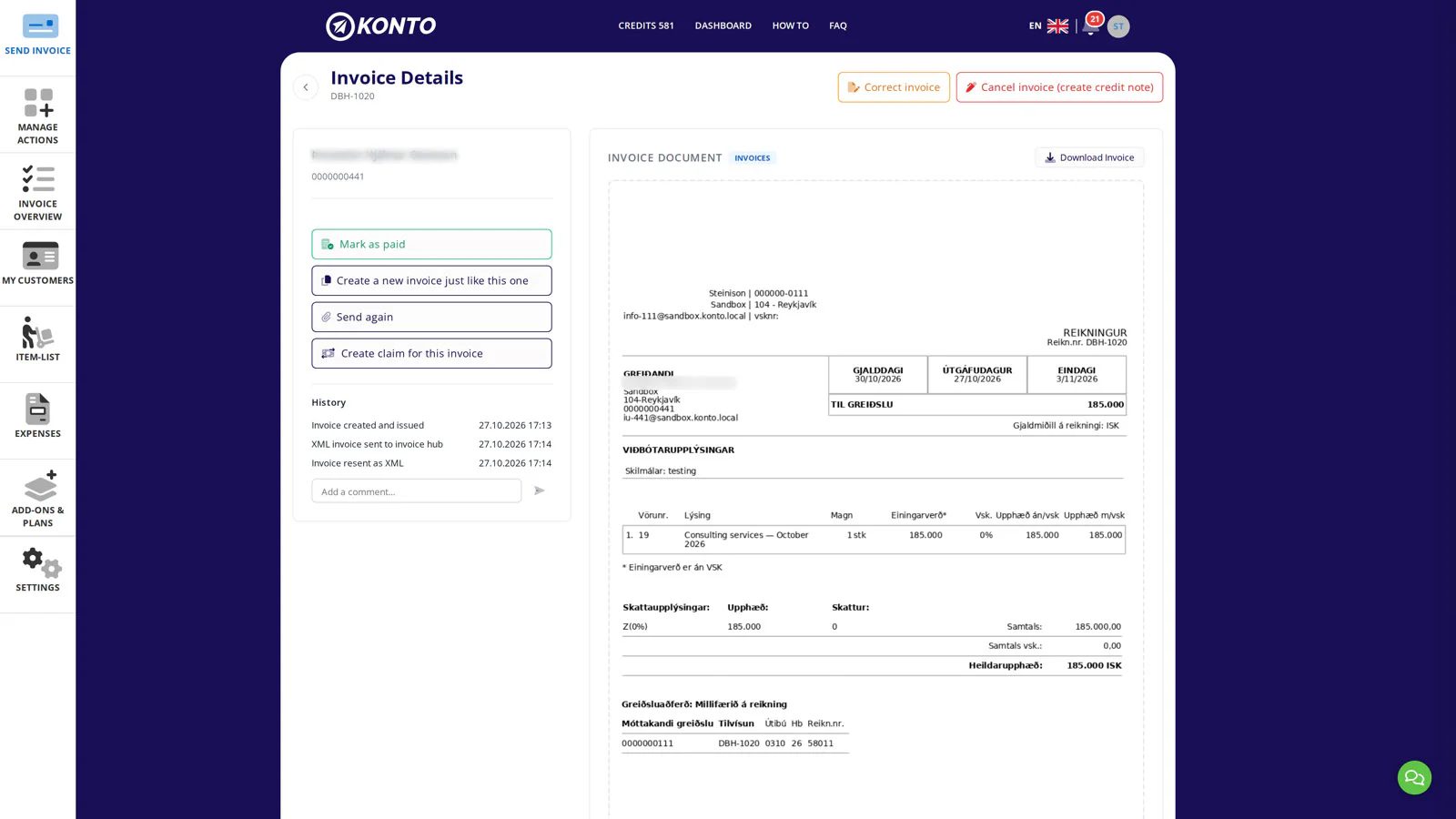
Invoice Overviewin the sidebar. All your issued invoices are listed here. Find the invoice the recipient says they didn't receive and click it to open the detail panel on the right.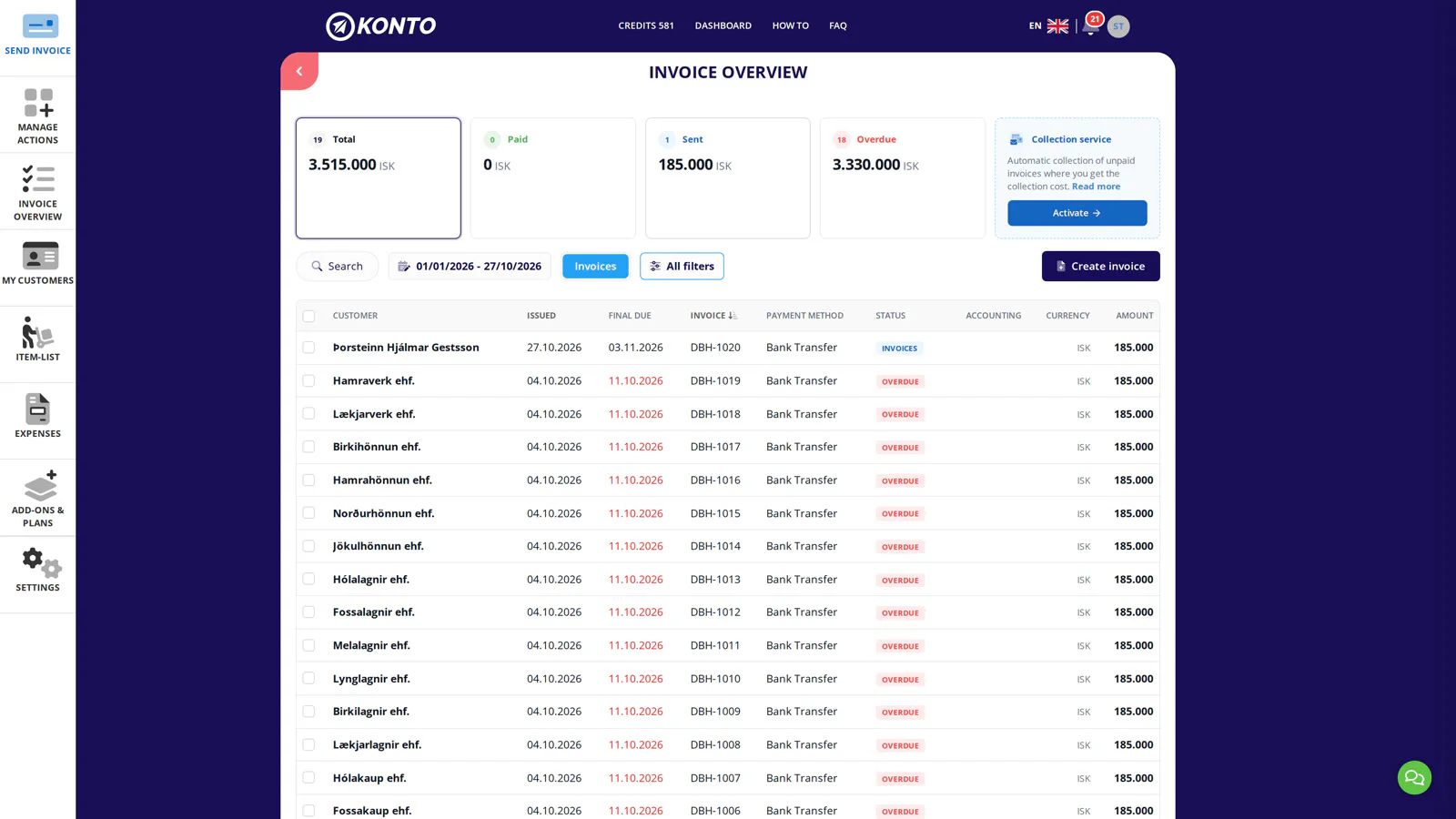
- 2
Read the document history and click „Send again”
In the detail panel, find the „History” section. It shows when the invoice was sent, whether it was delivered (delivered) and whether it was opened (opened).
About the “opened” timestamp: it now comes directly from SendGrid's own event, not from the time our webhook received the batch. Machine opens — caused by e-mail scanners on domains such as hi.is or kirkjan.is and by Apple Mail Privacy Protection — are flagged separately in the history and are not reliable proof that the recipient actually read the invoice.
Check whether the invoice was sent by e-mail or as XML via the messaging network. If the e-mail address or kennitala looks wrong, correct it on the customer record under
My Customersbefore continuing. When you are ready, click the „Send again” button in the panel.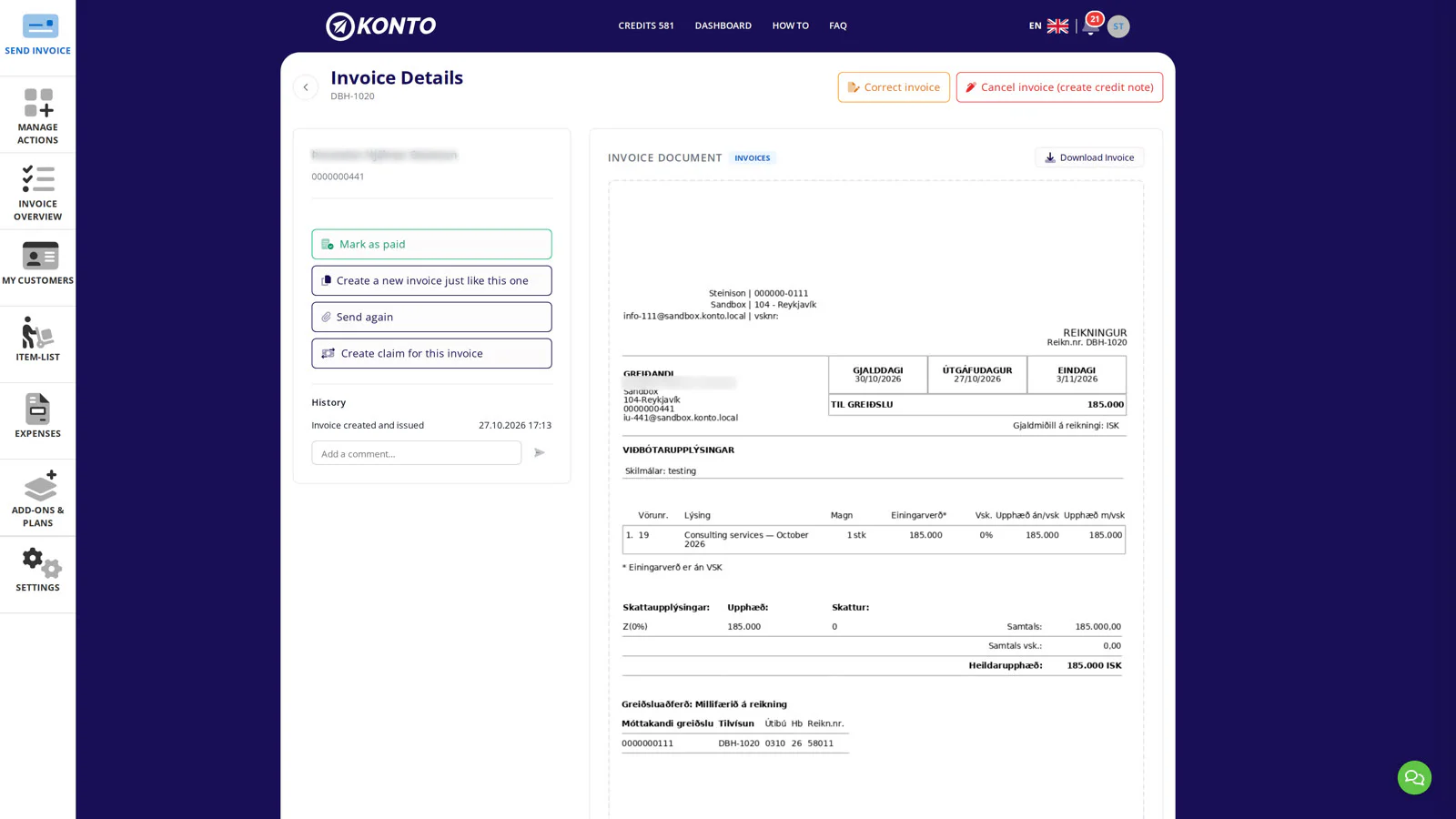
- 3
Choose a delivery method in the dialog
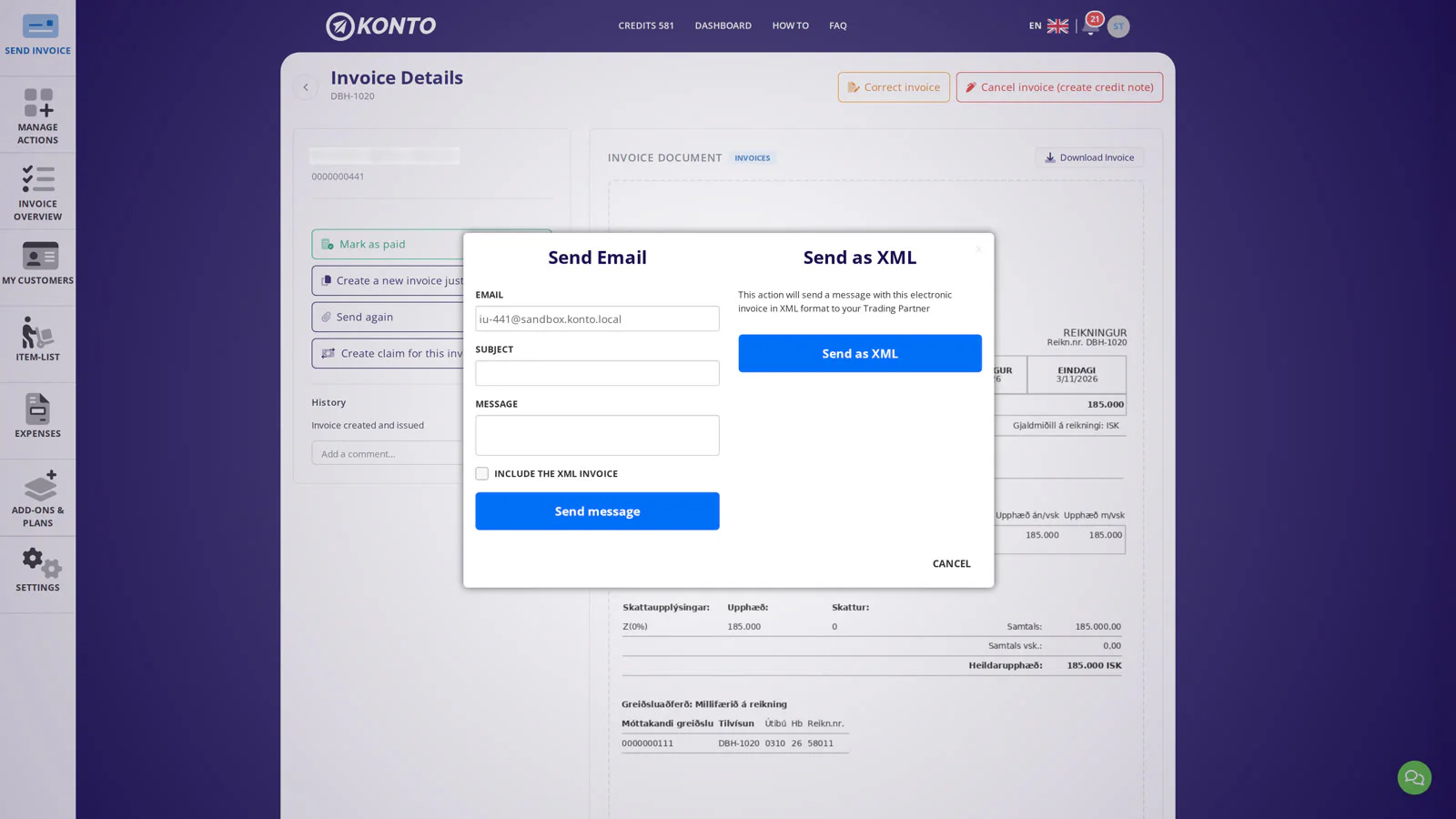
In the dialog, choose how to send the invoice:
- „Send Email” — Sends the invoice as a PDF to the recipient's e-mail address. Suitable for individuals and smaller companies.
- „Send as XML” (electronic invoice) — Routes the invoice directly into the recipient's financial system via the messaging network. Large buyers, municipalities and public bodies often only accept XML. You can choose XML even if the invoice was originally sent by e-mail.
- 4
Confirm XML delivery via the messaging network
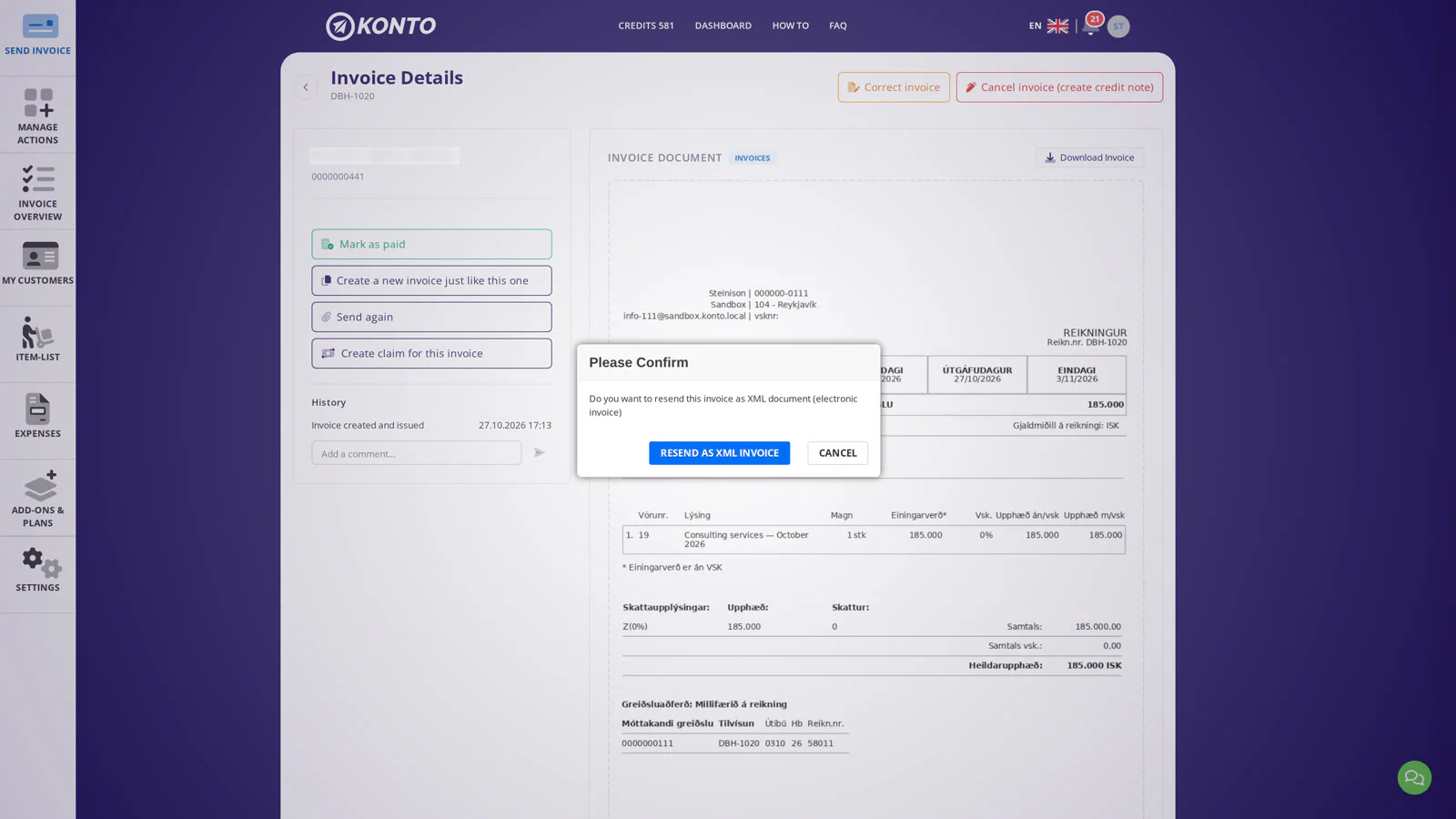
If you chose XML, a confirmation dialog appears. If a claim is not showing in the payer's online bank, the most common cause is a wrong kennitala — double-check it before confirming. Click „Resend as XML invoice” to complete the resend.
- 5
History confirms the invoice was resent
After sending, the History section refreshes and shows a new Invoice resent as XML entry. This confirms the invoice has been resent. Wait a few minutes — a delivered confirmation may also appear once the recipient's mail server acknowledges receipt.


- 1
Resend an invoice: Open the Invoice overview
Log in to konto.is and tap
Invoice overviewin the menu. The list shows all issued invoices. Find the invoice the recipient claims not to have received and tap it to open the detail card.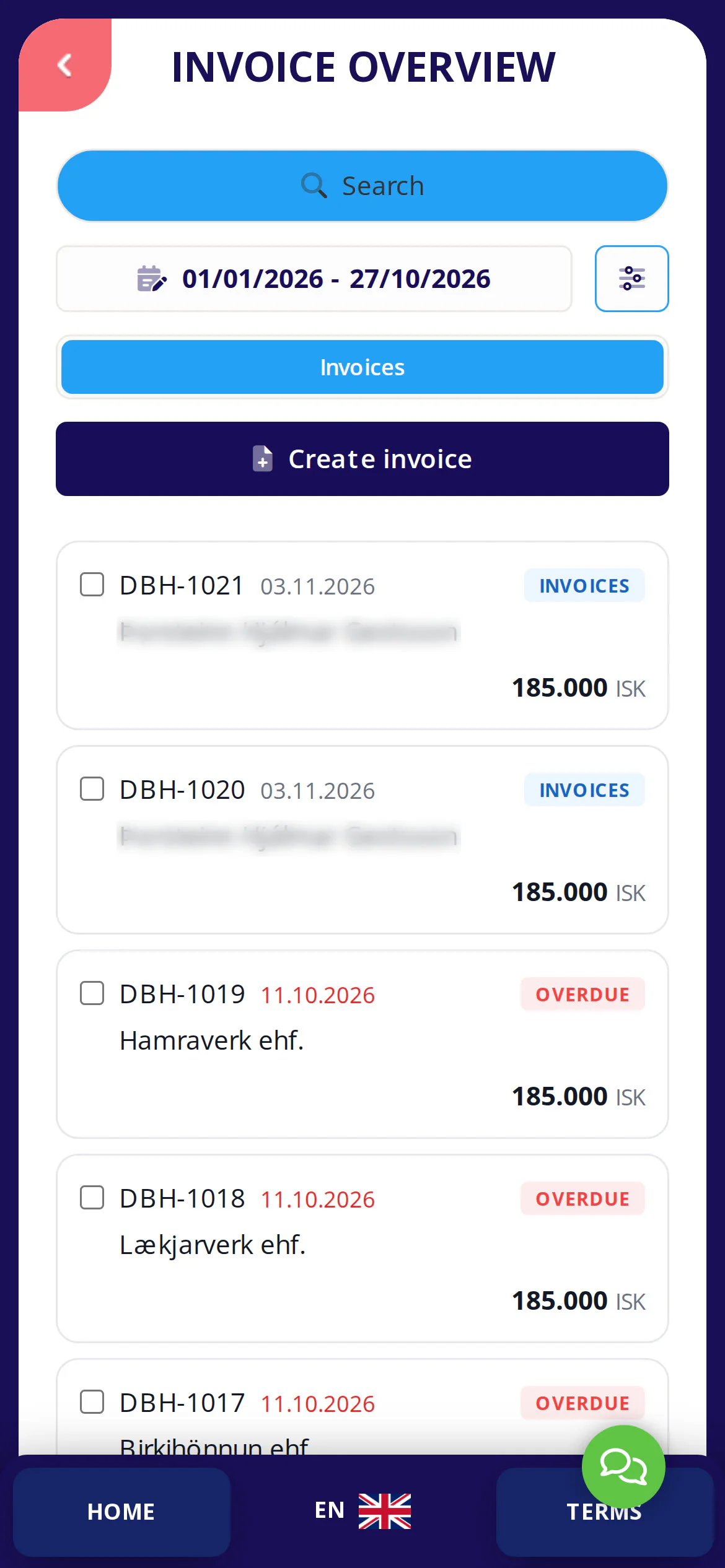
- 2
Review the document history and tap „Send again”
On the detail card you will see the „History” section. It shows when the invoice was sent, whether it was delivered, and whether it was opened.
Check the „opened” timestamp: The timestamp now comes directly from SendGrid — not from the time we received the webhook. Automated opens, for example caused by email scanners on domains such as hi.is or kirkjan.is and Apple Mail Privacy Protection, are flagged separately in the history and are not a reliable indication that the recipient actually read the invoice.
Check whether the invoice was sent to an email address or as XML via the messaging network. If the email address or ID number appears incorrect, correct it on the customer card under
Customersbefore proceeding. When you are ready, tap the „Send again” button visible on the card.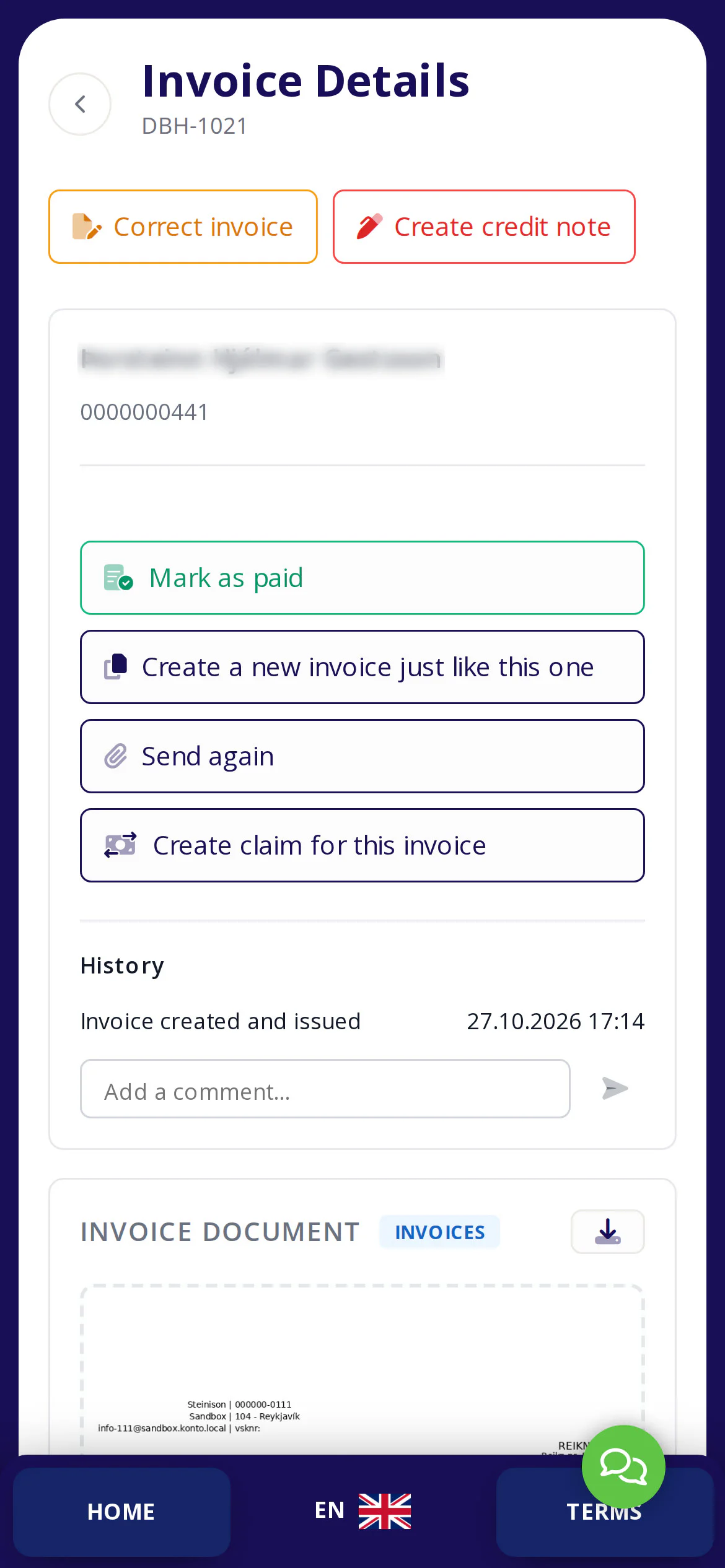
- 3
Choose the delivery method in the dialog
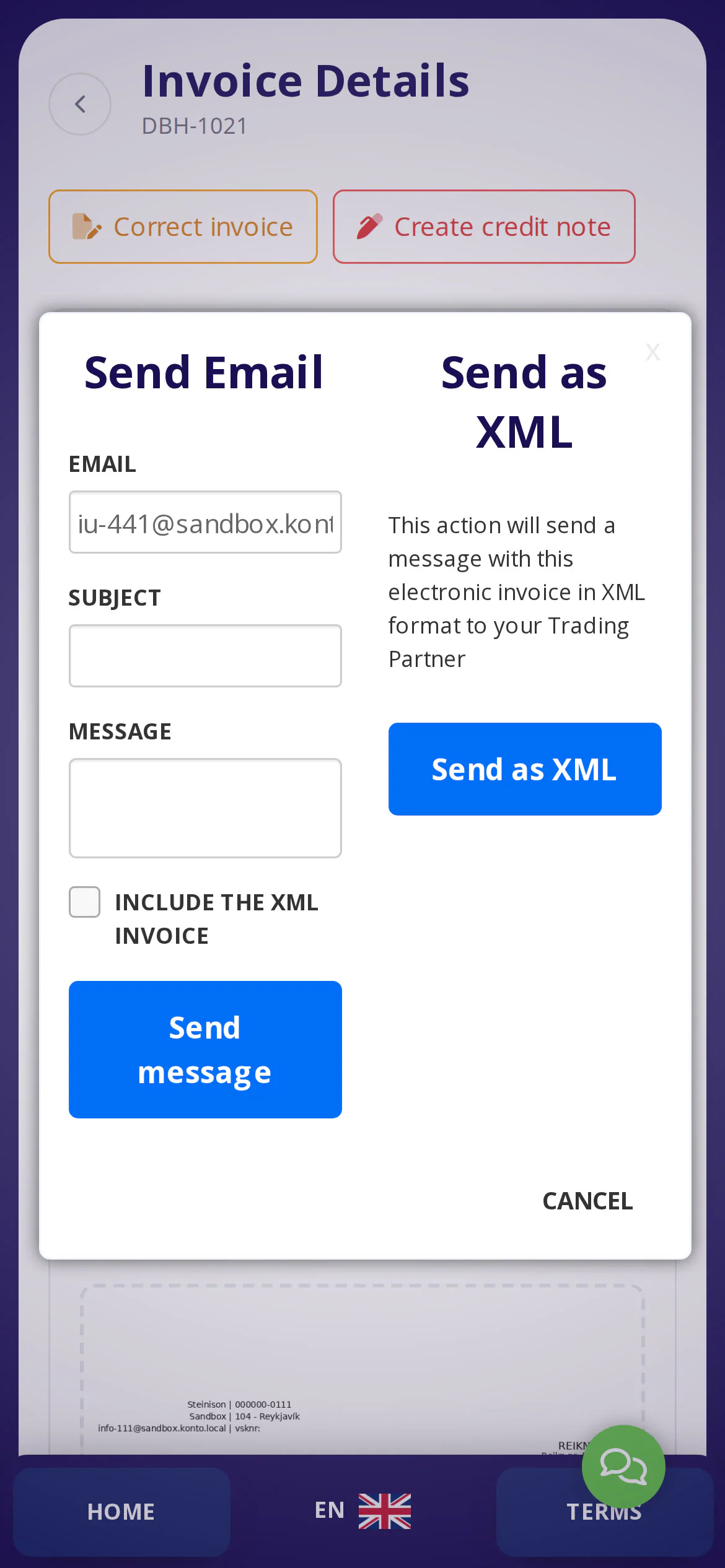
In the „Resend” dialog you can choose the delivery method:
- „Send Email” — a PDF invoice suitable for individuals and smaller companies.
- „Send as XML” (electronic invoice) — sent via the messaging network directly into the recipient's business system. Large buyers, municipalities and government institutions often accept only XML. You can send as XML even if the invoice was originally sent to an email address.
- 4
Confirm XML delivery via the messaging network
If you select XML, a confirmation dialog appears where you confirm the sending. If the request does not appear in the payer's online bank, this is usually caused by an incorrect ID number — check it carefully before confirming. Tap „Send as XML” to complete the resend.
- 5
Document history confirms the invoice was resent
After sending, „Document history” updates and shows a new sent entry. This confirms that the invoice was resent. Wait a few minutes and a delivered confirmation may also appear once the recipient's mail server acknowledges receipt.


Tips
Resend as XML to large buyers
If the recipient is a municipality, government body or large chain, they likely only accept electronic invoices (XML) via the messaging network. If you sent a PDF by e-mail and it still hasn't arrived, try resending as XML — the invoice will go directly into the recipient's financial system.
Recipient's kennitala and claims in the online bank
If a claim is not visible to the payer in their online bank, the most common reason is an incorrect kennitala on the customer record. Go to My Customers, open the relevant record and correct the kennitala before resending.
Send to more than one e-mail address
You can add extra e-mail addresses for each customer: go to Viðskiptavinir → [customer] → Viðbótarupplýsingar → Aukanetföng. Separate addresses with a comma and no spaces, for example konto@konto.is,accounting@company.is.
Common questions
How do I resend an invoice the recipient didn't receive?
Open the invoice in Invoice Overview, check the document history and click “Send again”. You can choose to resend by e-mail (PDF) or as XML via the messaging network — or both if needed.
Why is the claim not showing in the payer's online bank?
The most common reason is an incorrect kennitala on the customer record. Go to My Customers, open the record and verify the kennitala. Also make sure kröfustofnun (claim issuance) is enabled on your account.
Is the “opened” status in the document history always reliable?
Not always. E-mail scanners and Apple Mail Privacy Protection can trigger the tracking pixel automatically. These machine opens are flagged separately in the document history and are not reliable proof that the recipient read the invoice. The “opened” timestamp now comes from SendGrid's own event rather than the webhook receive time, so it is more accurate than before.
Can I resend a PDF invoice as XML?
Yes. Even if the invoice was originally sent by e-mail (PDF), you can click “Send again” and choose XML. The invoice will then be routed via the messaging network directly into the recipient's financial system.
What does “delivered” mean in the document history?
Delivered means the recipient's mail server accepted the message from SendGrid. It does not guarantee the invoice reached the inbox — it may have been filtered to spam. If delivered is missing from the history entirely, check that the e-mail address was entered correctly.
Can I update the recipient's e-mail address before resending?
Yes. Go to My Customers, open the customer record and correct the e-mail address. The next resend will use the updated address.
What is a GLN number and do I need it to send XML?
GLN (Global Location Number) is the electronic address used when routing XML invoices. In most cases it equals the customer's kennitala and is filled in automatically on the customer record. Larger organisations may have dedicated GLN numbers or cost-centre identifiers.
Questions? support@konto.is