
Orders in Konto – receive and invoice purchase orders
Orders in Konto lets you receive purchase orders electronically and turn each one into a sales invoice with a single click. The add-on supports two routes: EDI/Peppol (orders from buyers' purchasing systems via the Peppol network) and Konto API (orders from other systems via the API). The add-on is included in the Vöxtur and Sérlausnir plans at no extra cost.
- 1
Enable Orders in Konto
Go to
Stillingar(Settings). If you have not yet enabled the add-on, find “Pantanir” under Viðbætur sem þú getur virkjað (add-ons available to enable); if it is already active, it appears under Virkar viðbætur (active add-ons). Select “Pantanir” to open the add-on page. The add-on is included in Vöxtur and Sérlausnir — no separate payment required.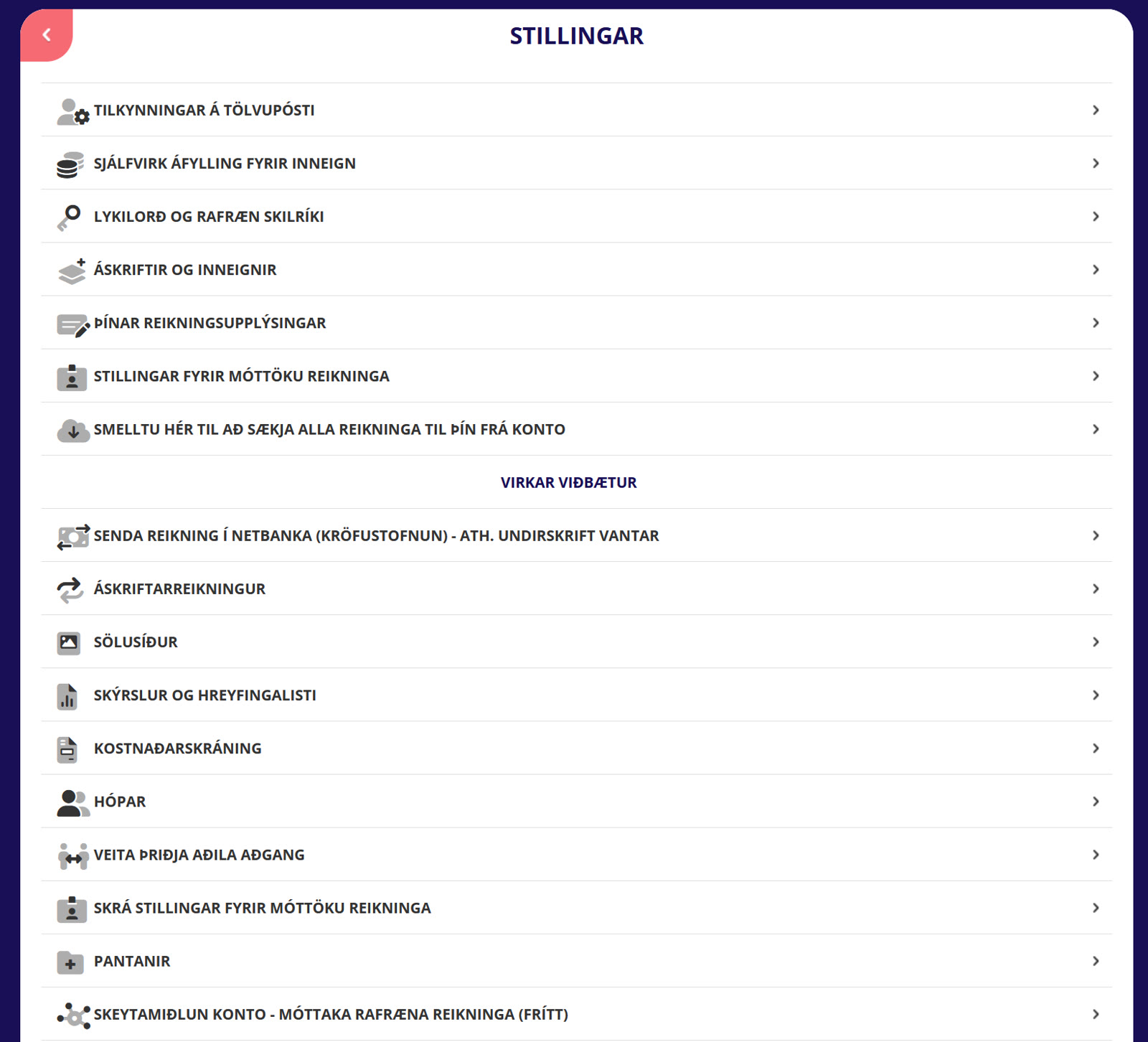
- 2
Confirm activation and get your X.400 address
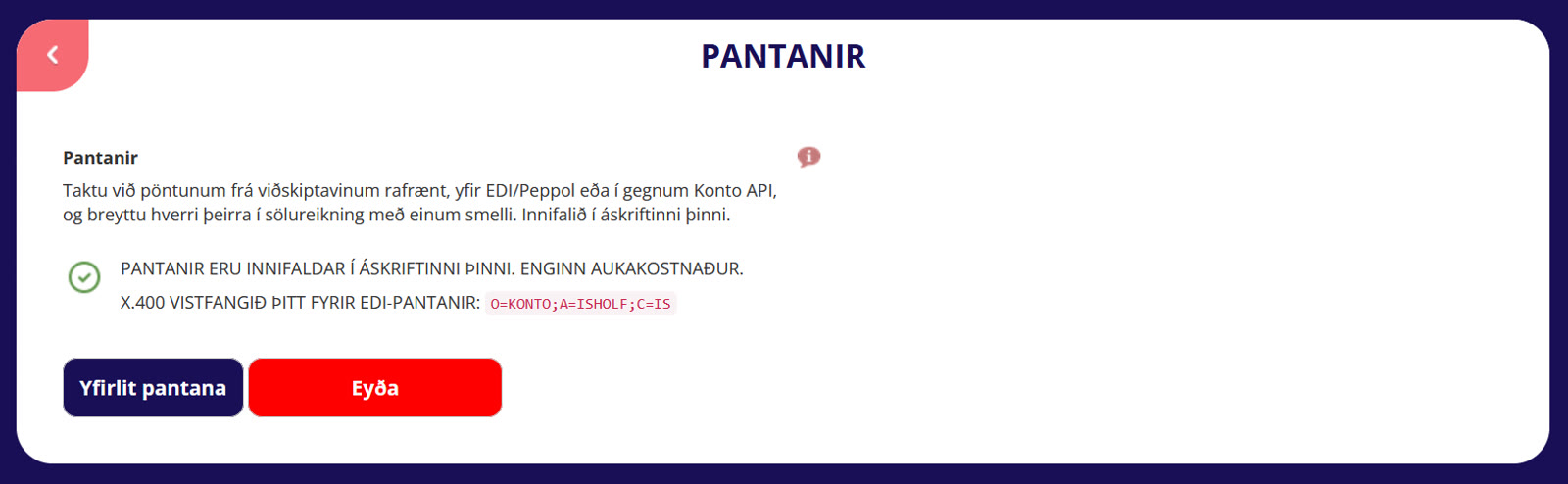
The Pantanir page confirms: “Pantanir eru innifaldar í áskriftinni þinni. Enginn aukakostnaður.” (Orders are included in your subscription. No extra cost.) Your X.400 address (O=KONTO;A=ISHOLF;C=IS) is shown here — share it with your buyer so EDI orders reach you correctly. Click “Yfirlit pantana” to open the orders overview.
- 3
Or open the overview directly from the main menu
Once the Orders add-on is enabled, you can always reach the overview via
Aðgerðir og umsjón → Yfirlit pantana— no need to go through Settings each time.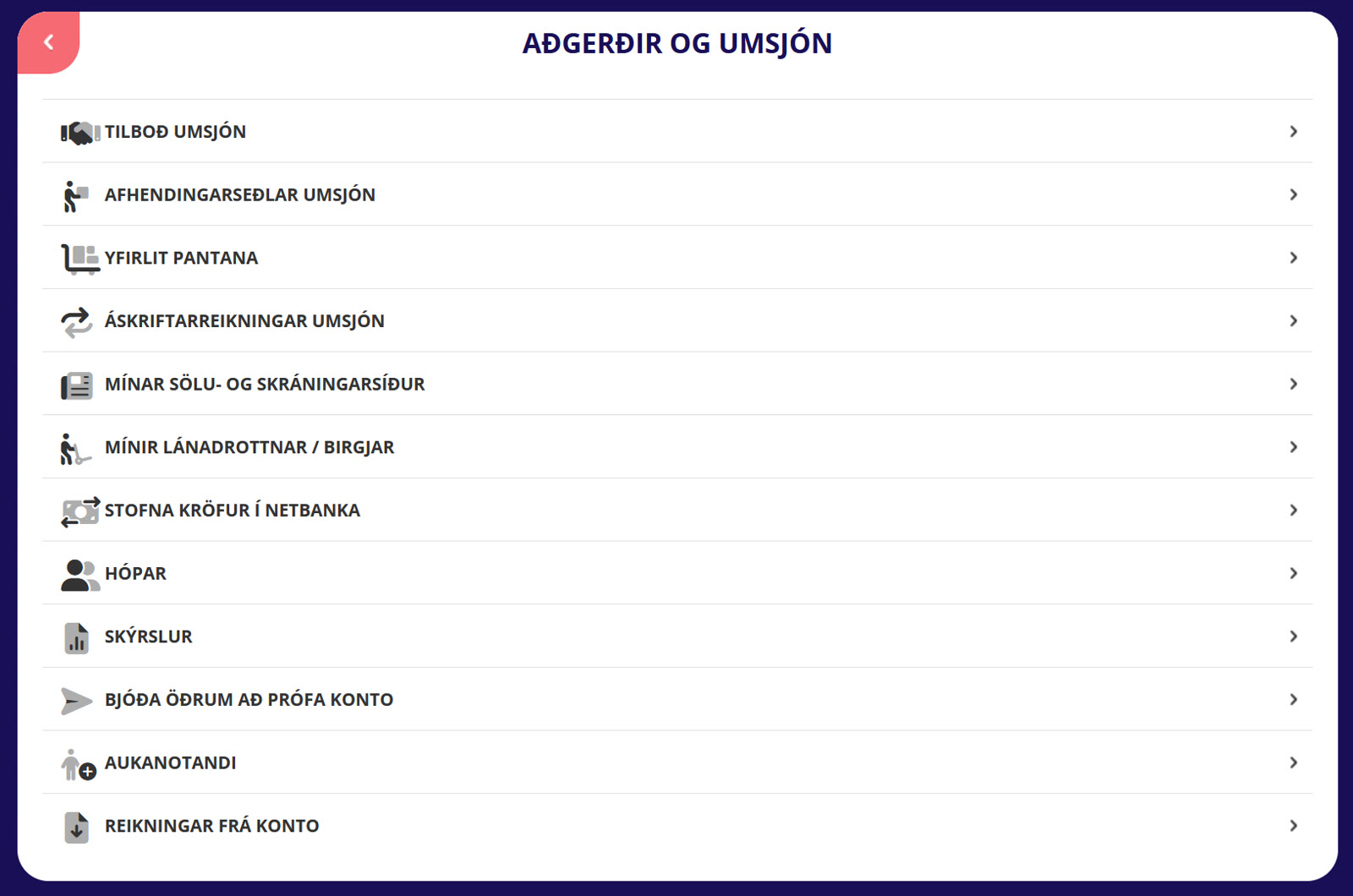
- 4
Browse your orders in Yfirlit pantana
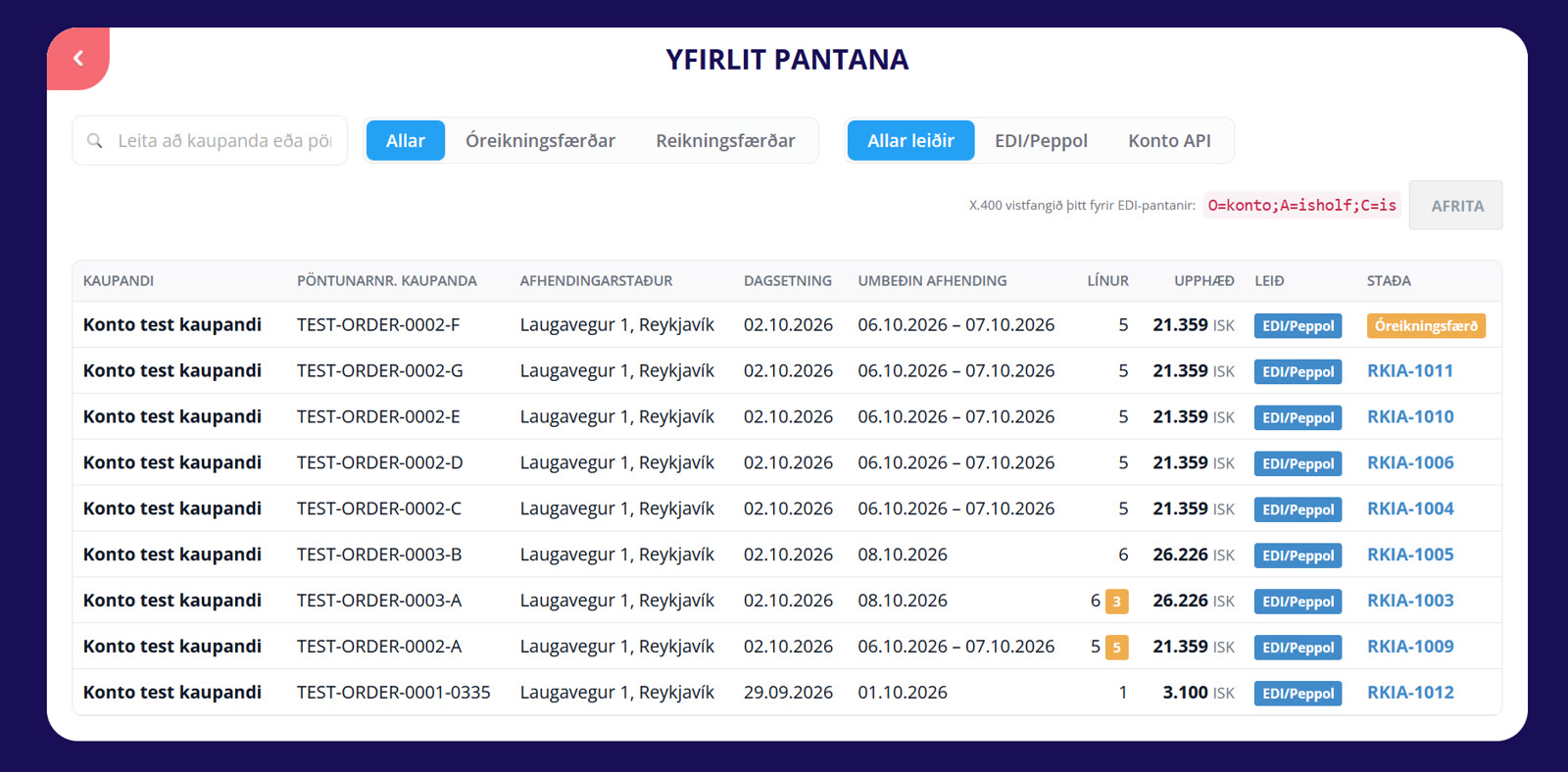
The overview displays buyer, order number, delivery address, date, requested delivery, number of lines, amount, route and status for each order. Filter by status (Allar / Óreikningsfærðar / Reikningsfærðar) or route (Allar leiðir / EDI/Peppol / Konto API), or search by buyer or order number. Your X.400 address is also visible here with an “Afrita” (Copy) button. Click an order with the status Óreikningsfærð (orange) to view its details.
- 5
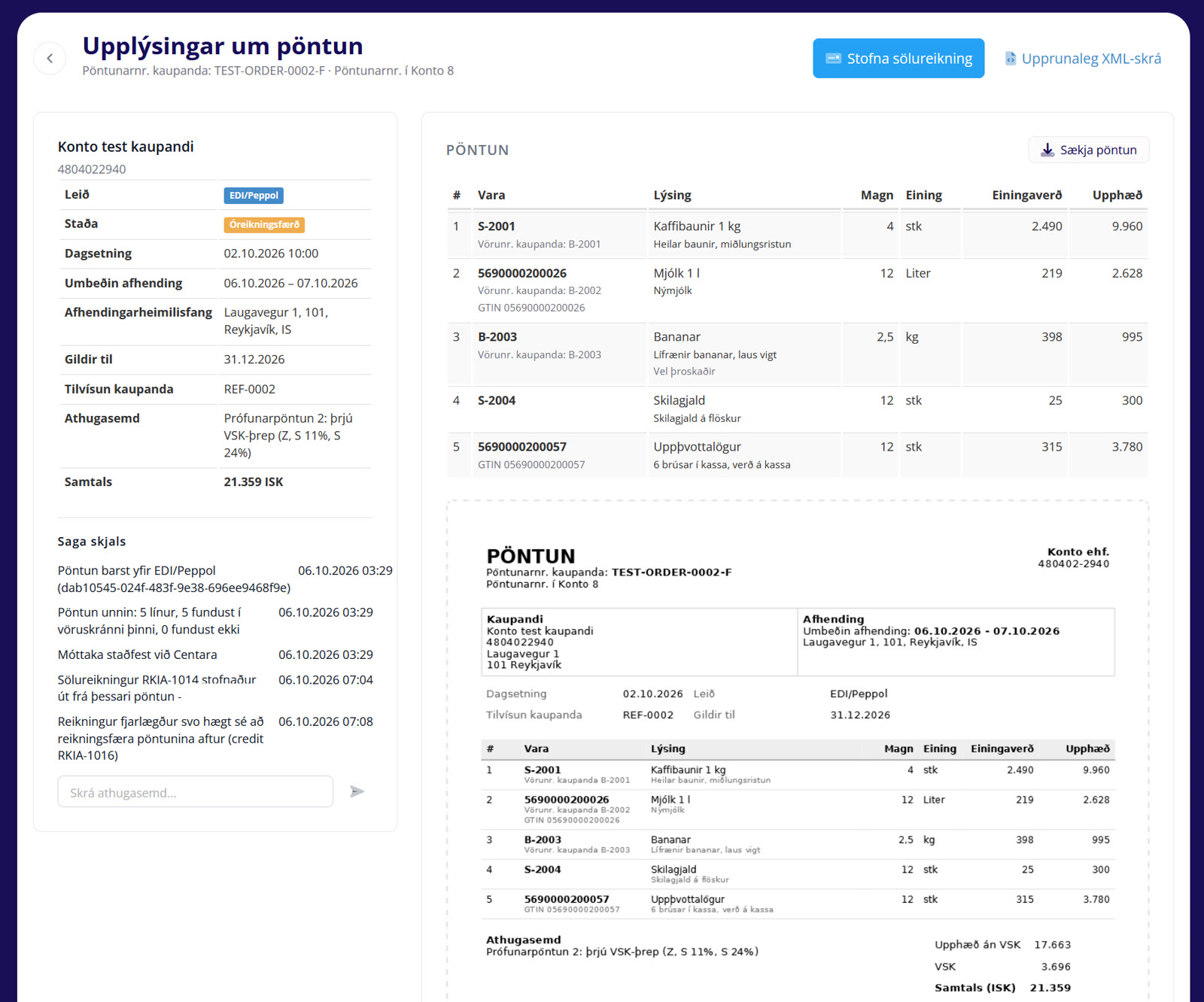
Review order details and create a sales invoice
The details screen shows buyer and company ID, route, status, date, requested delivery, delivery address, valid-until date, buyer's reference, note and total amount. On the right are the order lines with item number, buyer's item number, GTIN, description, quantity, unit price and amount. Under Saga skjals (document history) you can follow the order's journey — when it arrived, how lines matched your catalogue, and whether an invoice was created or credited.
Click “Stofna sölureikning” to create the invoice — Konto carries the buyer's order number across to the invoice for easy matching. This is the core workflow of Orders in Konto. Use the back arrow at the top left to return to the overview.
- 6
Select an invoiced order to view its linked invoice
Back in
Yfirlit pantana: orders that have already been invoiced show the invoice number (e.g. RKIA-1011) in the status column. Click one to view its details and open the linked invoice. - 7
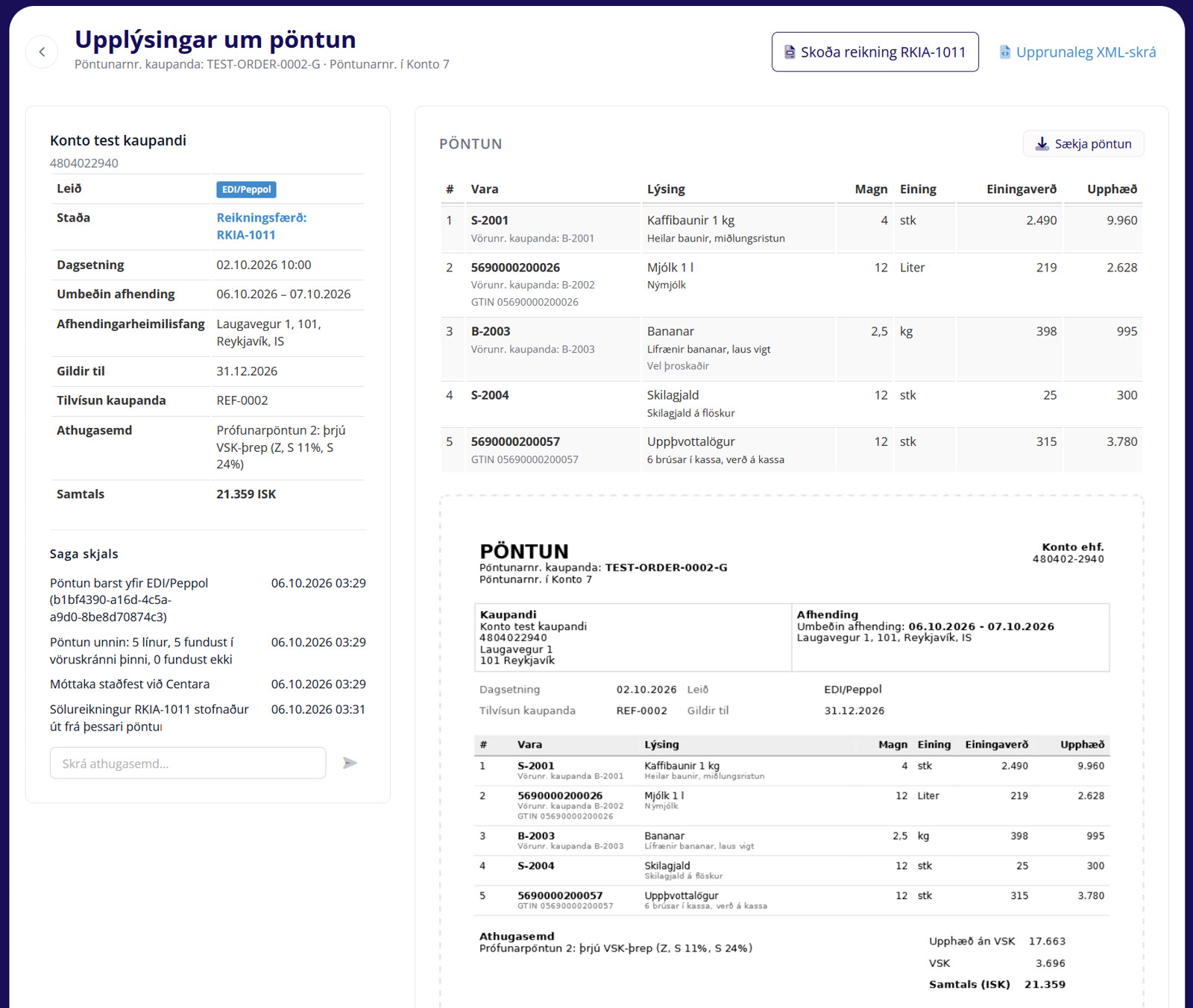
View the linked invoice and history of an invoiced order
The status reads Reikningsfærð: RKIA-1011 (Invoiced). In Saga skjals you will see: “Sölureikningur RKIA-1011 stofnaður út frá þessari pöntun.” (Sales invoice RKIA-1011 created from this order.) Click “Skoða reikning RKIA-1011” at the top right to open the invoice; “Upprunaleg XML-skrá” is right beside it and downloads the original order in XML format. If the invoice is credited, the order resets to “Óreikningsfærð” and you can create a new sales invoice from it — all within Orders in Konto.


Tips
Orange number next to “Línur” — your product catalogue
If order lines don't match products in your catalogue, you'll see an orange number next to “Línur” in the overview. Those products are added to your catalogue automatically when you create the sales invoice — no need to set them up in advance.
Peppol orders — enable electronic invoice receiving
To receive Peppol orders you need electronic invoice receiving (Skeytamiðlun) enabled in Konto. Peppol buyers find you automatically via the network using your company ID — no X.400 address is needed for Peppol.
Orders in Konto and credit notes
If you credit an invoice that was created from an order, Konto resets the order status to “Óreikningsfærð” (not invoiced) and you can issue a new sales invoice from it.
Common questions
Which subscription plans include Orders in Konto?
The Orders add-on is included at no extra cost in the Vöxtur and Sérlausnir plans. Enable it at Stillingar → Virkar viðbætur → Pantanir.
How does my buyer get my EDI address?
Your X.400 address is O=KONTO;A=ISHOLF;C=IS. Copy it using the “Afrita” button in Yfirlit pantana or on the Pantanir add-on page and send it to your buyer. The buyer enters it manually in their EDI system — there is no automatic lookup in EDI.
How do Peppol orders reach me?
Peppol orders arrive automatically once electronic invoice receiving (Skeytamiðlun) is enabled in Konto. The buyer only needs your company ID — no X.400 address is required for Peppol.
Can I invoice the same order more than once?
Normally one order maps to one invoice. However, if the invoice created from an order is credited, Konto resets the order to “Óreikningsfærð” and a new sales invoice can be created from it.
What does the orange number next to “Línur” mean?
It means some order lines don't match products in your catalogue. Those lines are still included in the invoice and are automatically added to your catalogue when the sales invoice is created.
How do I find the invoice created from an order?
Open the order in Yfirlit pantana. If it has been invoiced, the invoice number appears in the status column and the “Skoða reikning [number]” button is at the top right of the details screen.
What is the difference between the EDI/Peppol route and the Konto API route?
The EDI/Peppol route handles orders from buyers' purchasing systems delivered via the Peppol network or your X.400 address. The Konto API route handles orders sent directly by another system through the Konto API. The overview, details screen and history are the same for both routes.
Questions? support@konto.is