
Manage a project in Konto: tasks, costs and invoices
When you create a project in Konto, the project page becomes the hub for everything related to that job. Tasks, cost records, product lines and invoices are all in one place. This guide shows you how to link supplier costs, track tasks and create invoices directly from the project details. It assumes you have already completed part 2: Create a project.
- 1
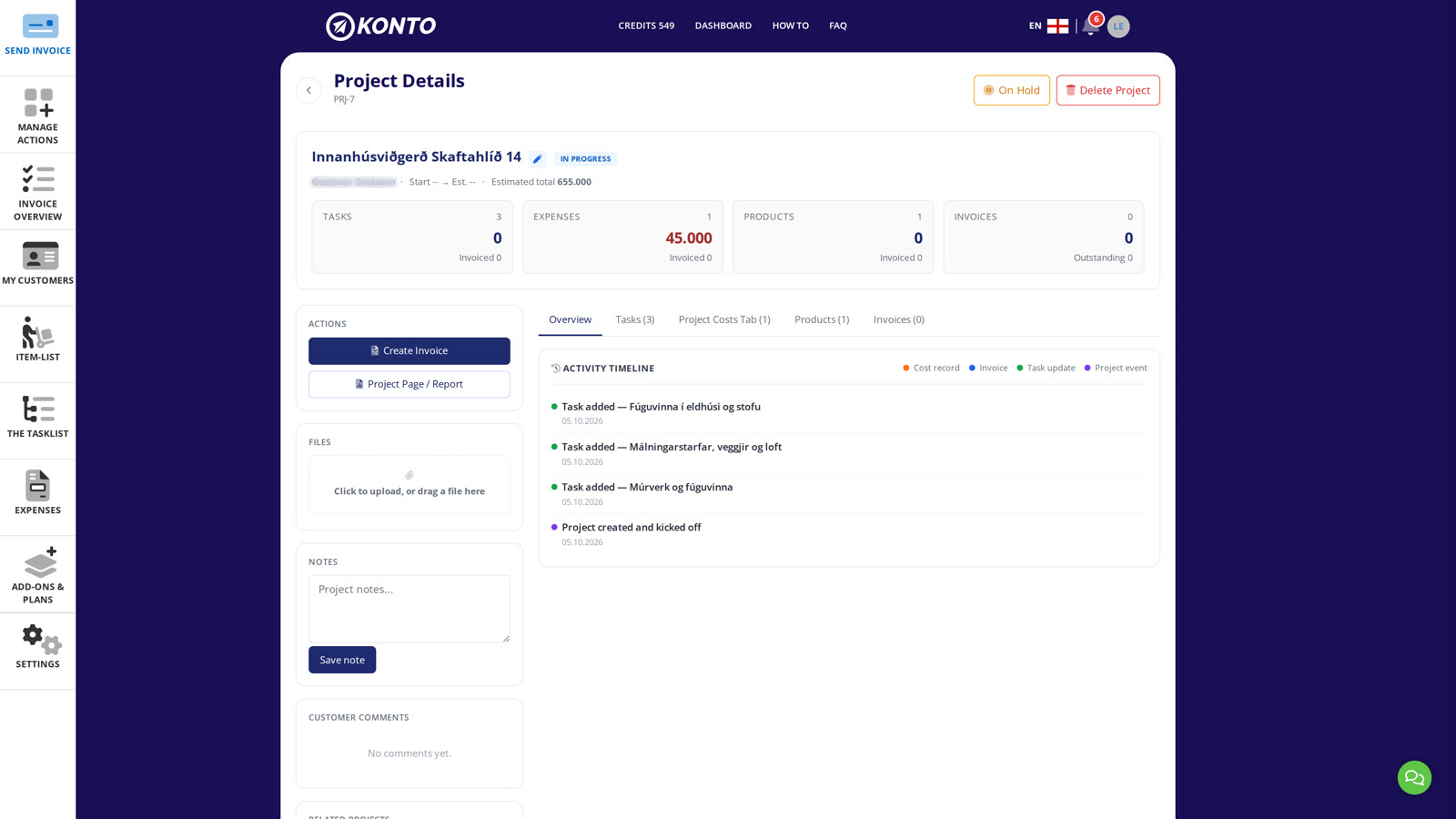
Projects in Konto: overview with totals and status
Open a project in Konto. The „Overview” tab shows you at a glance: estimated total amount, invoiced revenue, outstanding balance, number of tasks and the current project status.
- 2
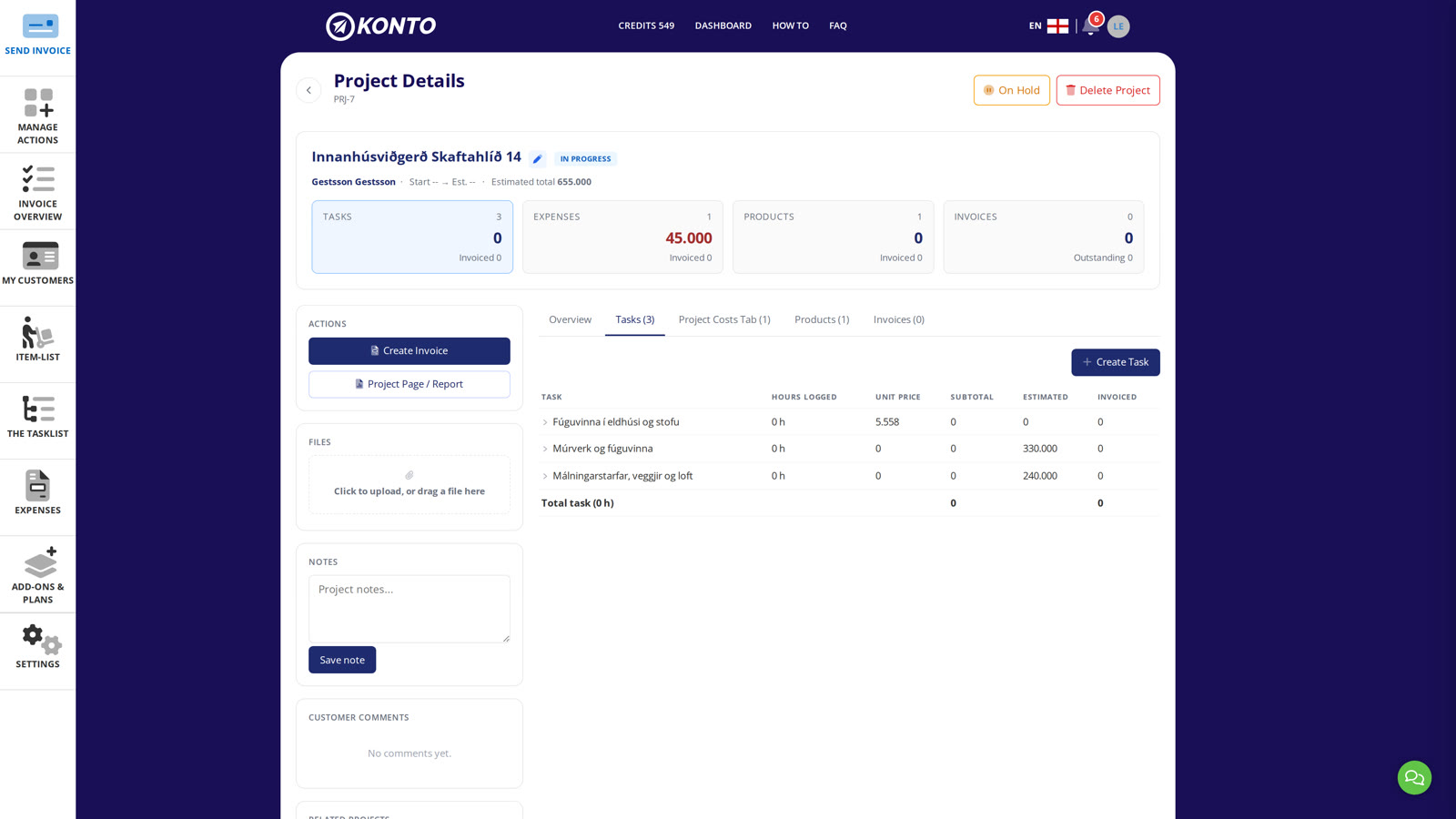
The “Tasks” tab: tasks and logged hours
Click the “Tasks” tab. All tasks belonging to the project appear here — both lines from the project scope and tasks created in „The Tasklist” — each with its logged hours.
Click “Create Task” to open the task form — see the next step.
- 3
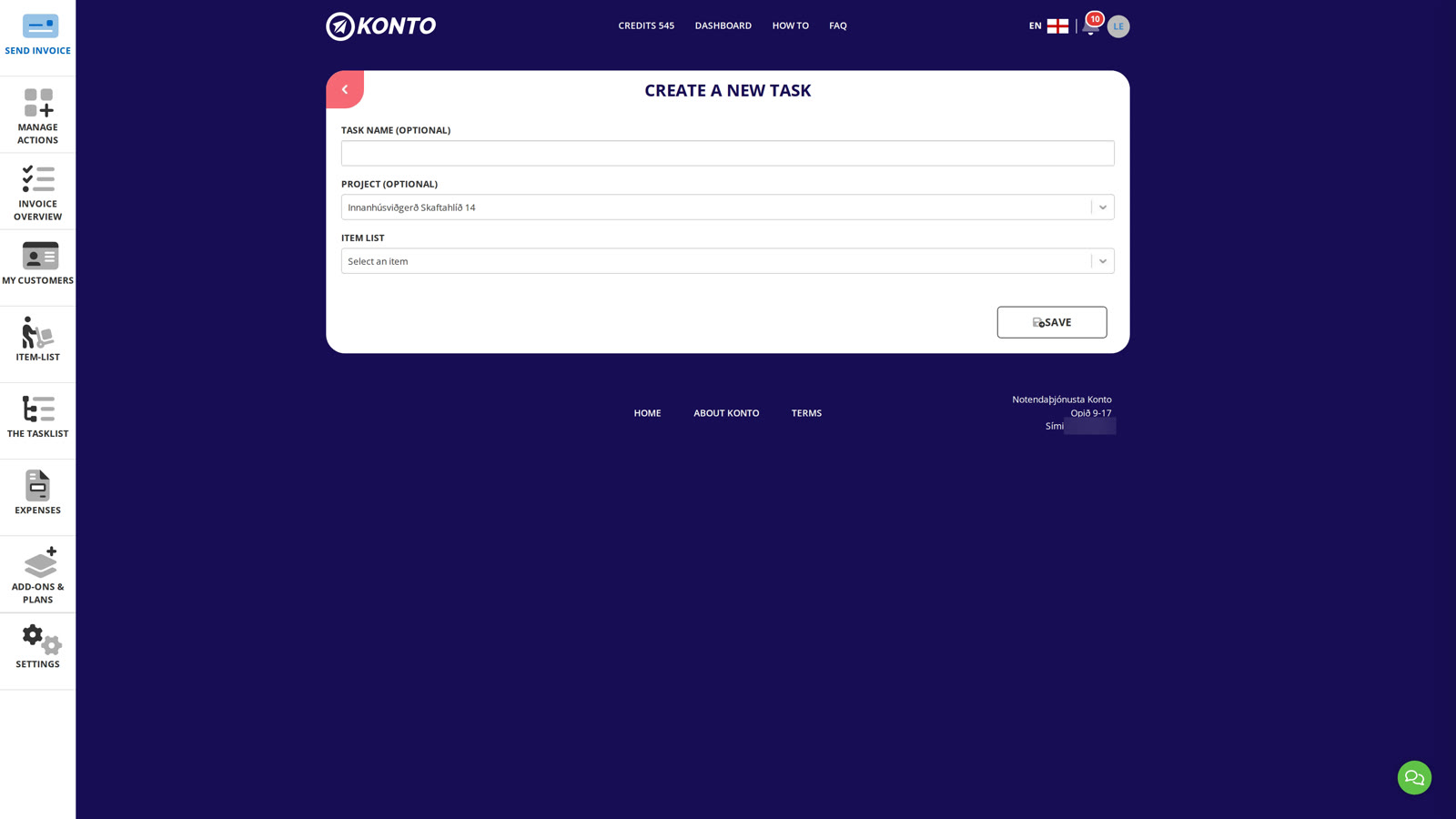
Create a new task linked to a project in Konto
The task form opens with this project already selected in „Project (optional)” — you do not need to choose it manually.
Fill in the task name and select a service from the „Item list” if applicable. Time logging then takes place in Tasklistinn — see part 1 on Tasklistinn and time logging.
- 4
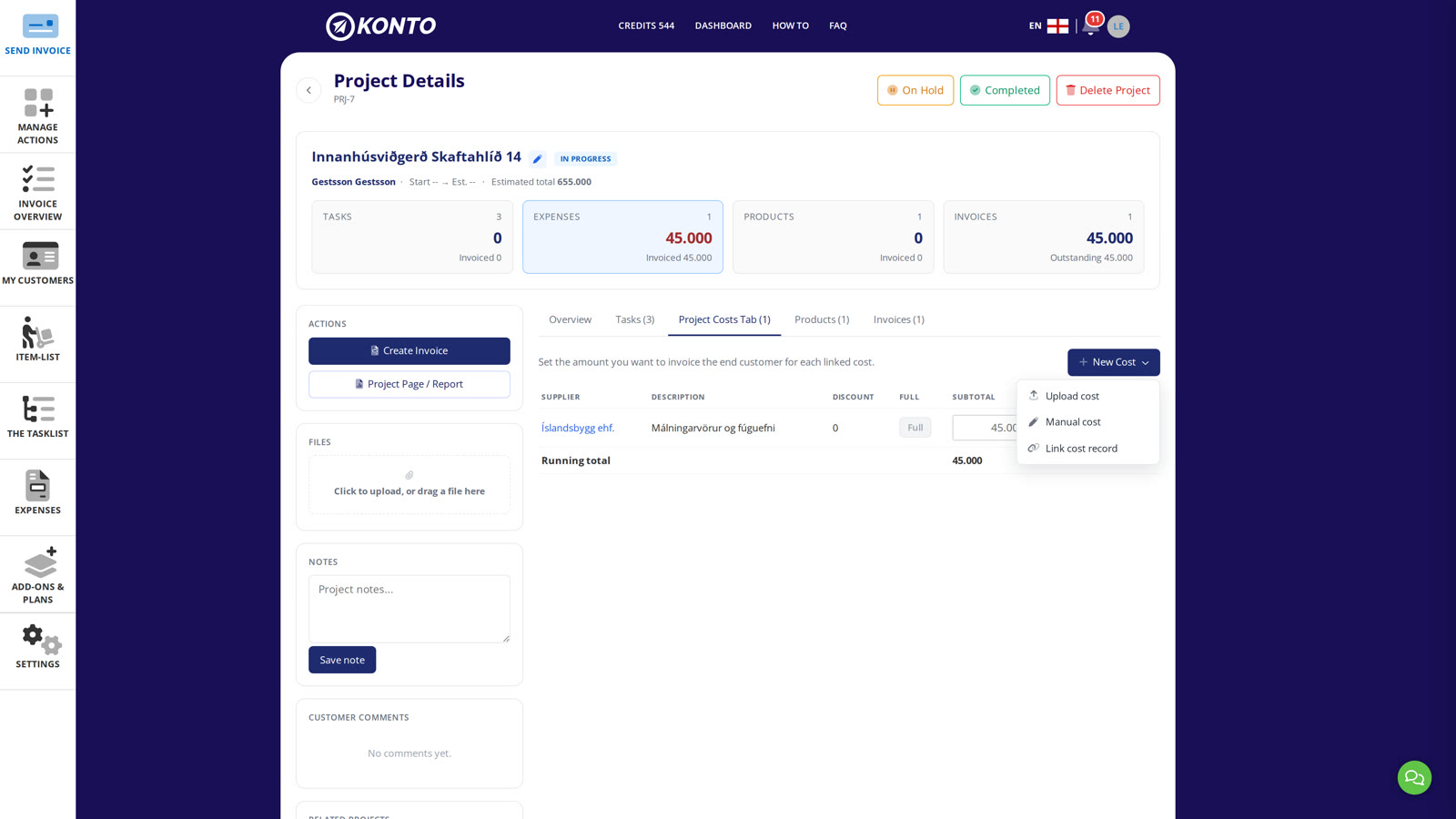
The “Costs” tab: project costs and “New cost”
Click the „Project Costs” tab on the project page. All costs linked to the project appear here. In the Subtotal column, enter the amount you want to invoice the customer for (passing the cost on).
Click „New cost” to add a cost. The menu offers three options:
- „Upload cost” — opens Cost Recording so you can upload a receipt or supplier invoice for this project.
- „Manual cost” — adds a cost line directly to the project without going through Cost Recording. Useful for out-of-pocket expenses when no receipt exists in the system.
- „Link cost record” — links a record that has already been approved in Cost Recording to the project.
You can also link a cost to the project at the moment of approval — see the next step.
- 5
Link a cost record to a project in Konto
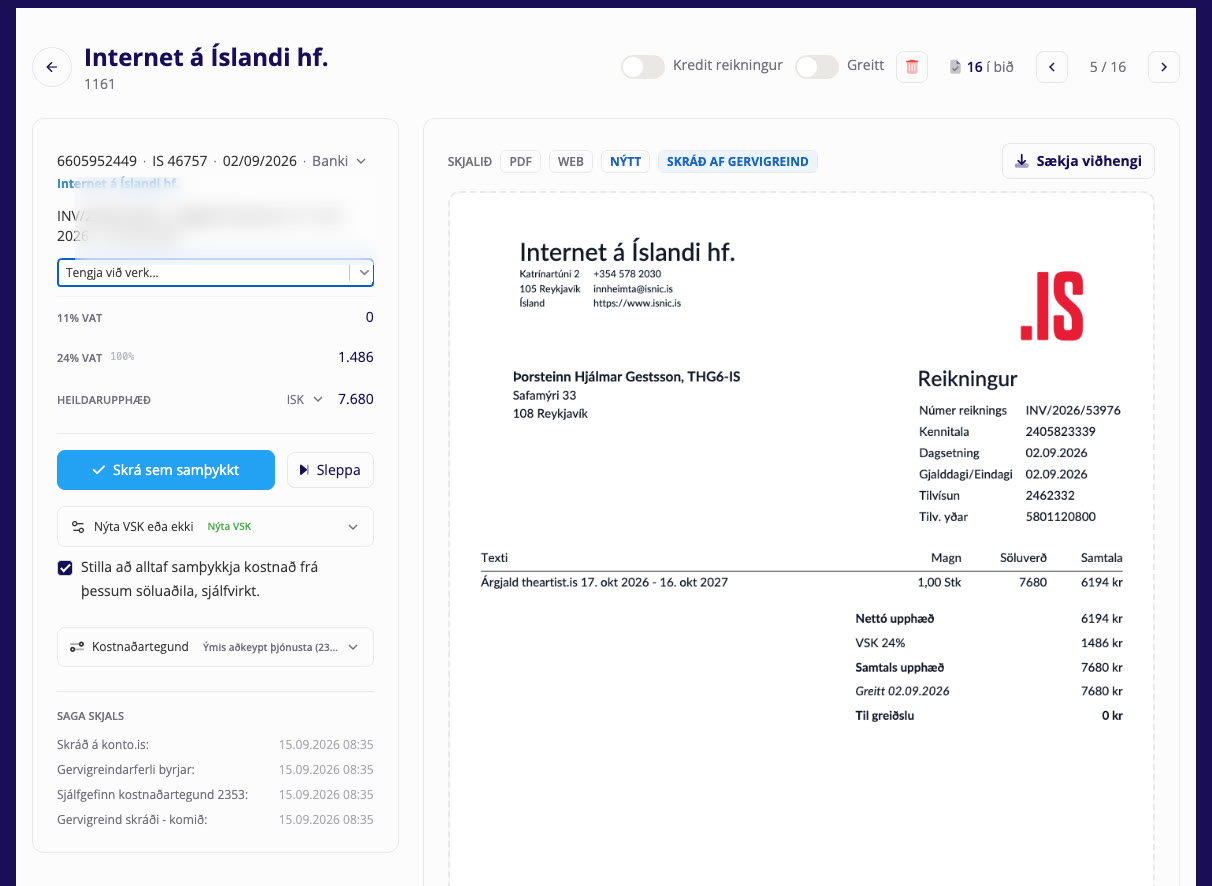
You can also link a supplier cost to the project at the moment of approval. Go to
Cost Recordingin the main menu, find the supplier record with status New and open it.Select the relevant project in the “Link to project…” field — as shown in the screenshot — and click “Record as approved”. The record is then linked to the project and appears on the “Costs” tab. It is important to select the project before approving. If the record has already been approved, use “Link cost record” under “New cost” on the “Costs” tab (see the previous step).
- 6
The „Products” tab: product lines and services
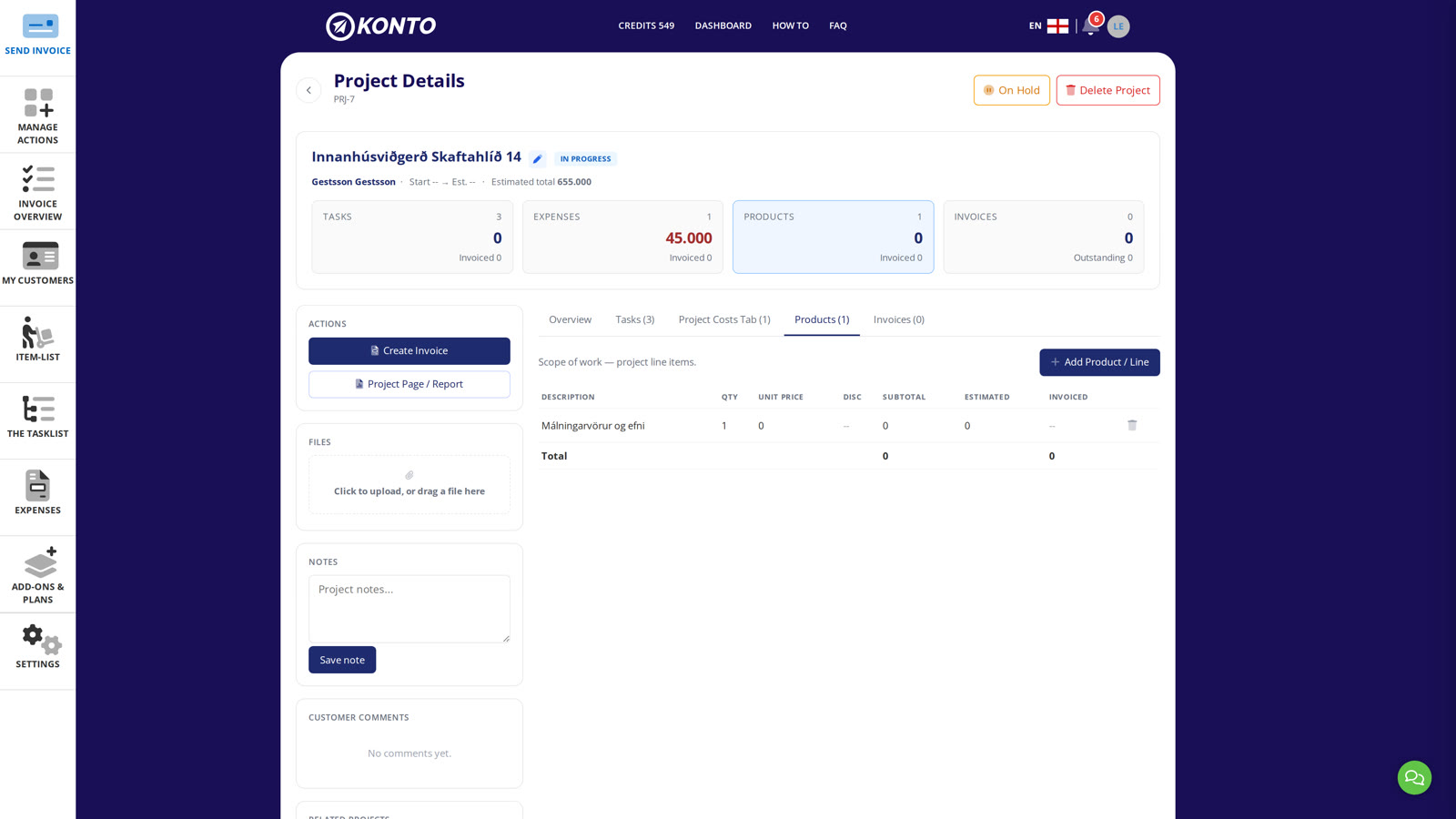
Go back to the project page and click the „Products (1)” tab. It shows all product lines and service lines that are part of the project scope. Click „Add Product / Line” to add a new line.
- 7
The “Invoices” tab: empty until an invoice is linked
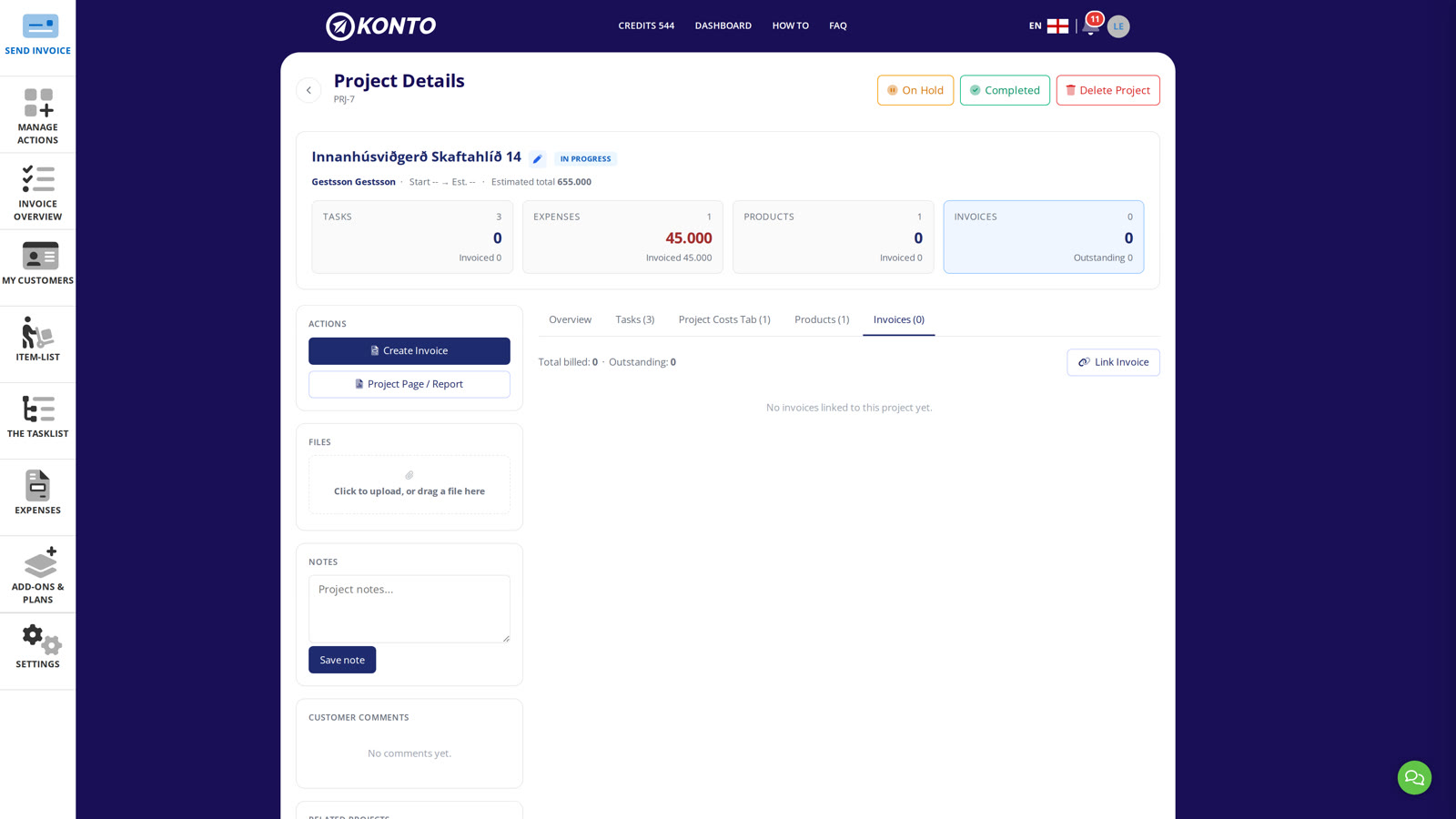
Click the „Invoices (0)” tab on the project page. All sales invoices for the project will appear here along with their payment status. While no invoice is linked, the tab shows „No invoices linked to this project yet.”
If you have already created an invoice elsewhere, link it to the project using „Link Invoice”. In the next steps we create an invoice directly from the project — it will then appear here automatically.
- 8
Create an invoice directly from a project in Konto
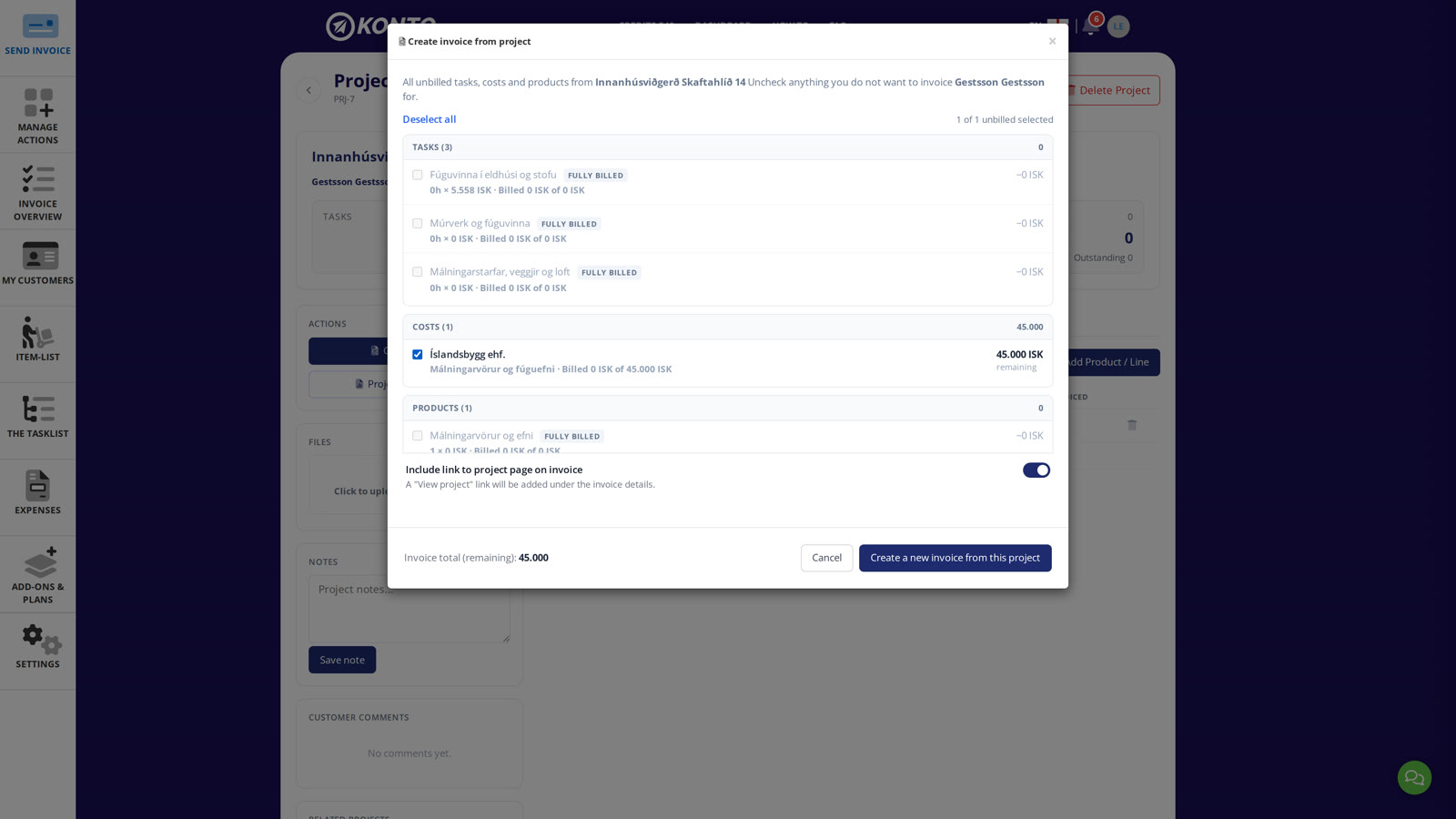
Click „Create a new invoice from this project”. A dialog opens listing everything not yet invoiced: logged hours, product lines and any costs you are passing on to the customer.
Select the lines to include and click „Create a new invoice from this project”. The invoice opens pre-filled with the customer's details and the selected lines from the project.
- 9
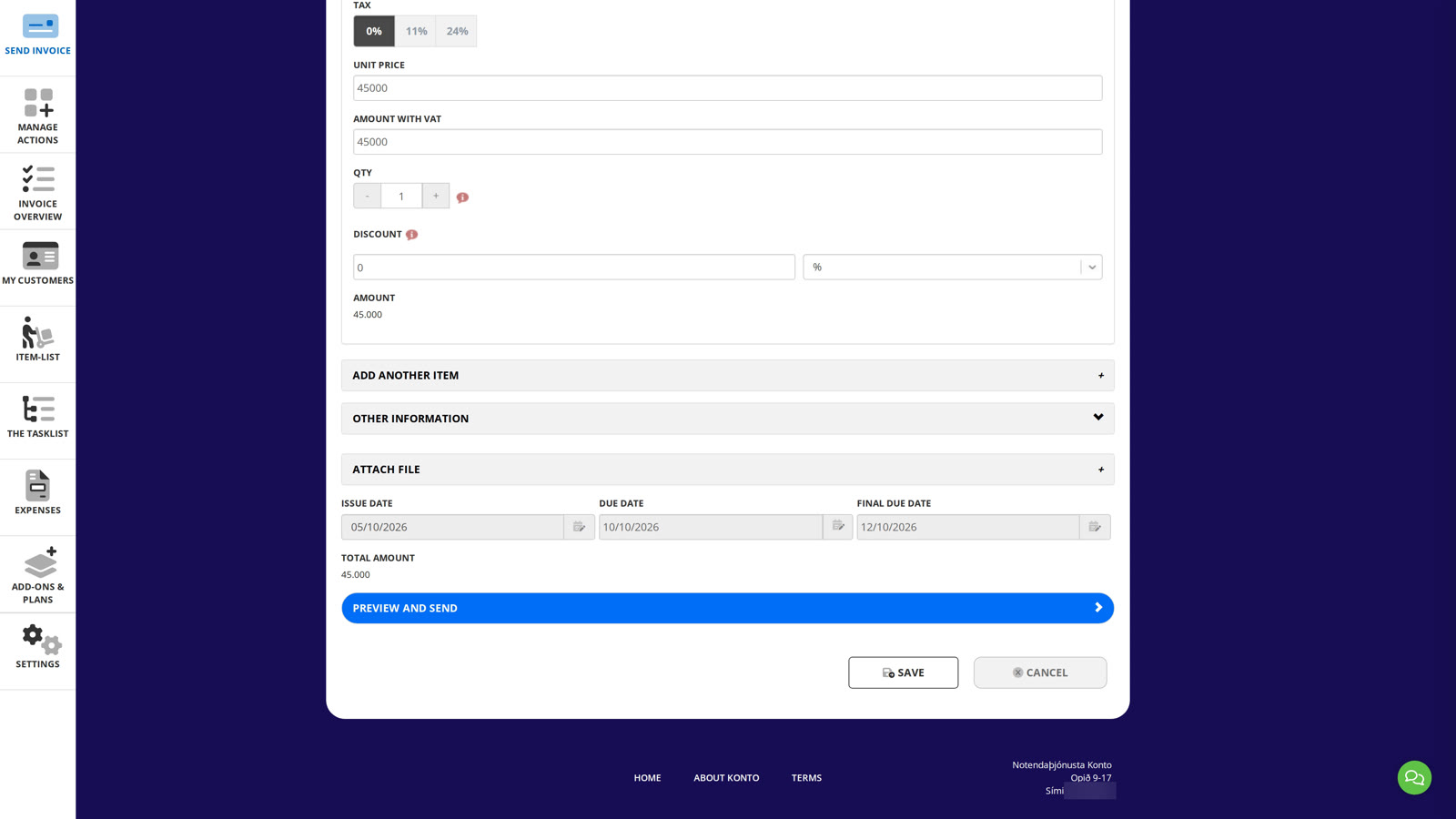
Send the invoice with a claim to online banking
The invoice is already filled in with the customer's details and lines from the project. Check that everything is correct — amount, due date and final due date — before sending.
The project number is automatically attached to the invoice as a reference for the customer's bookkeeping. When everything looks right, click „Preview and send”.
- 10
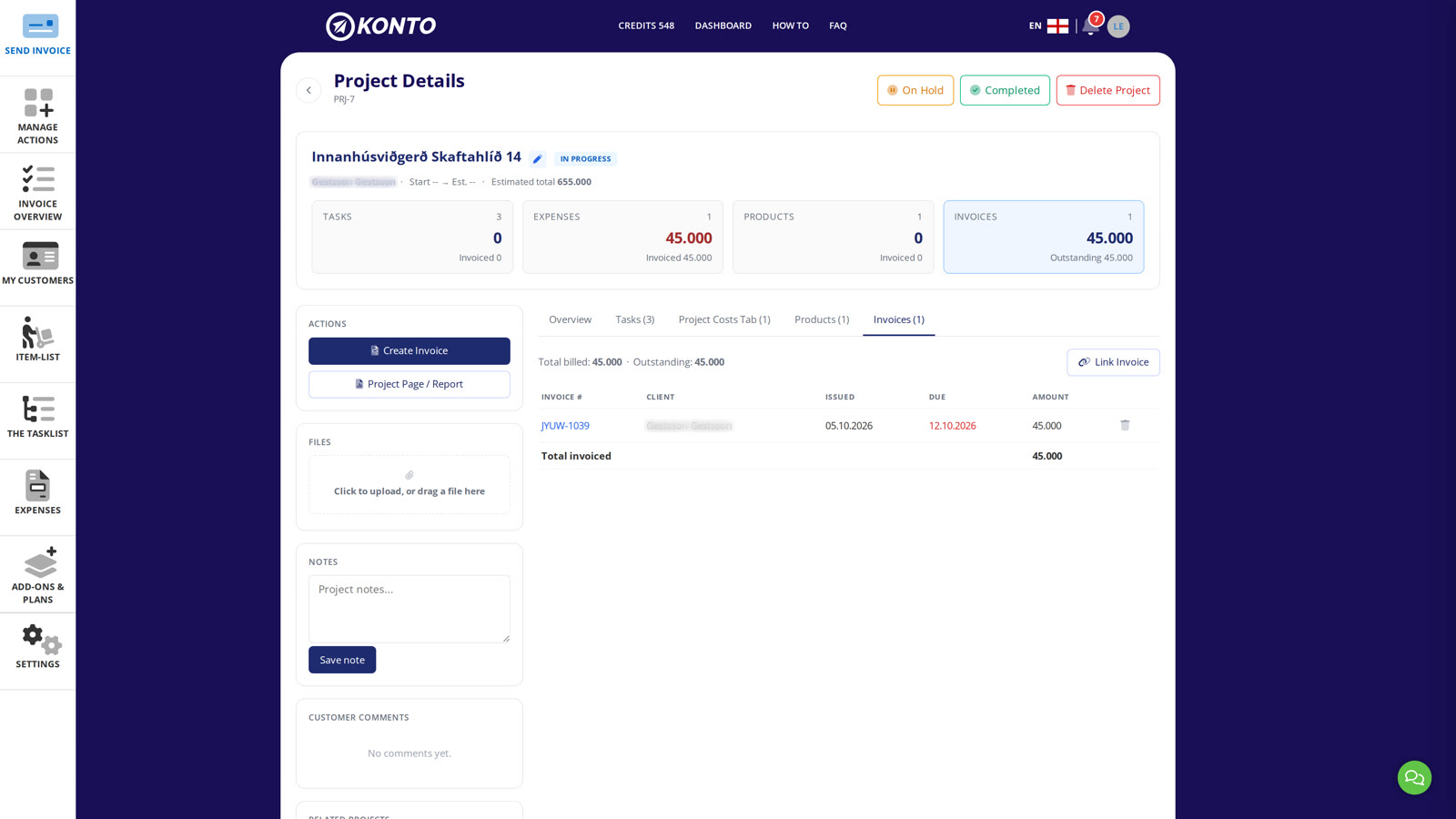
The “Invoices” tab: payment status and project status changes
The invoice now appears on the „Invoices” tab along with its payment status.
You can change the status of the project in Konto directly here to „On Hold” or „Completed”. You can also delete the project by selecting „Delete Project”.
Files, notes and the project activity timeline are also accessible on the project page. Up next: part 4 — project page and report for the customer and part 5 — extra users in Tasklistinn.


Tips
The project number is automatically added to the invoice
When you create an invoice from a project in Konto, the system automatically adds the project number as a reference. The customer can use it to match the invoice to the project in their own bookkeeping.
Two ways to link a cost to a project in Konto
You can link a cost to a project in two ways: (1) In Cost Recording when approving a new record — select the project in "Link to project…" before approving. (2) On the "Costs" tab of the project page by clicking "New cost" and selecting "Link cost record", if the record has already been approved. You can also add a cost line directly to the project by selecting "Manual cost" under "New cost" on the same tab.
The Projects add-on is available on the Vöxtur plan
The Projects add-on is available on the Vöxtur plan (and Pro). Everyone with the Projects add-on automatically gets access to Tasklistinn. Tasklistinn is also available as a standalone add-on on the Sprotar plan, without Projects.
Common questions
What is the difference between tasks and product lines on a project in Konto?
The project scope consists of service and product lines defined when the project is created. Tasks are individual work items in Tasklistinn that can be linked to the project and carry logged hours. Both types appear on the "Tasks" tab of the project page.
Does Tasklistinn come with the Projects add-on?
Yes — everyone with the Projects add-on automatically gets access to Tasklistinn. Tasklistinn is also available as a standalone add-on on the Sprotar plan, without Projects.
Can I link a cost to a project after the record has been approved?
Yes. On the "Costs" tab of the project page, click "New cost" and select "Link cost record" to link already-approved records. If the record is still in New status, it is easier to link it in the "Link to project…" field before approving — it then goes directly to the Costs tab.
Can I invoice part of a project and send further invoices later?
Yes. When you click "Create a new invoice from this project" you choose which lines to include on the invoice. Lines you leave out remain available for invoicing in later invoices.
How does the project number reach the invoice?
Konto automatically inserts the project number as a reference when you create an invoice directly from the project details. The customer sees this reference on the received invoice and can use it to track the payment in their bookkeeping.
Can I change the project status on the project page?
Yes. On the "Invoices" tab of the project page you can set the status to "On Hold" or "Completed". No separate settings are needed — the change is made directly on the project page.
Questions? support@konto.is