
Record costs with AI on the web
Konto lets you record costs with AI on the web: upload a receipt or PDF invoice and let the system fill in the fields automatically. You set this up once in Settings → Record cost, review is straightforward and your bookkeeper can retrieve approved records straight into the accounting system. This is part 1 of the series “Record costs like a pro” — see the other parts in the menu above.
- 1
Record costs with AI — open Settings
Log in at konto.is and select
Settingsin the left menu. On the Settings page you will see a list of „Active add-ons” — including „Inbox-feed - Add cost from emails” and „Auto cost registration (AI)” if they are included in your plan (Fræ or higher).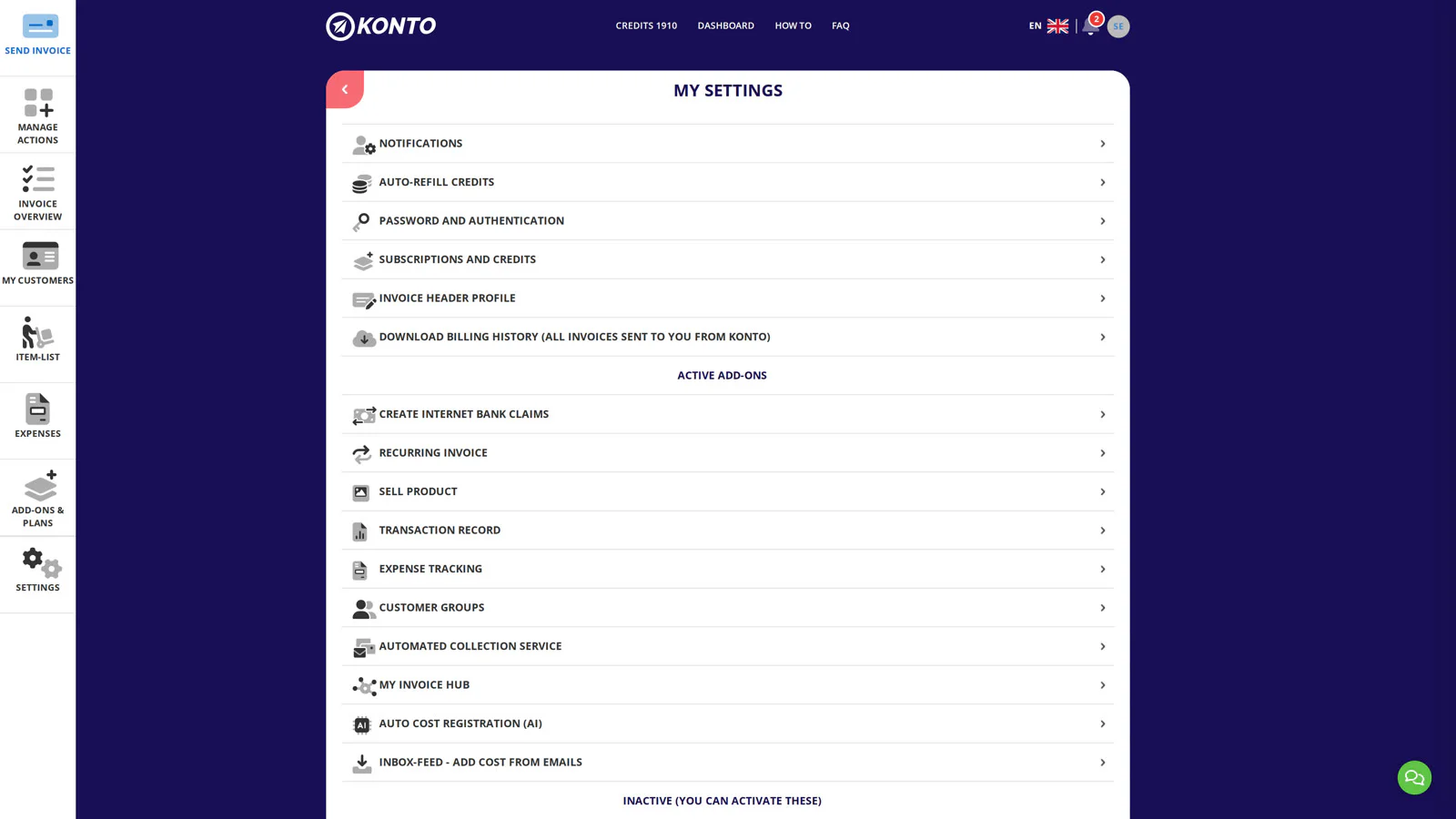
- 2
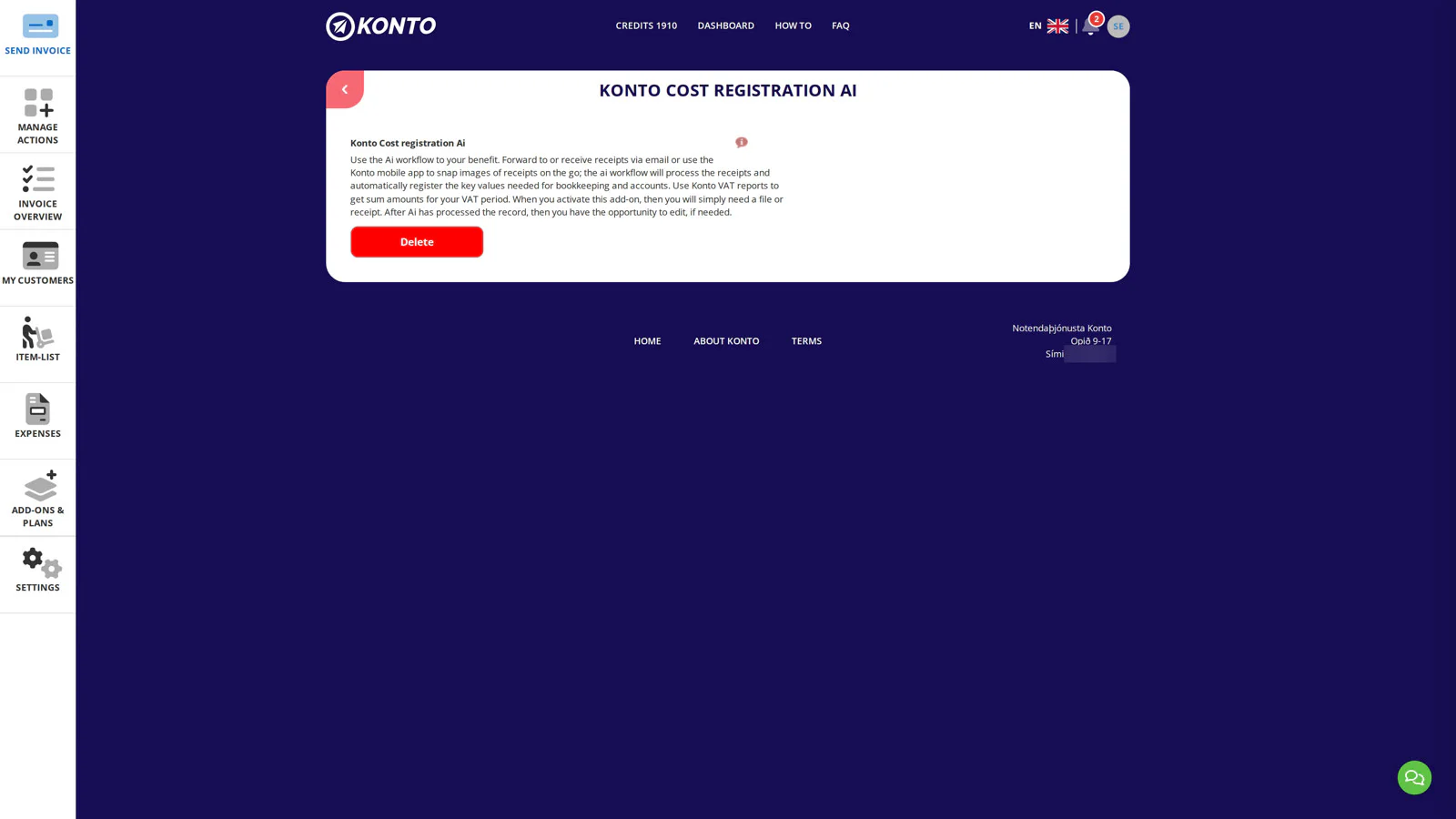
Enable automatic AI cost registration
Check whether „Konto Cost registration Ai” is active on your account. If the add-on page shows a „Delete” button, it is already active. If it is not yet active, turn it on — this is required for the AI to read data from the documents you upload. Then click „Settings” in the left menu to continue.
- 3
Select “Record cost” in the Settings menu
In the Settings menu, find and click
Record costto open the cost-registration settings, where you choose how new records are handled. - 4
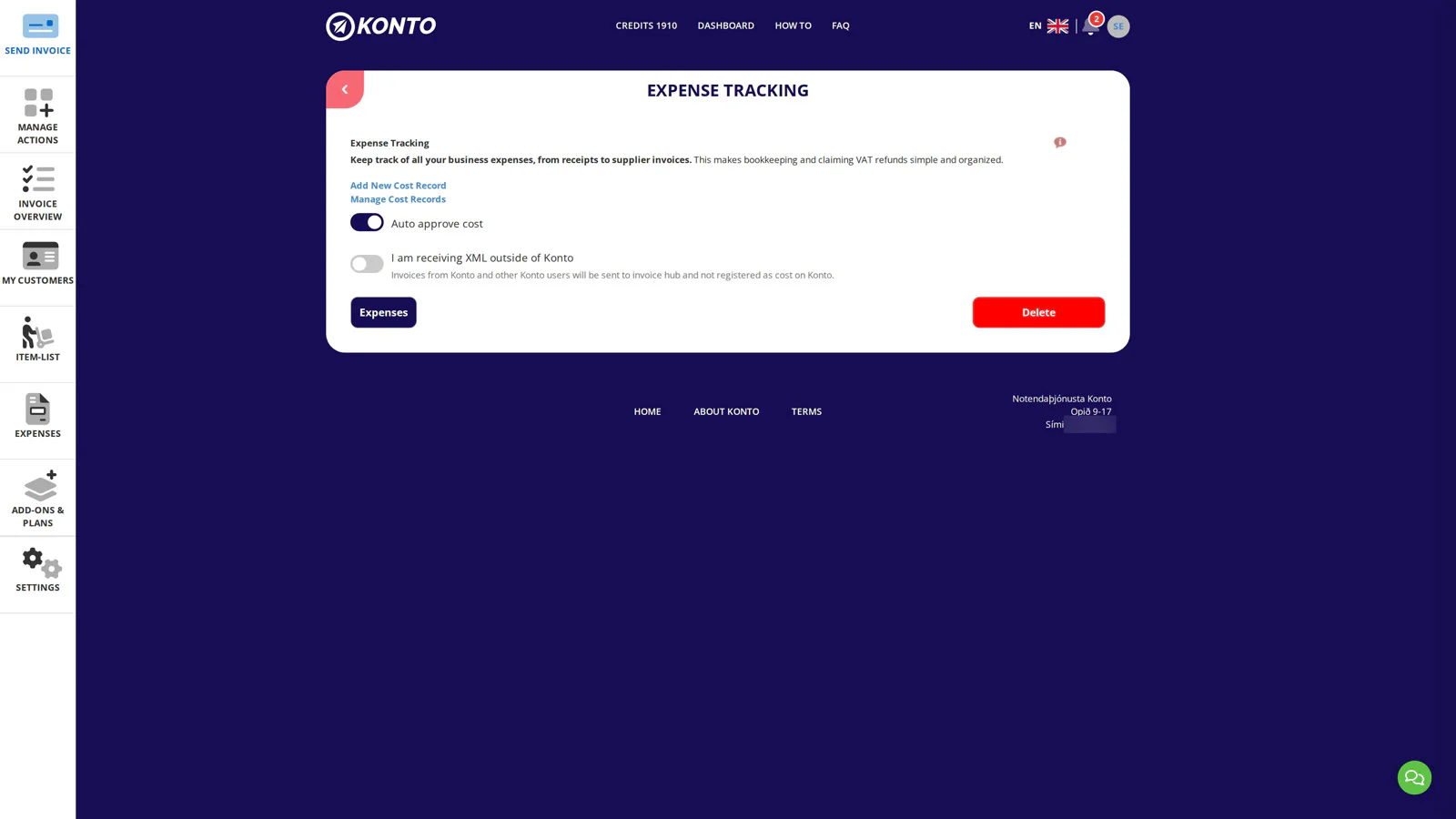
Set whether new cost records are approved automatically
Choose your approval setting:
- „Auto approve cost” — new records go straight to processing. Best if you trust the AI and want to minimise manual work.
- Manual approval — turn off „Auto approve cost” so new records wait for your review before your bookkeeper can retrieve them.
Are you a bookkeeper? See the dedicated guide on these settings from a bookkeeper's perspective.
- 5
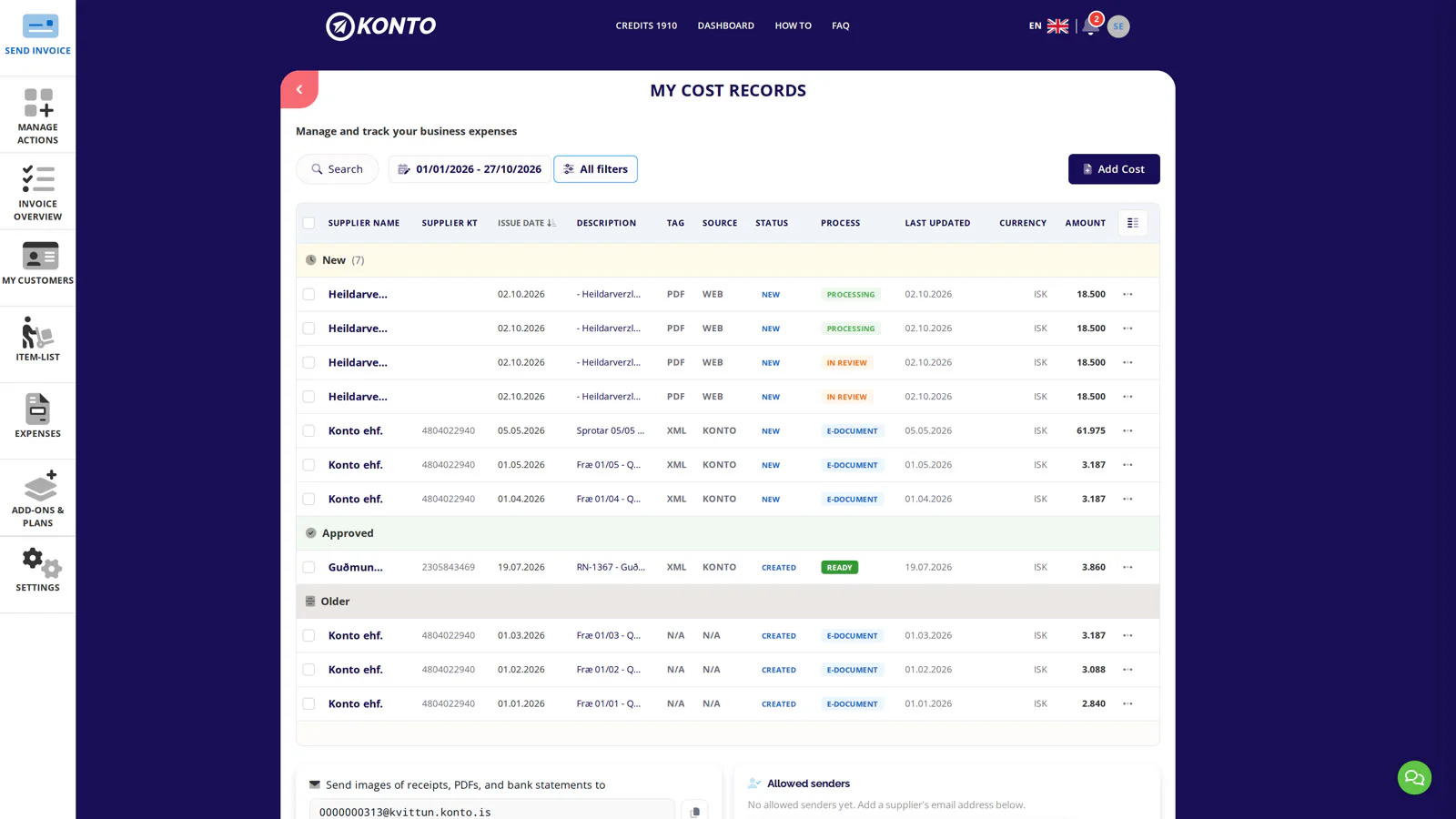
Go to Expenses and click "Add Cost"
Go to
Expensesin the left menu. The list page shows all your cost records grouped by status such as "New", "Approved" and "Older".At the bottom of the page you will find the "Allowed senders" box — add supplier email addresses that are permitted to send receipts automatically to your receipt inbox at kennitala@kvittun.konto.is. Add a supplier's address before uploading your first receipt if you use the email route.
Then click "Add Cost" in the top right of the page to open a new cost record.
- 6
Record costs with AI: upload, review and approve
On the upload page, drag your file onto the marked area or click to select a file from your device. Supported formats: JPG, JPEG, PNG and PDF. The AI fills in the fields automatically — supplier, amount, VAT and date — review each field, correct if needed, and save the record.
If the record gets the status Incomplete: a popup opens listing exactly which fields the AI could not read with sufficient confidence. Click „Fix the record”, correct the highlighted fields and save again — if everything is correct the record automatically leaves Incomplete status. If something is still unresolved, error messages appear directly next to the fields but the popup does not reappear.
If you chose manual approval in step 4: click „Approve” next to the record in the
Costslist — it is then ready and your bookkeeper can retrieve it. See how a bookkeeper retrieves approved cost records in dk.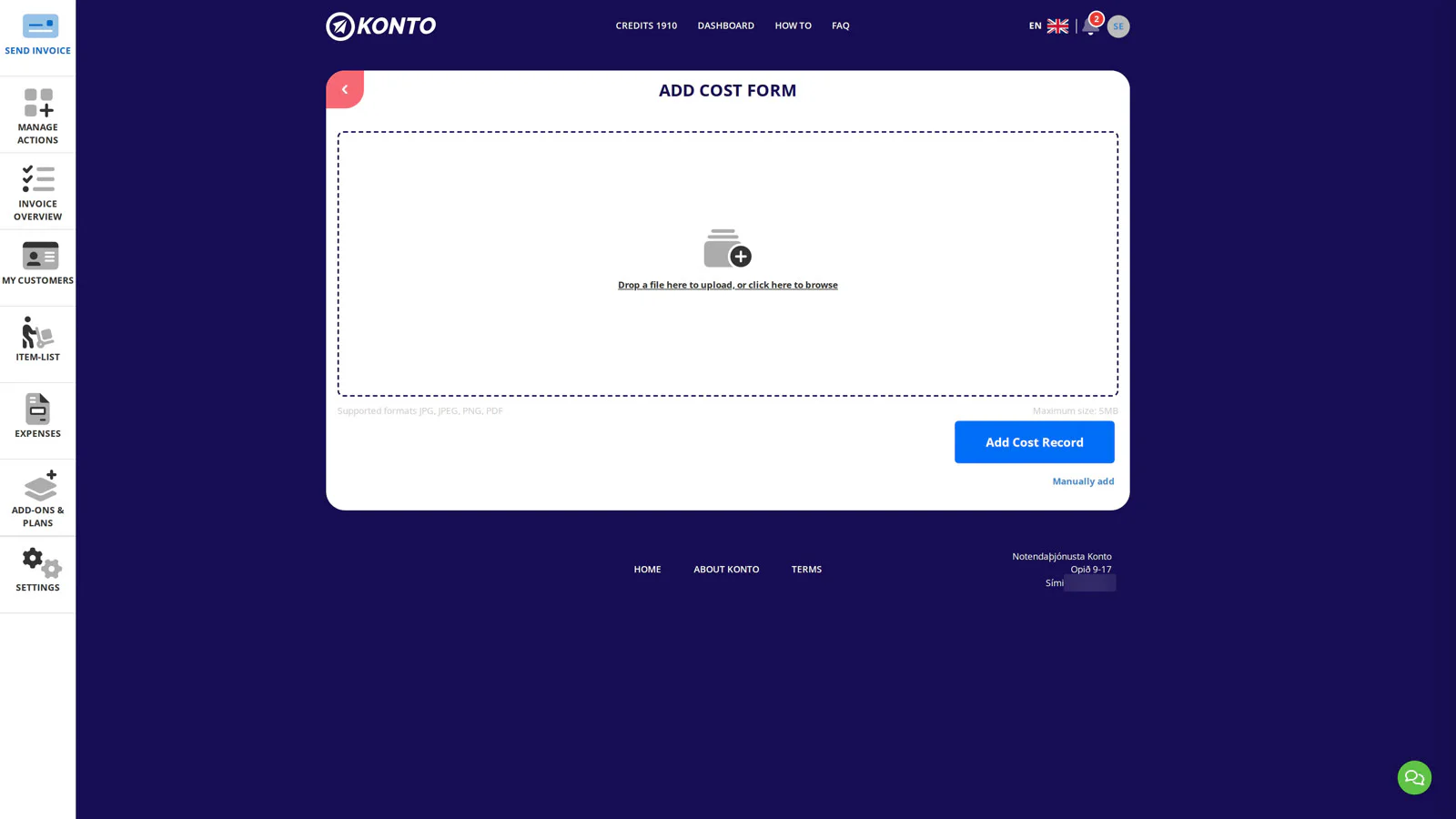


- 1
Open Settings to log expenses with AI
Log in to the Konto app and tap
Settingsin the menu. On the Settings page you will see a list of active add-ons — including „Auto cost registration (AI)” if the add-on is already active on your subscription plan (Seed or higher). Tap it to open its settings.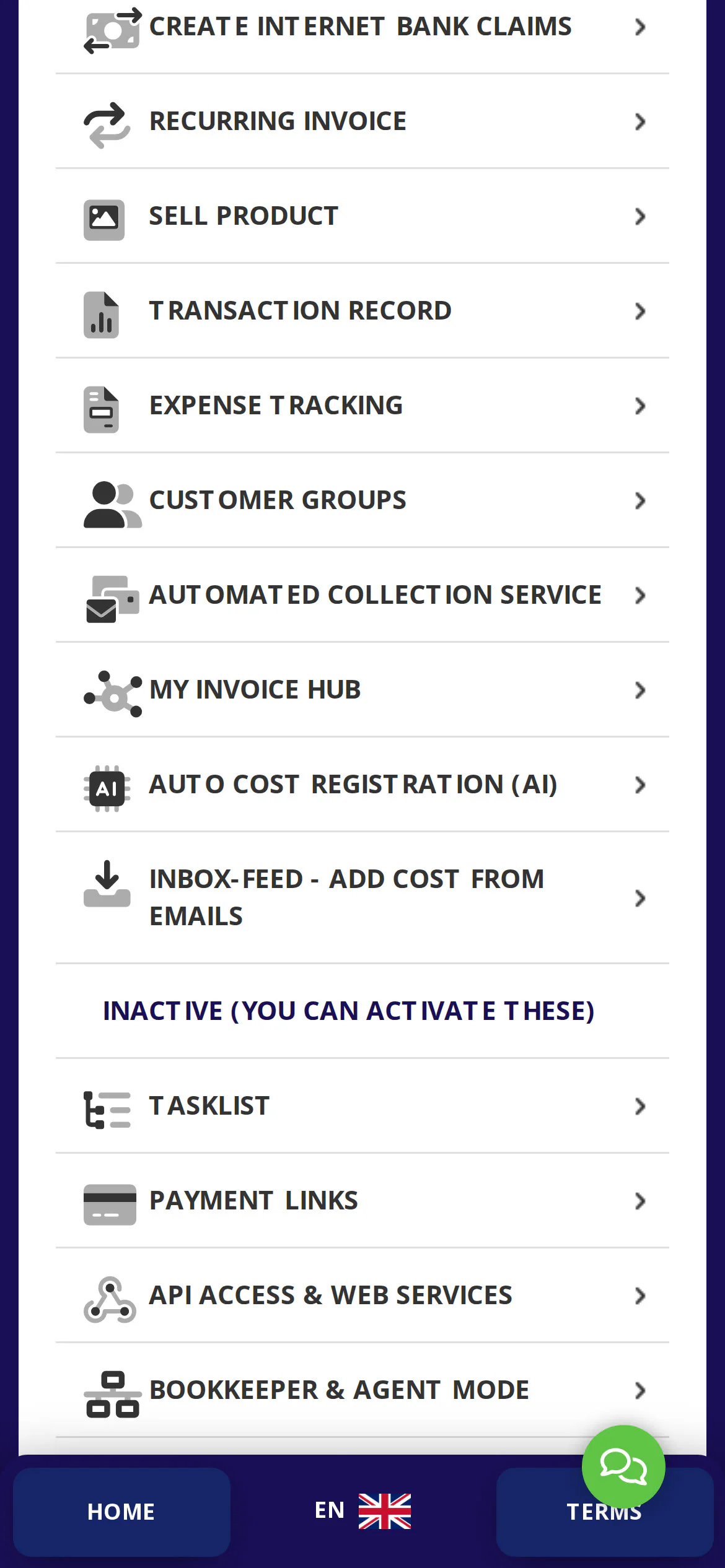
- 2
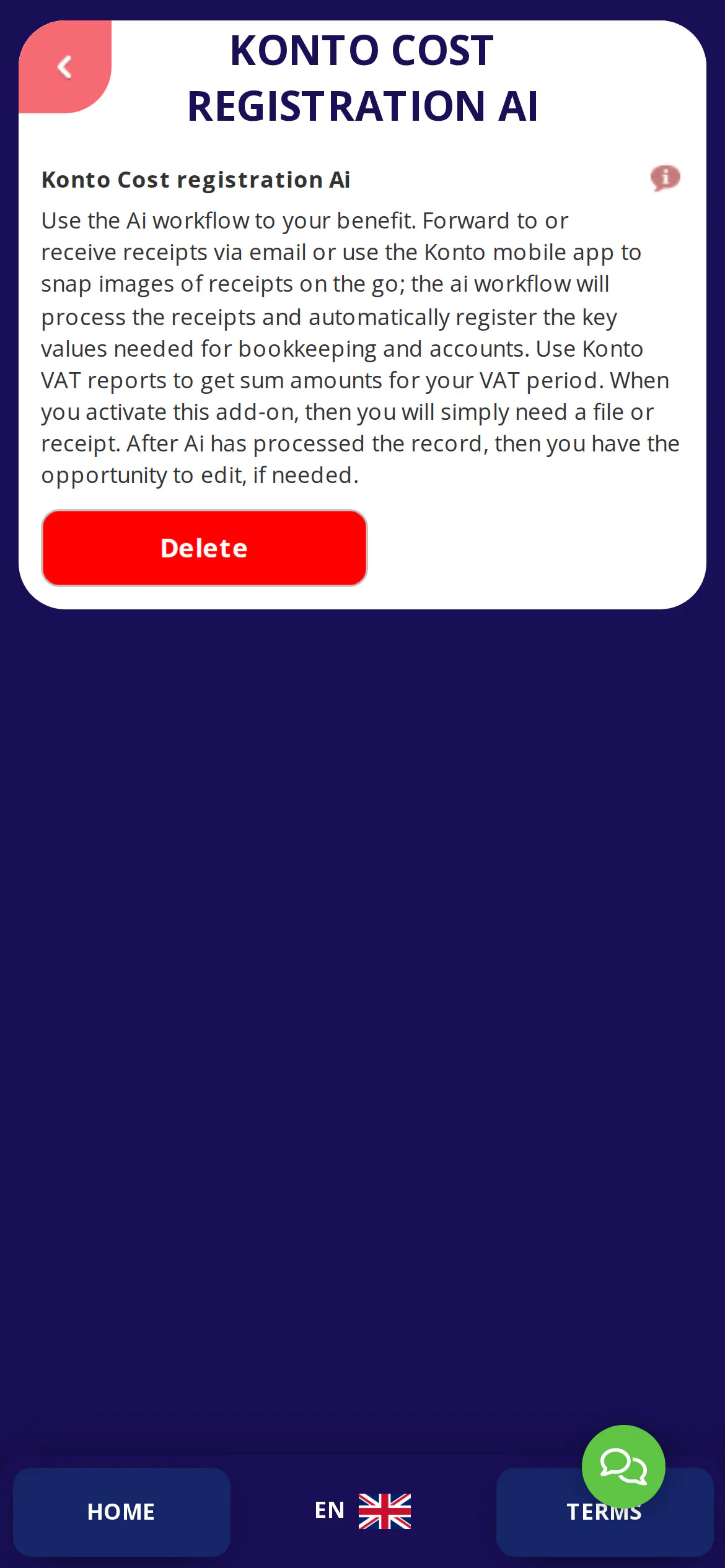
Enable automatic expense logging
On this page you will see information about „Konto Cost registration Ai”. Turn on the toggle if it is not already on — the AI will then automatically read data from documents you upload.
Are you an accountant? See dedicated instructions for these settings from the accountant's perspective.
- 3
Go to expense logging settings
Go to
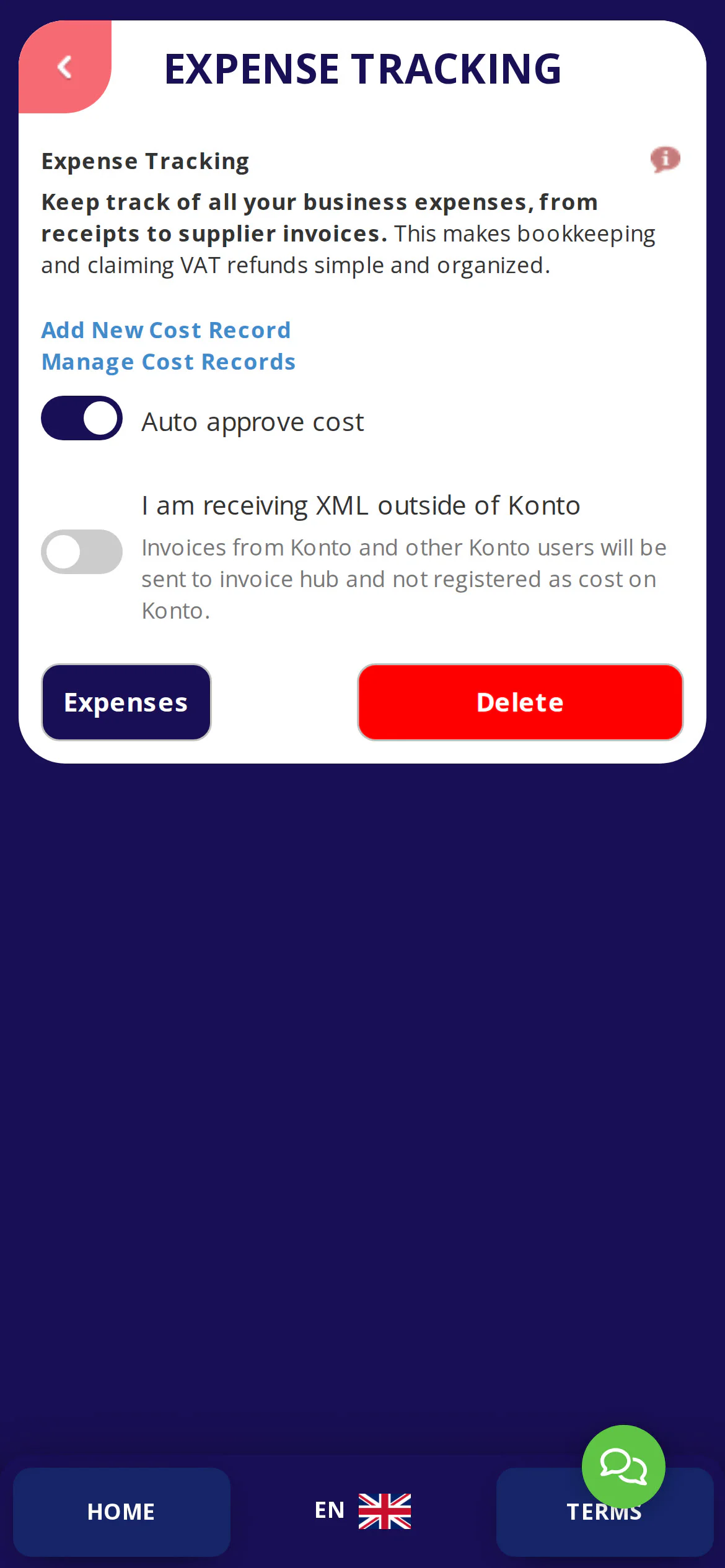
Settings → Expense trackingto open the expense logging settings. Here you can configure how new expense entries are handled before they are sent to your accountant.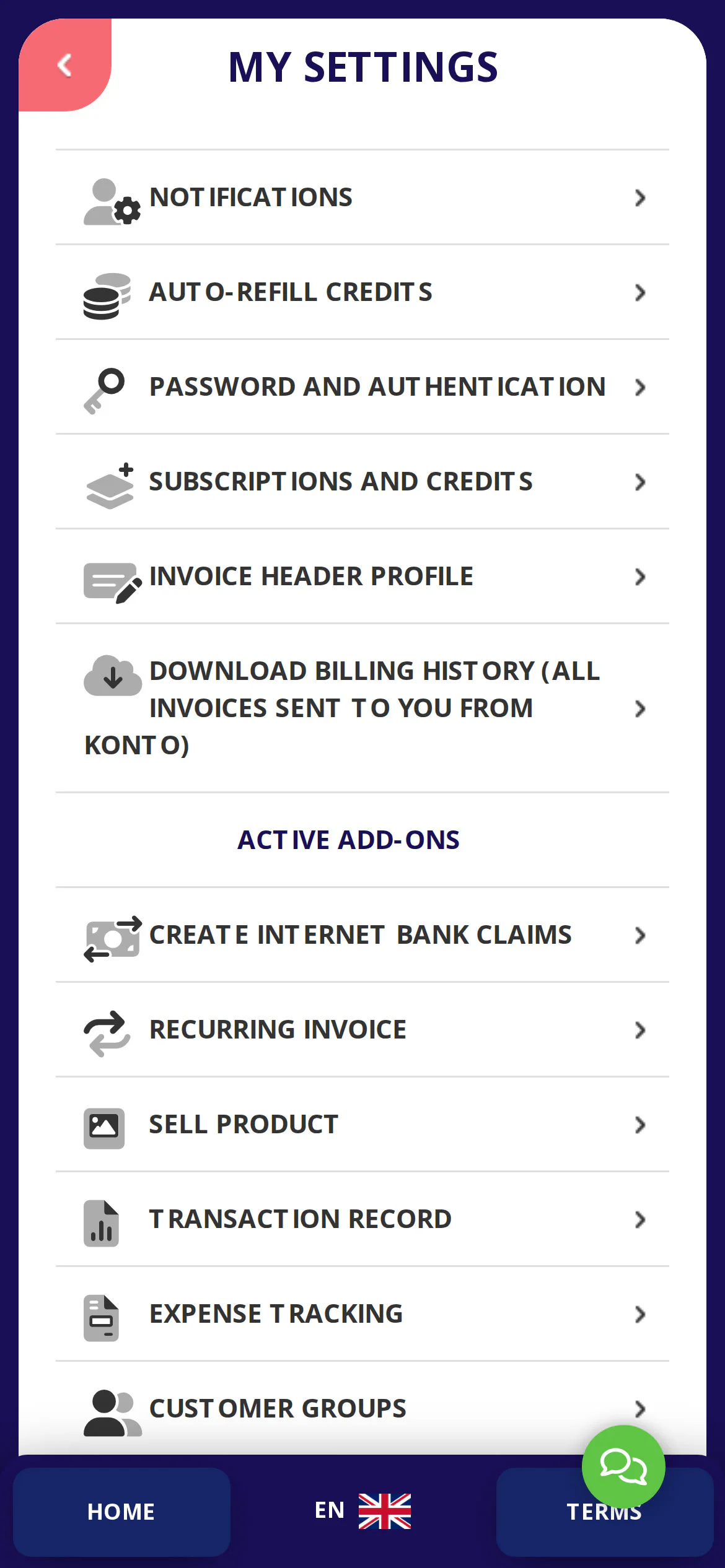
- 4
Choose whether new entries are approved automatically
On this page you configure „Auto approve cost”. Choose an approval setting:
- Automatic approval — new entries go directly into processing. Suitable if you trust the AI reading and want to minimise manual work.
- Manual approval — new entries wait for your review before your accountant can retrieve them. Suitable if you want to review each entry before it is sent to your accountant.
Are you an accountant? See dedicated instructions for these settings from the accountant's perspective.
- 5
Upload a receipt or invoice
Go to
Costs → Cost entriesand tap „Log expense” to add a new entry. Tap the upload area to select a file from your phone. The accepted file formats are JPG, JPEG, PNG and PDF. The AI starts processing the document as soon as it is uploaded — you do not need to enter the data manually.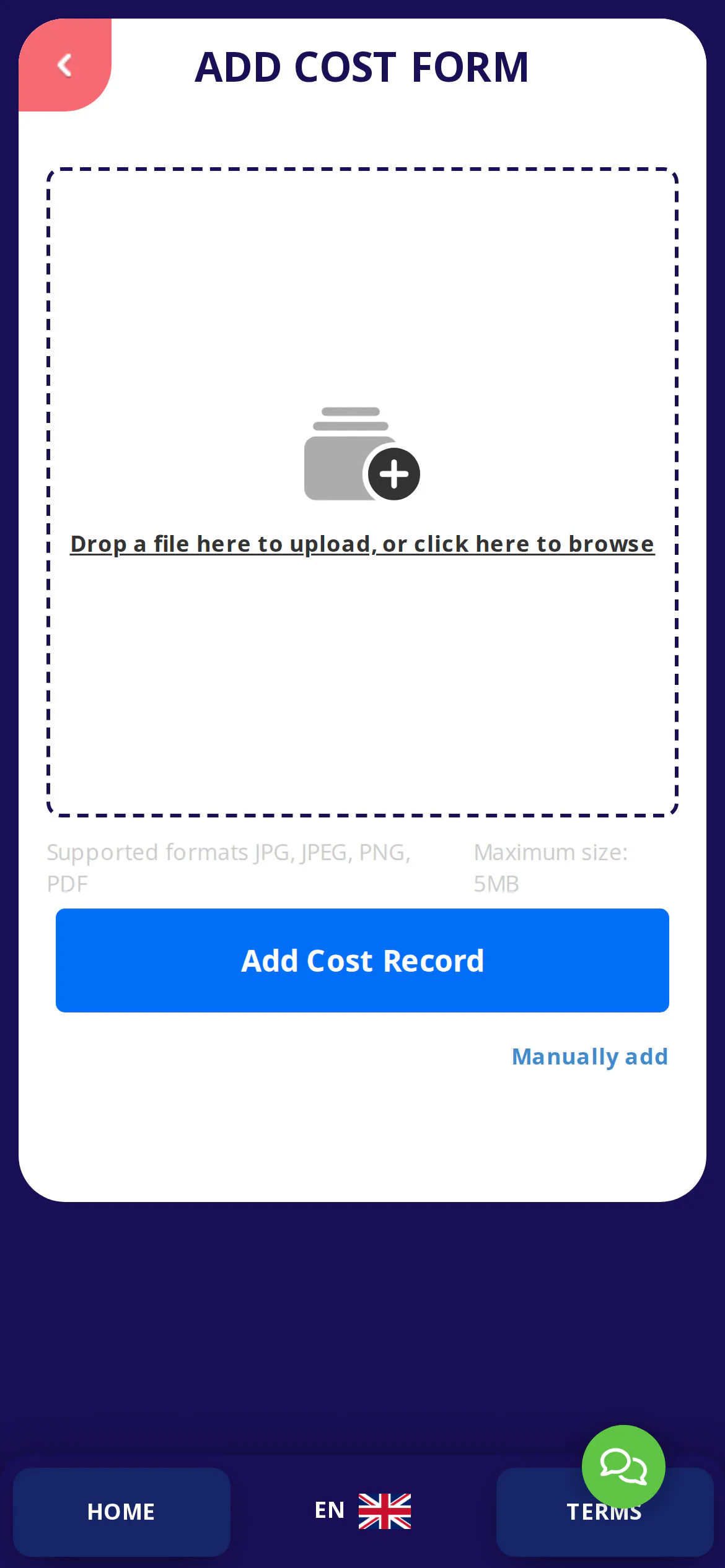
- 6
Review the data filled in by the AI
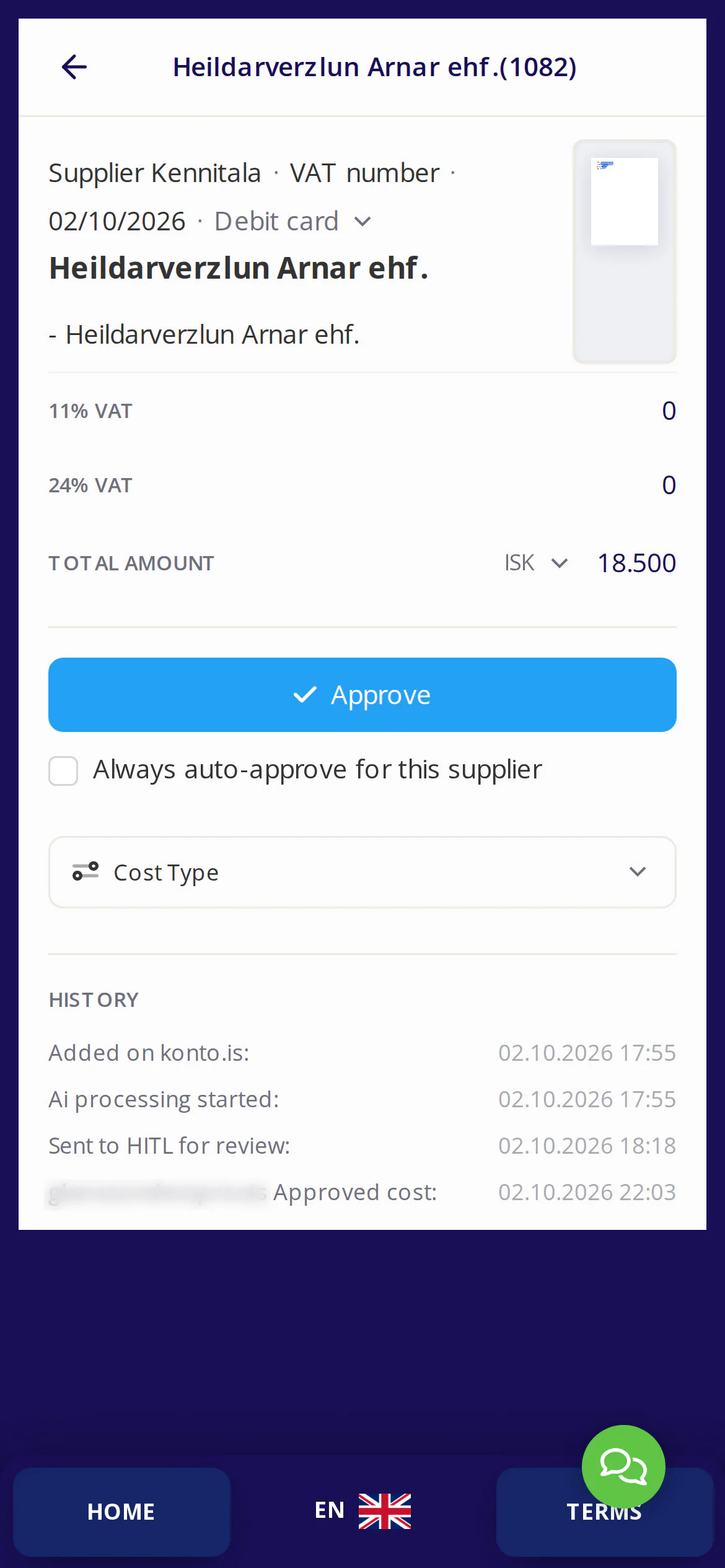
The AI automatically fills in the fields: vendor, amount, VAT and date. The entry appears with the status „New”. Tap the fields to correct anything that is wrong.
If the entry gets the status Incomplete you will see exactly which fields the AI could not read with sufficient confidence. Tap „Fix entry”, correct the highlighted fields and save again — if everything is correct the entry will automatically leave the Incomplete status.
- 7
Approve the expense entry
If you chose manual approval in step 4, you will see „Approve” on the entry. Tap „Approve” — the status changes and the entry is ready for your accountant to retrieve.
If you chose automatic approval, the entry goes directly into processing without any further action. See how an accountant retrieves approved expense entries in dk.


Tips
Record costs with AI on your phone
The Konto app lets you record costs with AI directly on your phone — take a photo of the receipt on the spot. See guide 4 of 4 in this series.
Get receipts sent automatically
You can forward receipts and invoices to kennitala@kvittun.konto.is and they go straight into cost registration. See guide 2 of 4 in this series.
Receive XML invoices for free
If your suppliers can send XML invoices, they can deliver them directly into Konto without you having to upload anything manually. See guide 3 of 4 in this series.
Common questions
Do I need a specific plan to record costs with AI?
Yes. Cost registration is included in the Fræ, Sprotar, Vöxtur and Sérlausnir plans. It is not available on the free Grunnur plan.
Which file formats can I upload?
You can upload PDF files and images in JPG, JPEG or PNG format. Make sure the document is well-lit and clearly legible — this makes it more likely that the AI reads the data correctly on the first attempt.
What happens if the AI reads the receipt incorrectly?
You can correct all fields manually before saving. If the AI is unsure about a field, the record gets the status Incomplete and a popup appears specifying exactly which fields need attention. Click “Fix the record”, correct them and save again.
What does “Allowed senders” at the bottom of the cost list mean?
There you add email addresses that are permitted to send receipts and invoices automatically to your cost inbox. Receipts arriving from addresses not on the list are not registered automatically.
Can I change the approval setting later?
Yes, you can switch between automatic and manual approval at any time under Settings → Record cost.
How does my bookkeeper retrieve the cost records?
Your bookkeeper can retrieve approved cost records directly in dk. See the guide on how a bookkeeper retrieves cost registrations in dk for details.
Can I use this feature on my phone?
Yes. The Konto app supports AI cost registration directly on your phone. See guide 4 of 4 in this series on how to download and use the app.
Questions? support@konto.is