
WooCommerce credit notes in Konto — refunds done automatically
WooCommerce credit notes in Konto are fully automatic: when you refund an order in WooCommerce, the plugin creates a credit note referencing the original invoice — you don't need to do anything in Konto. Refunded items are also returned to their stock lots automatically. Make sure the Konto plugin is installed and connected following the setup guide before you start.
- 1
Enable WooCommerce credit notes in Konto
Go to
WooCommerce → Settings → Payments → Kontoand find the Refunds section. Make sure “Create a Konto credit note when an order is refunded” is ticked — the setting is on by default. Click “Save changes” to save.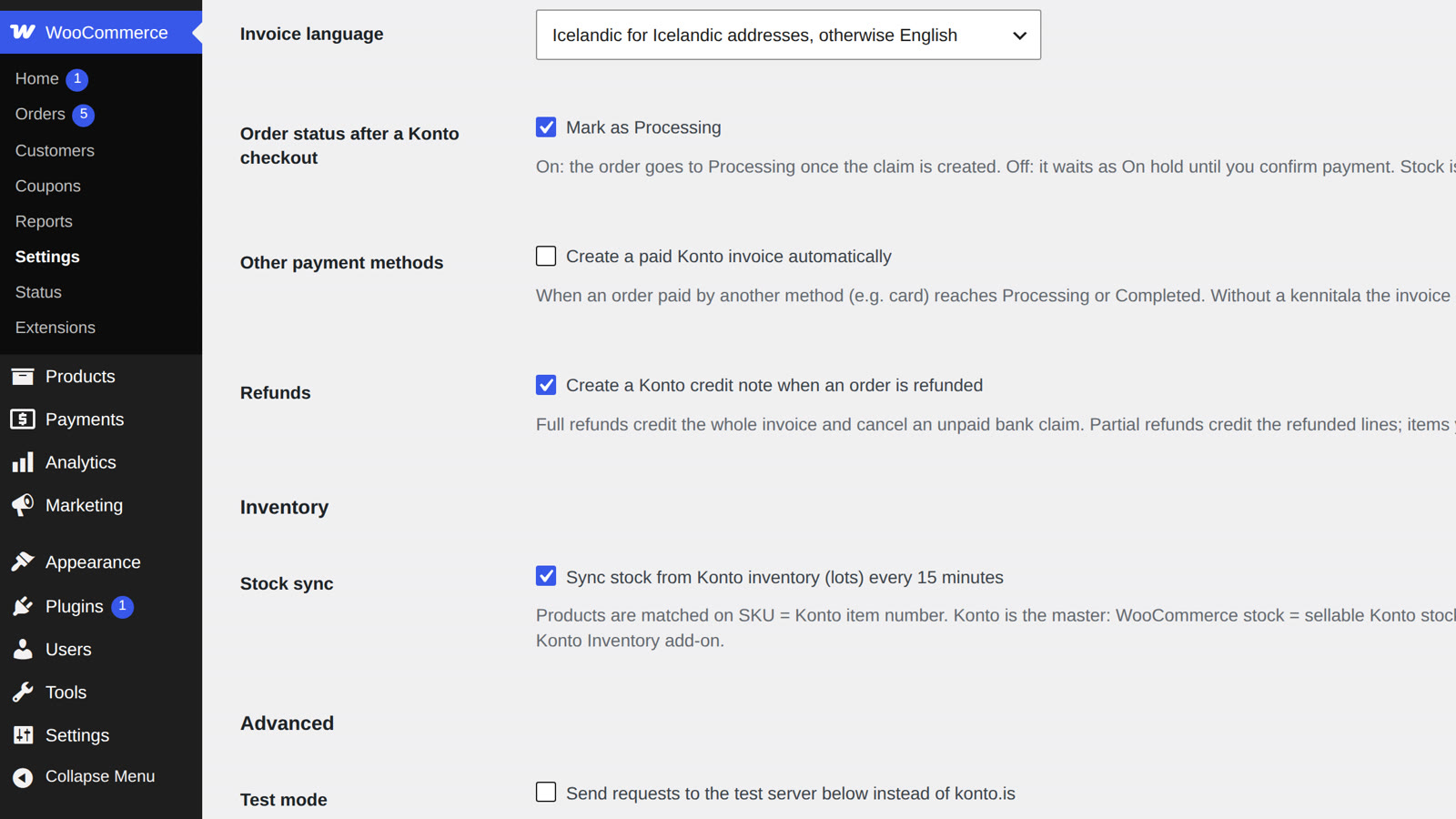
- 2
Refund the order in WooCommerce
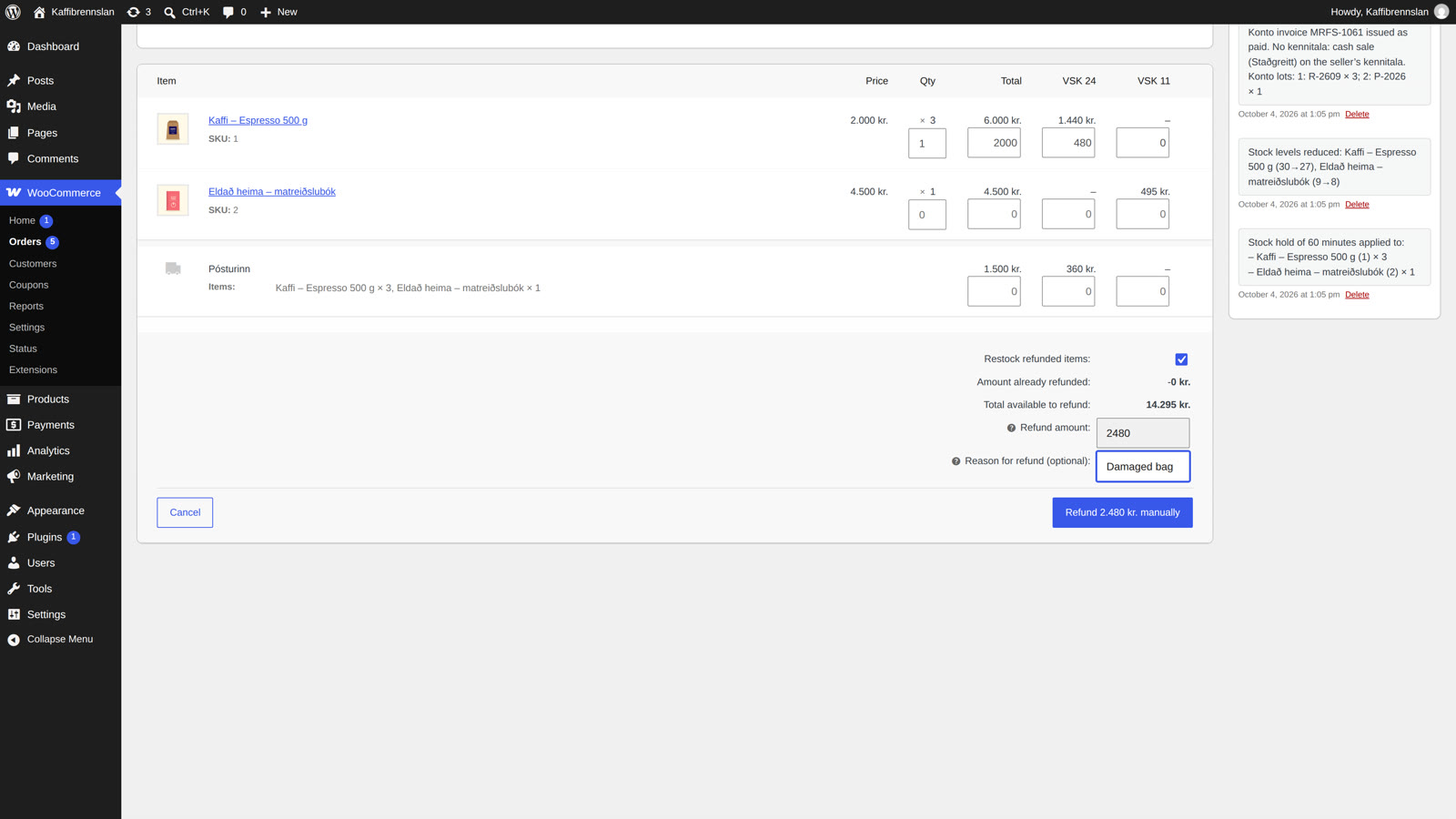
Open the order and click “Refund” at the bottom of the page. Enter a quantity (or amount) for each line you want to refund. Tick “Restock refunded items” if the goods are coming back into stock. You can enter a reason in the “Reason for refund” field. Finally, click “Refund [amount] manually” to complete the refund — if the order was paid through a payment gateway, use the gateway's own refund button instead.
- 3
Konto creates the credit note automatically
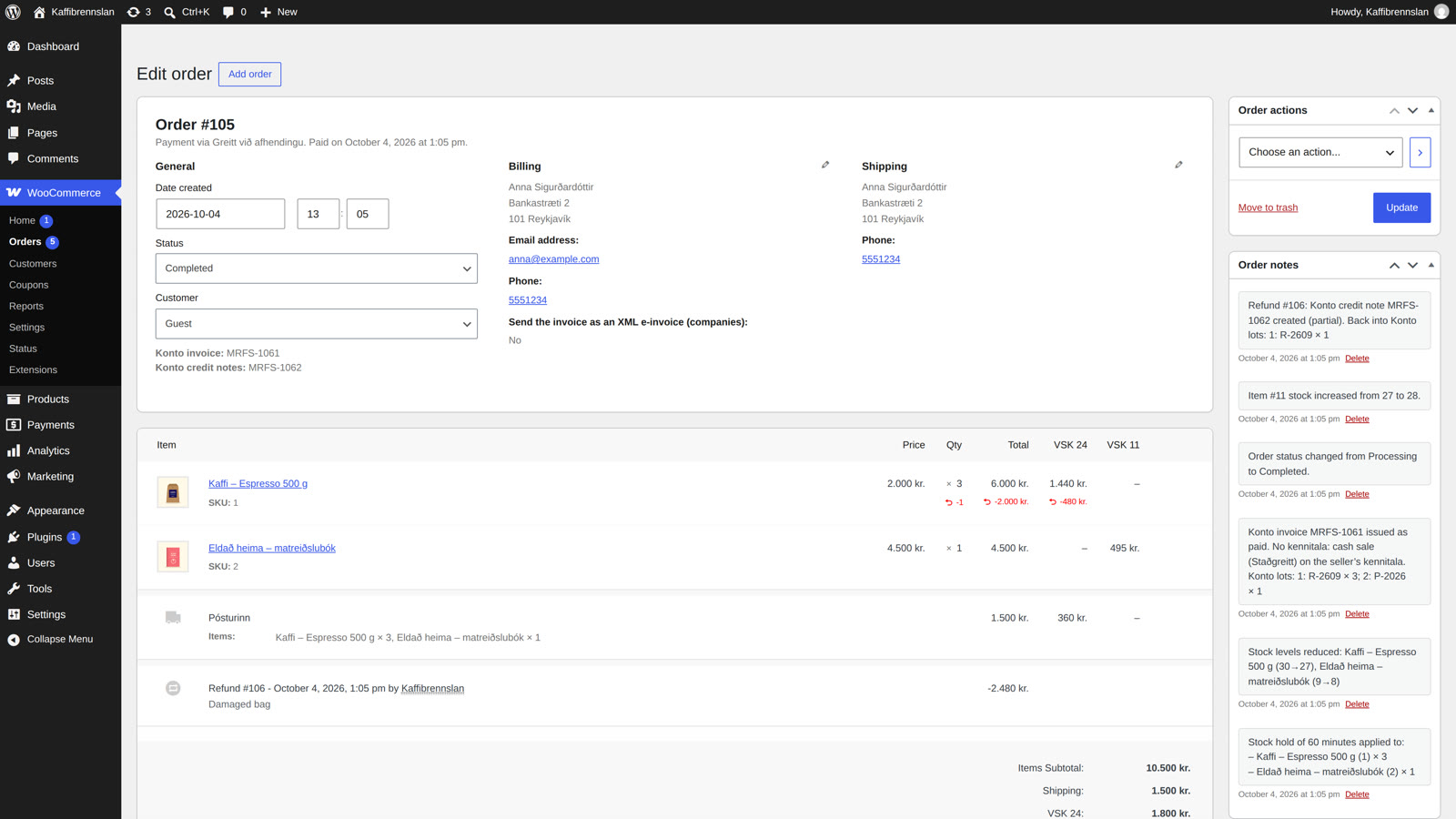
Once the refund is processed, a note appears on the order, for example: “Refund #106: Konto credit note MRFS-1062 created (partial). Back into Konto lots: 1: R-2609 × 1”. You can also see the credit note number under Konto credit notes in the order panel. The credit note automatically references the original invoice in Konto and all stock changes are recorded — there is nothing to do in Konto.
- 4
Create credit notes for older refunds
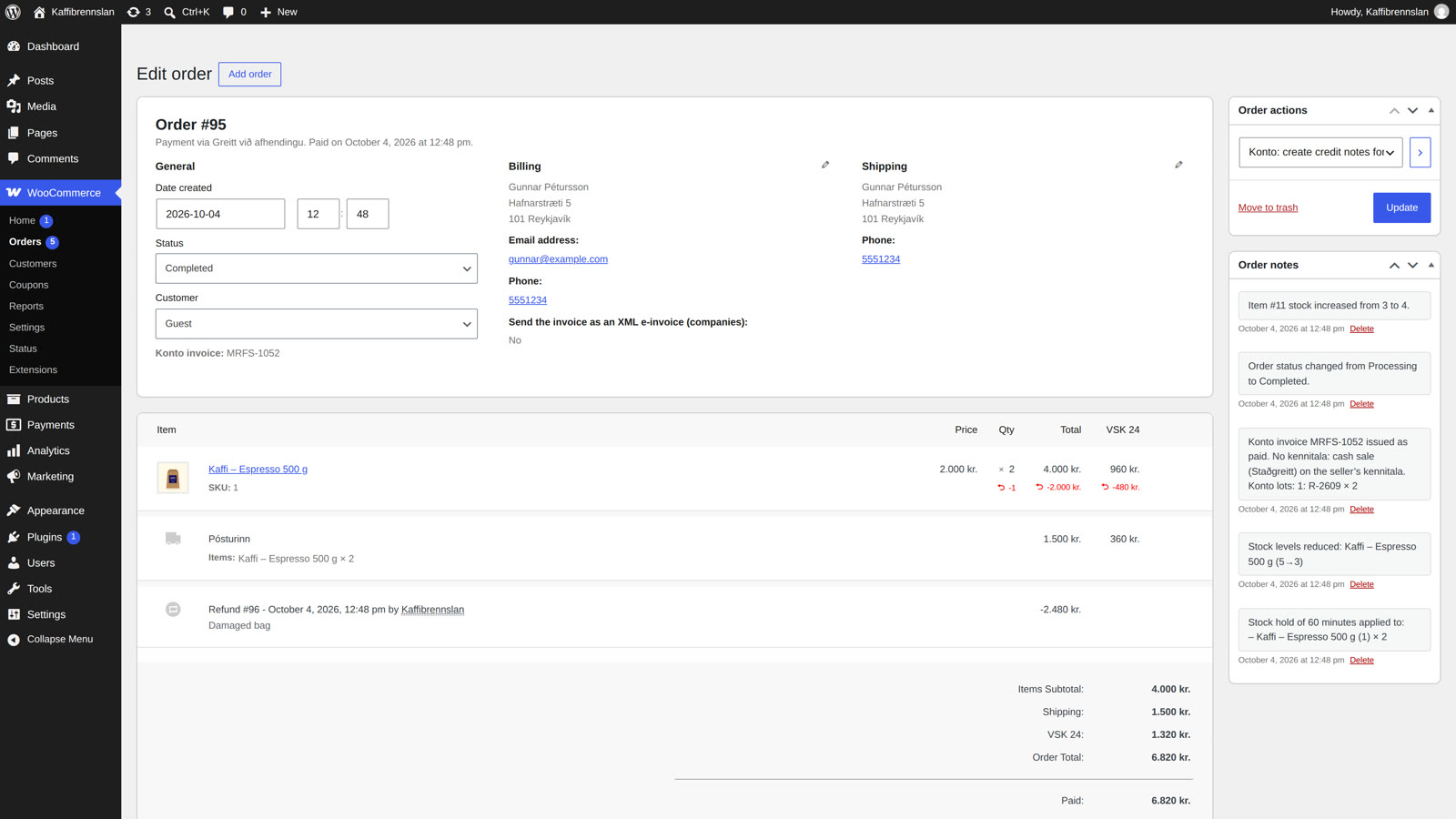
If a refund was made before the setting was enabled — or after resolving an unpaid-claim exception in Konto — you can create the credit note manually. Open the order, select “Konto: create credit notes for refunds” under Order actions and click the arrow (➜). Konto will create credit notes for every refund on the order that doesn't have one yet.


Tips
Unpaid bank claim — the credit note waits
If you make a partial refund on an order with an unpaid bank claim, the credit note is not created immediately — the plugin waits until Konto reports the invoice as paid, then creates it automatically (checked every 15 minutes). The order note will let you know. Need it sooner? Adjust or cancel the claim in Konto and then use “Konto: create credit notes for refunds” under “Order actions”.
Draft invoices don't get a credit note
If the Konto invoice on the order is still a draft when the refund is made, no credit note is created. Issue the invoice in Konto first and then use “Konto: create credit notes for refunds” on the order panel.
Common questions
Do I need to do anything in Konto when a WooCommerce credit note is created?
No — Konto handles everything automatically. The credit note appears in Konto referencing the original invoice. A full refund also automatically cancels any unpaid bank claim.
What is the difference between a full refund and a partial refund?
Full refund: the credit note credits the original invoice in full and any unpaid bank claim is cancelled automatically. Partial refund: only the refunded lines are credited; if a claim was issued it is updated to the remaining balance. If the refund is an amount only (not line items), Konto splits it across the order's VAT rates.
What if the bank claim is still unpaid when I refund?
If you partially refund an order with an unpaid bank claim, the credit note is not created immediately — the plugin waits until Konto reports the invoice as paid, then creates it automatically (checked every 15 minutes). The order note will let you know. Need it sooner? Adjust or cancel the claim in Konto and then use “Konto: create credit notes for refunds” under “Order actions”.
What happens to stock levels when I refund in WooCommerce?
If you tick “Restock refunded items” when refunding, the items automatically go back into their Konto lots. The order note confirms which lots they went into, e.g. “Back into Konto lots: 1: R-2609 × 1”.
Can I create a credit note for a refund made before I turned the setting on?
Yes. Open the order, select “Konto: create credit notes for refunds” under “Order actions” and click the arrow. Konto will create credit notes for every refund on the order that doesn't have one yet.
Does this work if the order was paid through a payment gateway?
Yes. Use the gateway's own refund button instead of “Refund … manually” so that the card refund goes through the gateway. Konto will still create the credit note automatically.
Questions? support@konto.is