
Konto WooCommerce setup: bank-claim payments
Konto WooCommerce setup takes two steps in Konto and three in WordPress. Once complete, Icelandic customers can select a bank-claim payment method at checkout, enter their kennitala and receive a claim directly in their online bank — Konto creates the invoice automatically and updates the order when payment is confirmed. This guide covers the connection and payment flow; stock levels and refunds and credit notes are covered in the other parts of the series.
- 1
Konto WooCommerce setup: open Web Services in Konto
Sign in to Konto and go to
Stillingar → Vefþjónusta. Under Virkar viðbætur (active add-ons), click "Api Access & Web Services" to open the connection page.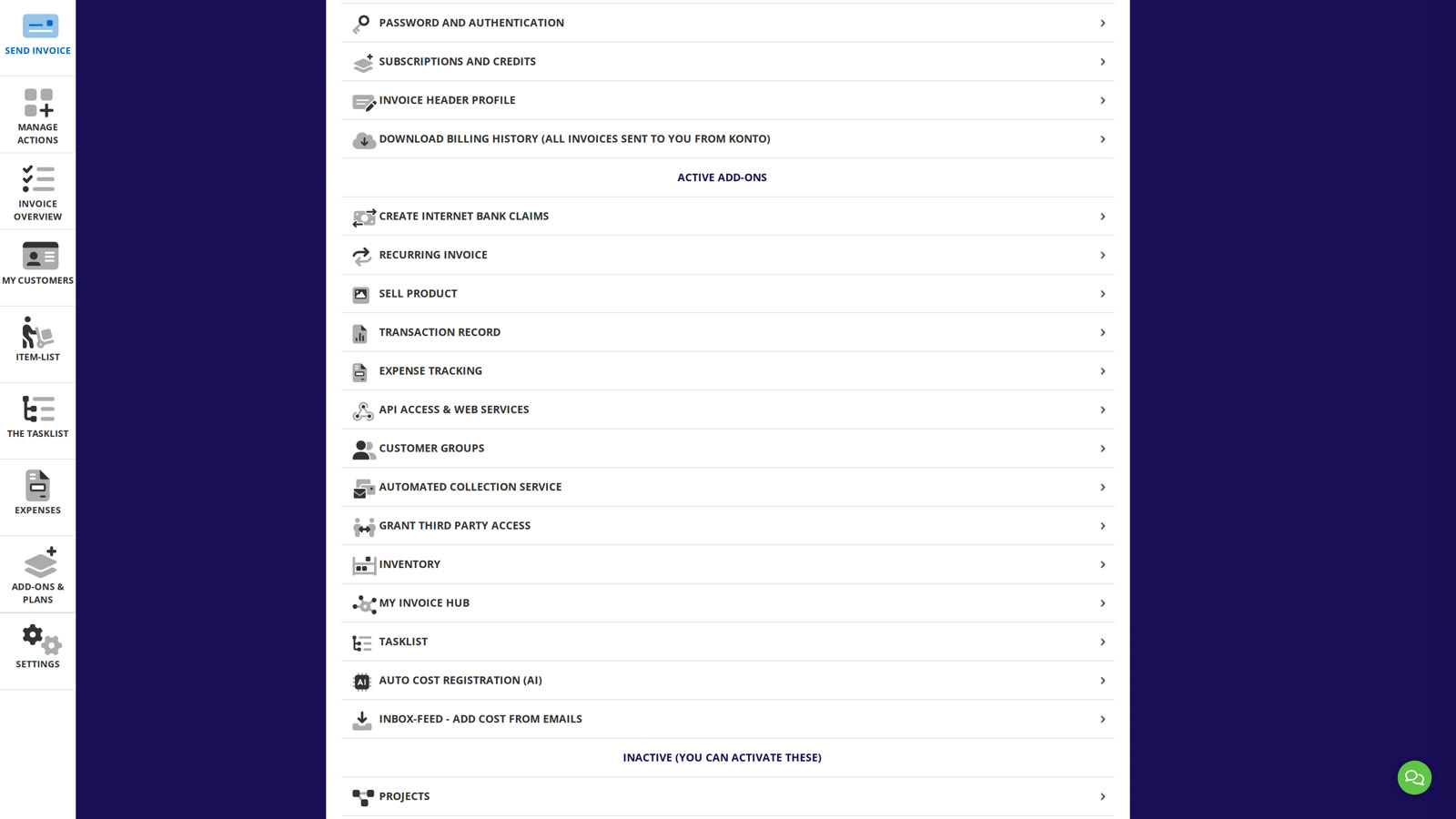
- 2
Copy your username and API key
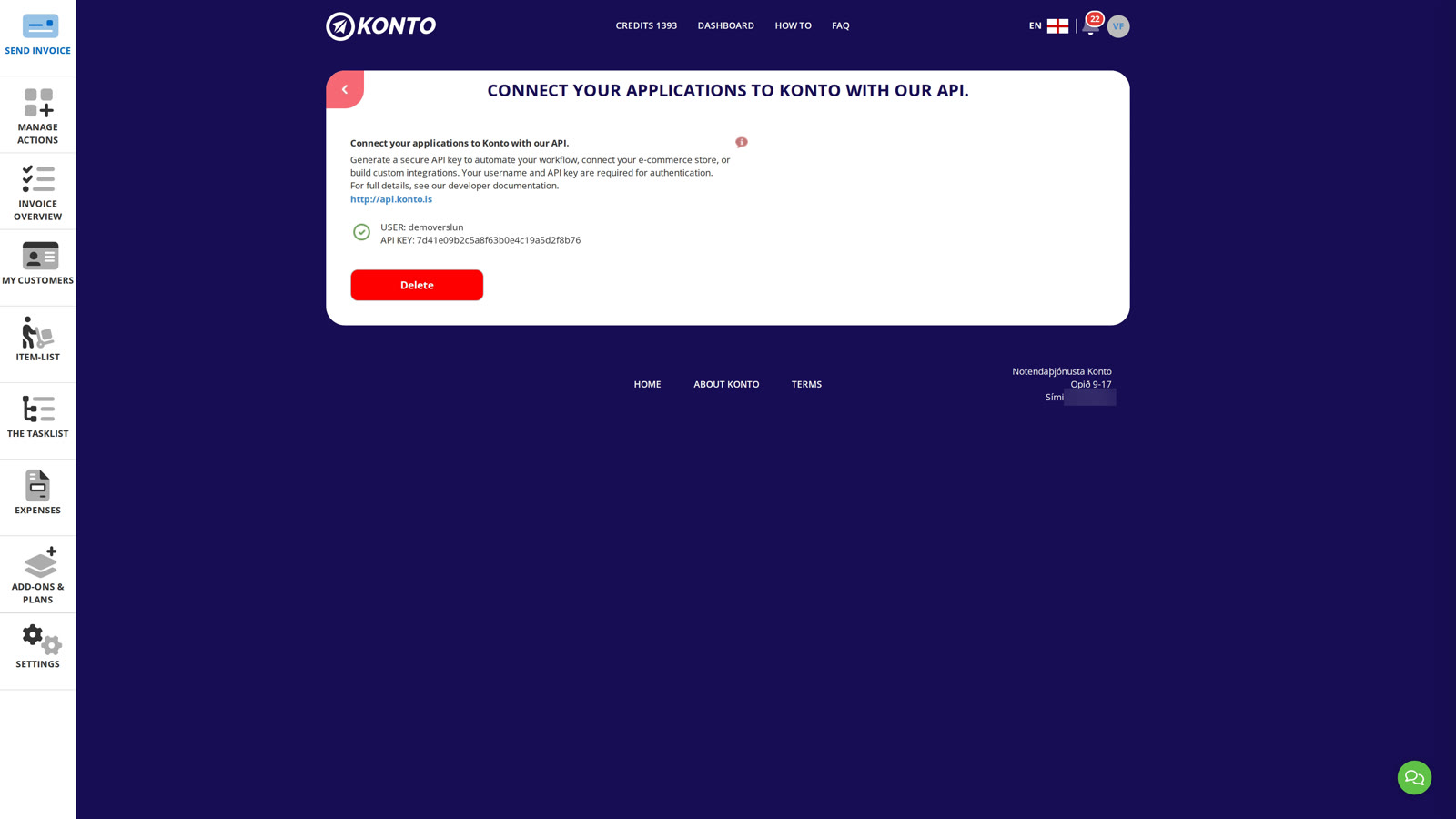
On the Web Services page you will see the USER (username) and API KEY fields. Copy both values — you will need them when configuring the payment plugin in WooCommerce.
- 3
Install the Konto plugin in WordPress
Go to
Plugins → Add New Pluginin your WordPress dashboard. Search for konto.is, find Konto Checkout for WooCommerce and click Install Now. Click Activate once installation is complete.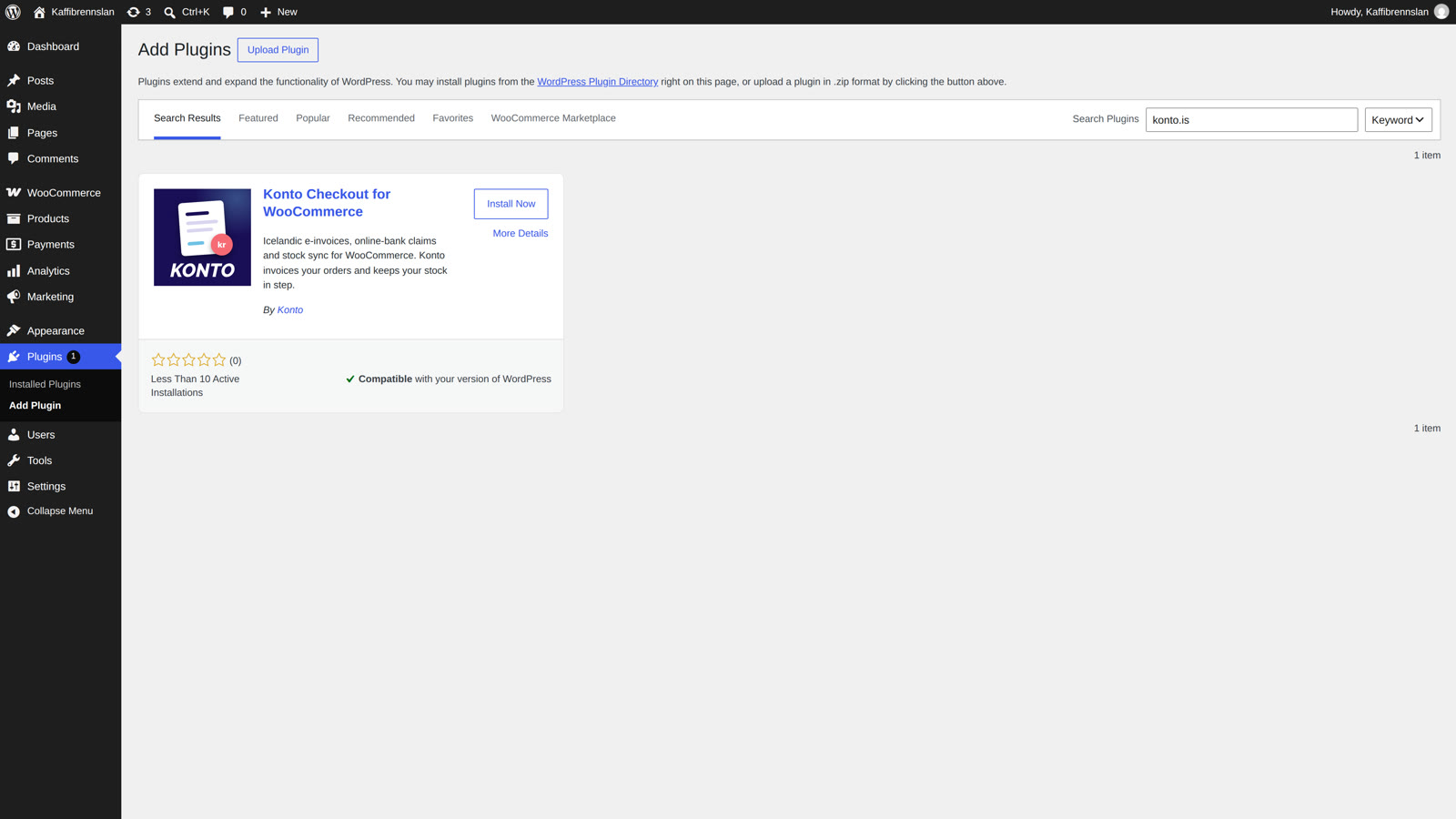
- 4
Open the Konto payment settings in WooCommerce
Go to
WooCommerce → Settings → Payments. Konto now appears in the list of payment providers. Click Manage to open its settings.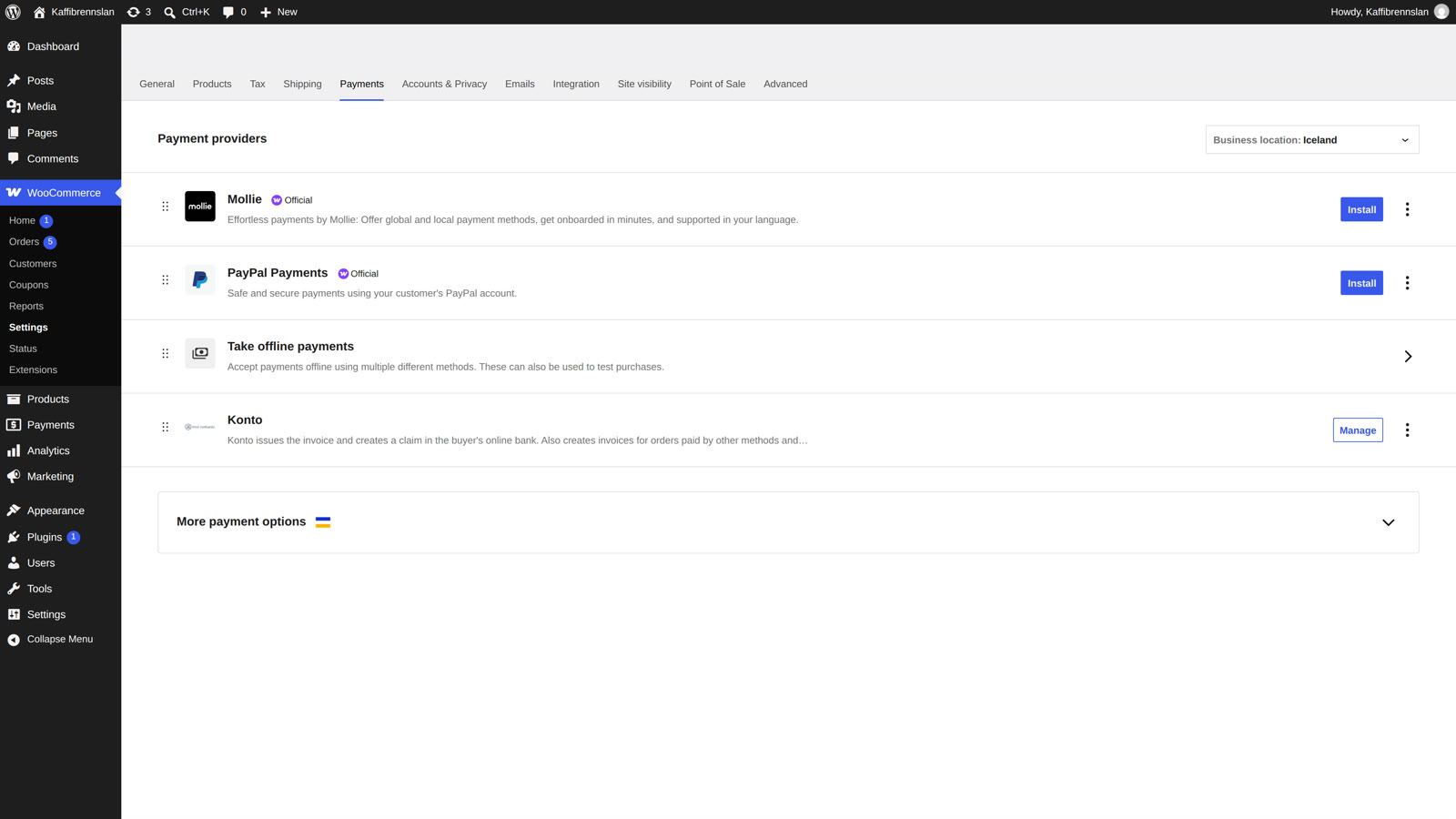
- 5
Konto WooCommerce setup: enable Konto and enter your credentials
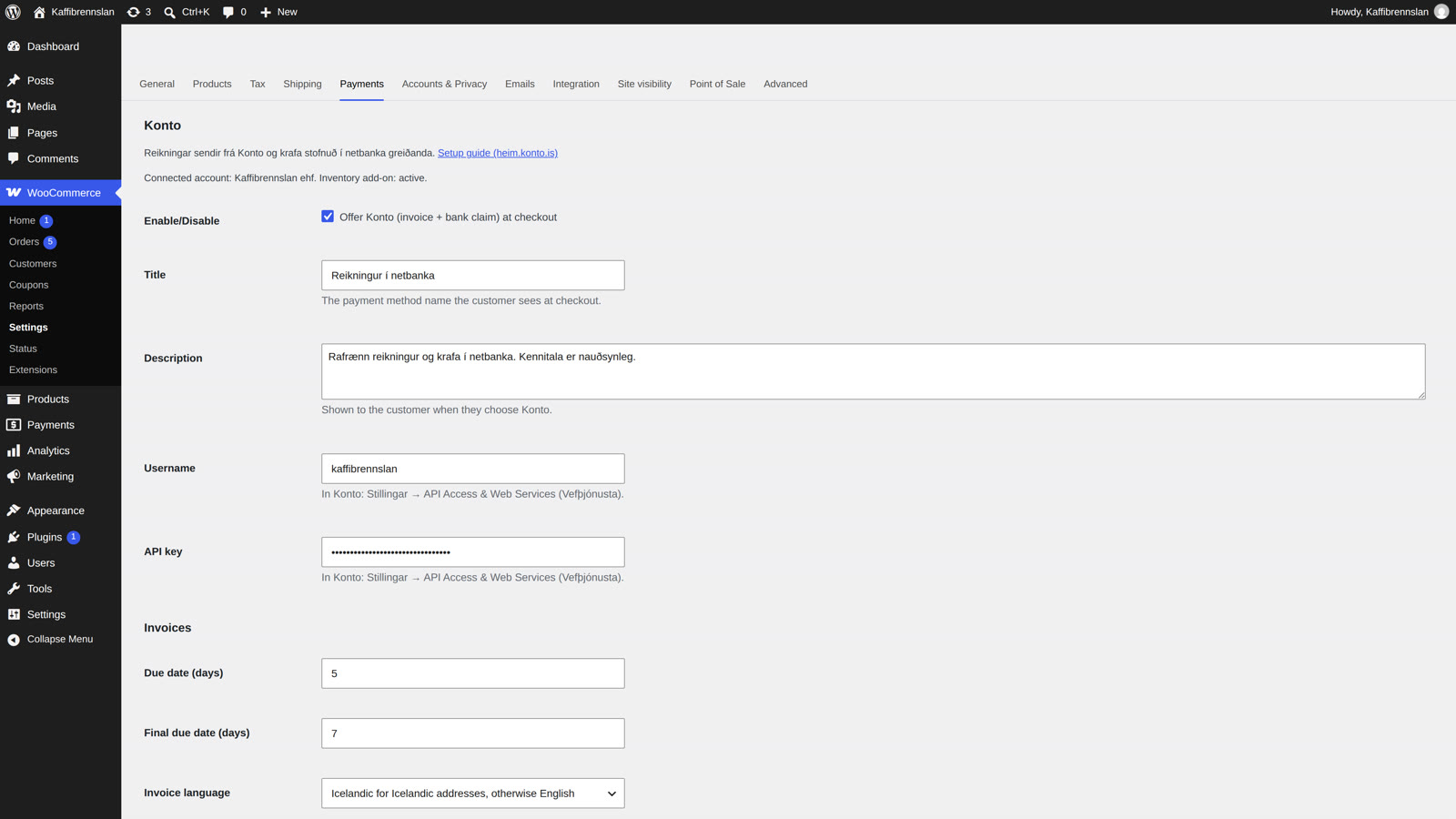
Tick Offer Konto (invoice + bank claim) at checkout to enable Konto as a payment method. Fill in the Title and Description your customer will see at checkout — for example „Reikningur í netbanka” as the title. Paste the NOTANDI value into the Username field and the API LYKILL value into the API key field (from step 2).
- 6
Configure invoice options and save changes
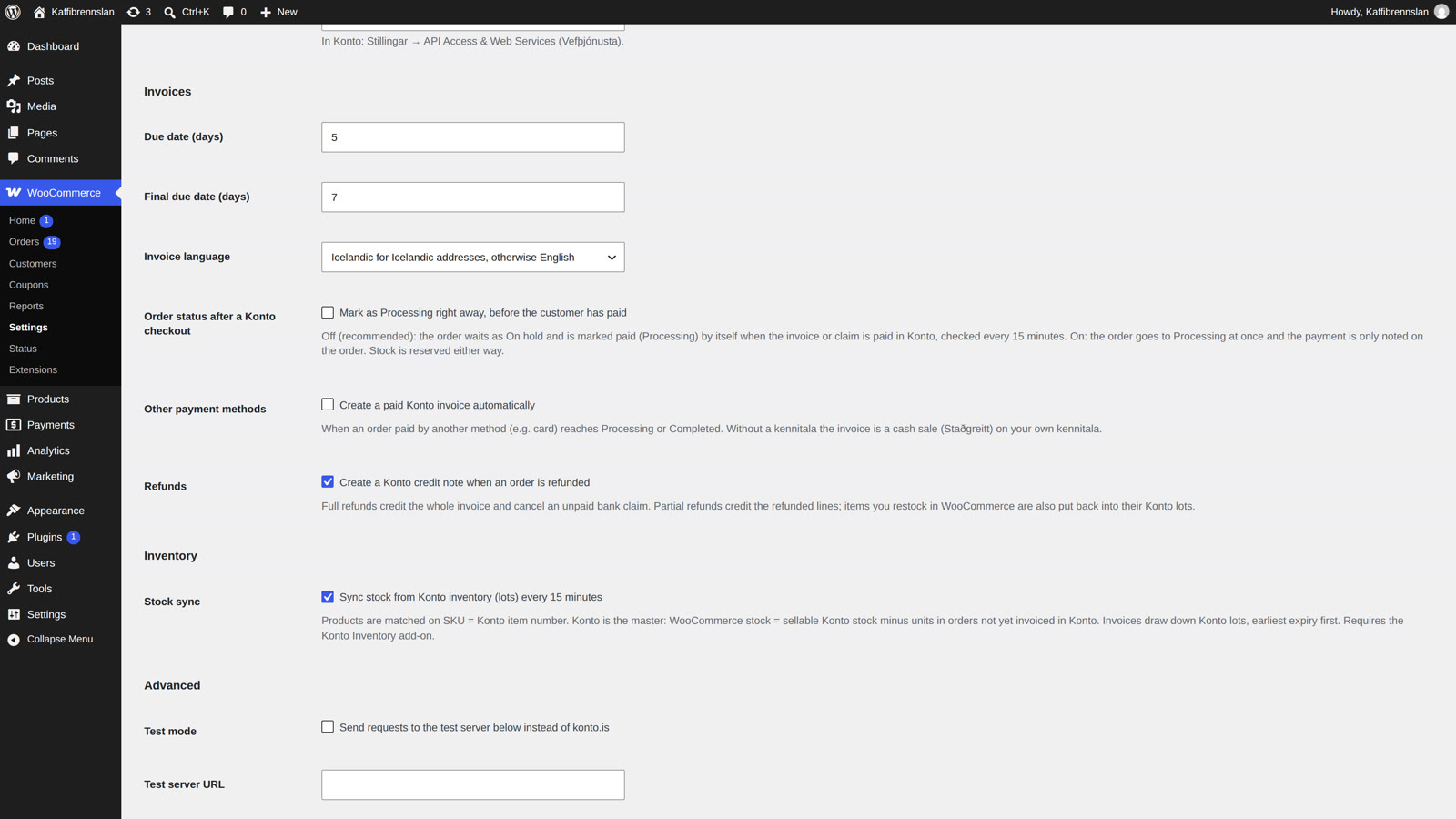
Set Due date (days) (number of days to the due date) and Final due date (days) (hard deadline). Choose an Invoice language. Under Order status after a Konto checkout, the default is that „Mark as Processing right away, before the customer has paid” is not ticked — the order is placed on On hold at checkout and moves to Processing automatically once Konto confirms payment. Under Other payment methods, tick „Create a paid Konto invoice automatically” if you want Konto to also create a paid invoice when an order is completed with a card or another method. Click Save changes.
- 7
Customer pays with a bank claim at checkout
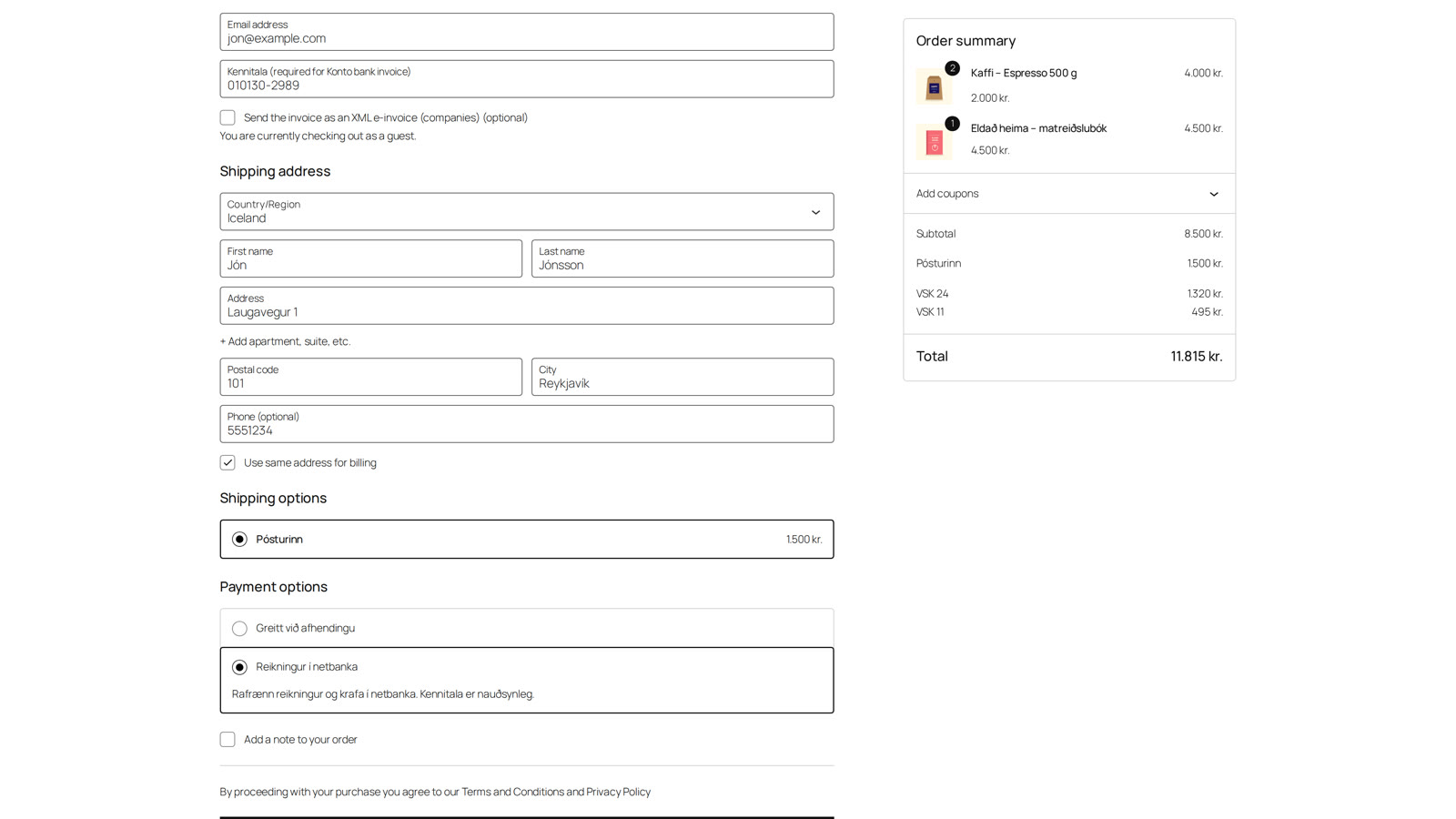
When a customer goes through checkout they will see the payment method you named — for example „Reikningur í netbanka”. The kennitala field appears only when this payment method is selected. The customer enters their kennitala and places the order; Konto creates the invoice and sends a bank claim directly to their online bank.
- 8
The order shows the Konto invoice number
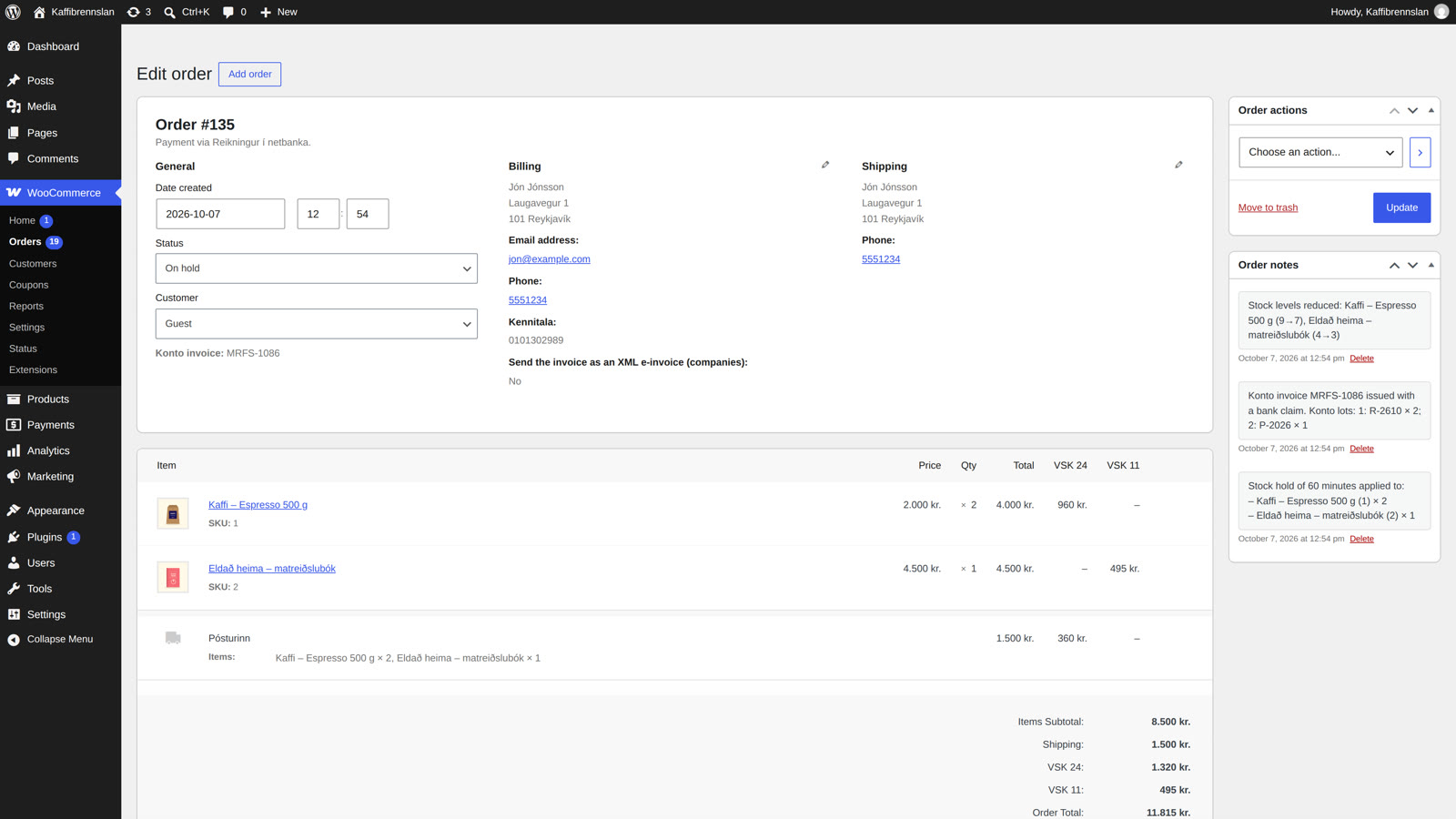
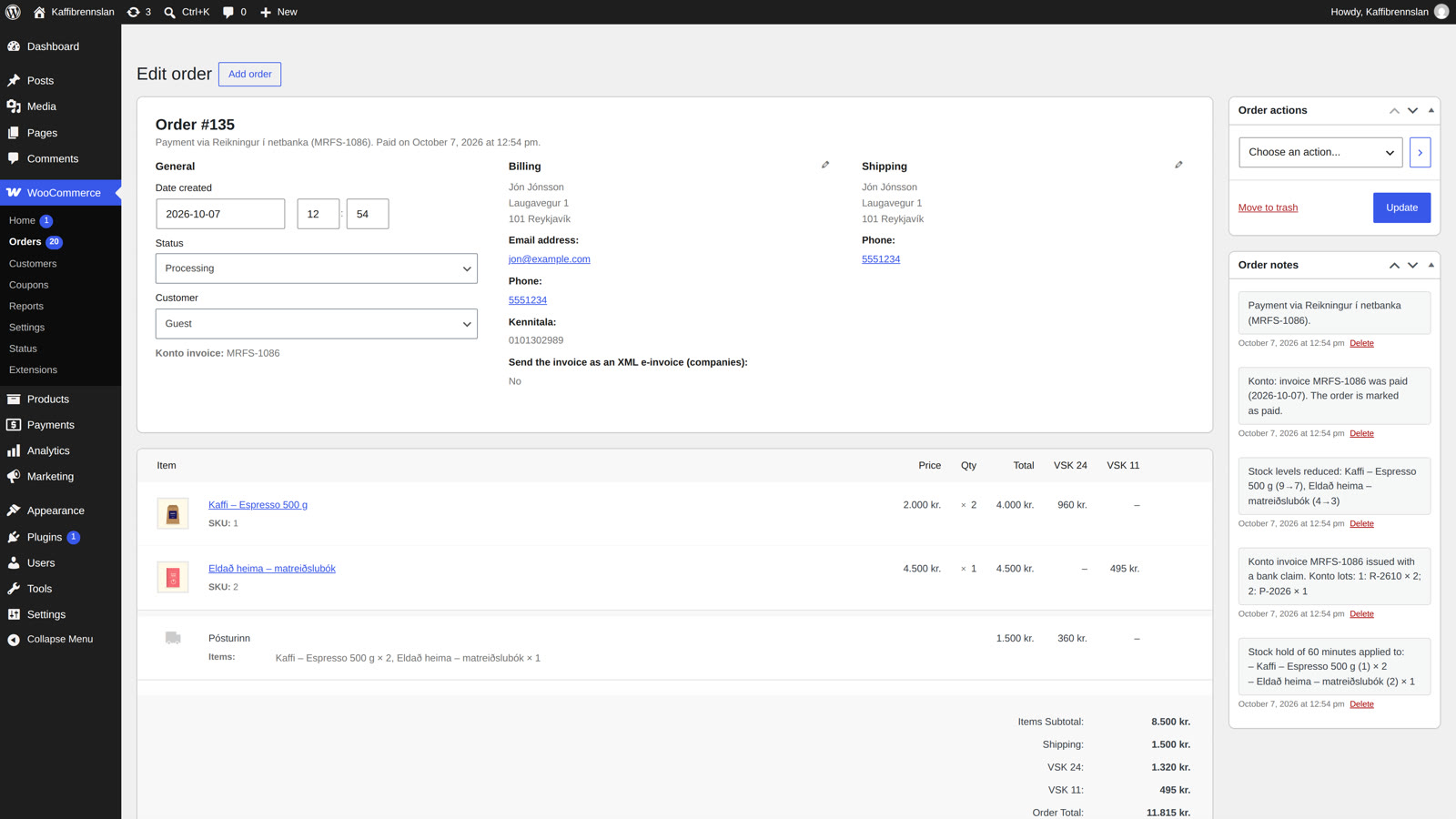
In the WooCommerce order you will see the Konto invoice number both in the order panel and in Order notes. The order has the status On hold until payment is received.
- 9
Order updates automatically when the Konto invoice is paid
When the customer pays the claim in their online bank, Konto sends a confirmation to WooCommerce and the order moves automatically from On hold to Processing. An entry such as „Konto: invoice MRFS-1086 was paid (2026-10-07). The order is marked as paid.” appears in Order notes. The entire flow is fully automatic — no action is needed from you. To see how stock levels update, read part 2 of the series on stock levels.


Tips
Other payment methods can also create a Konto invoice
Enable "Create a paid Konto invoice automatically" under Other payment methods in step 6 if you want Konto to create a paid invoice automatically when an order is completed by card or another method. This is ideal if you want every order to carry a valid Icelandic invoice regardless of how the customer pays.
A kennitala is required for a bank claim
Konto needs the customer's kennitala to create a bank claim. The kennitala field appears automatically when the customer selects Konto as the payment method, but does not appear when any other method is chosen.
You need a paid Konto subscription
Web Services and bank-claim creation are only available on the Fræ, Sprotar, Vöxtur and Sérlausnir plans. Make sure you have the right subscription before you start — see konto.is/verd.
Common questions
Does Konto WooCommerce setup work on all subscription plans?
No. The Web Services feature that connects Konto to WooCommerce is only available on Fræ, Sprotar, Vöxtur and Sérlausnir. The Grunnur plan does not support Web Services. See konto.is/verd.
What happens when a customer completes a Konto checkout — does the order go straight to processing?
No. The order is placed on On hold immediately at checkout. When the customer pays the bank claim, Konto automatically sends a confirmation and the order moves to Processing — no manual action is needed.
Does the customer need an Icelandic kennitala to pay with Konto?
Yes. The claim is sent to an Icelandic online bank and therefore requires an Icelandic kennitala (personal or company ID). Make sure you offer international customers an alternative payment method.
Can I set the due date and final due date myself?
Yes. In the Konto payment settings in WooCommerce (step 6) you can set Due date (number of days from the issue date to the due date) and Final due date to suit your business needs.
Can I issue invoices in English or another language through the WooCommerce plugin?
Yes. In the Konto payment settings in WooCommerce (step 6) you can choose the invoice language under Invoice language. This applies to all invoices created automatically at checkout.
What happens if the customer does not pay by the final due date?
If the bank claim is unpaid by the final due date, Konto automatically calculates interest. You can also enable the free automatic debt-collection workflow in Konto.
What should I do if the connection between Konto and WooCommerce breaks?
Go to Stillingar → Vefþjónusta in Konto and generate a new API key. Then go back to the Konto payment settings in WooCommerce (step 5), paste in the new key and save. Place a test order to confirm the connection is working.
Questions? support@konto.is