
Stock sync from Konto to WooCommerce
With Konto WooCommerce stock sync, Konto is always the master — stock quantities update automatically every 15 minutes and you never have to edit them manually in WooCommerce. The integration relies on the SKU field in WooCommerce, which must match the item number in Konto exactly. To follow this guide you must first have completed setting up Konto for WooCommerce.
- 1
Set the SKU for Konto WooCommerce stock sync
Go to
Products → Edit productand click the Inventory tab under Product data. Enter the Konto item number in the „SKU” field — this is the matching key between WooCommerce and Konto. Then turn on „Track stock quantity for this product” so WooCommerce can receive stock levels from Konto.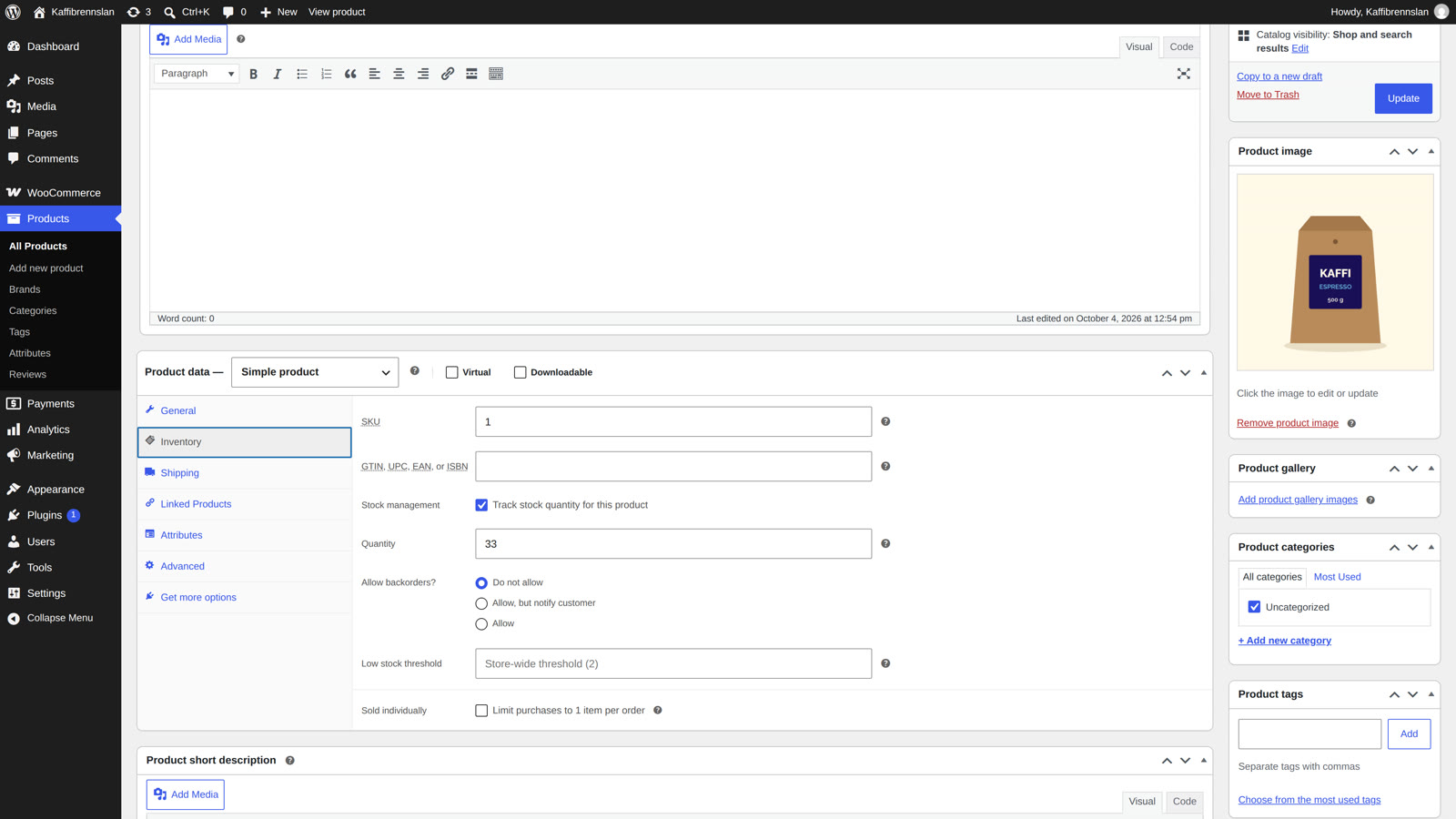
- 2
Enable stock sync in the Konto plugin settings
Go to
WooCommerce → Settings → Payments → Konto. Under Stock sync, turn on „Sync stock from Konto inventory (lots) every 15 minutes” and save. From this point Konto will push updated stock quantities every 15 minutes.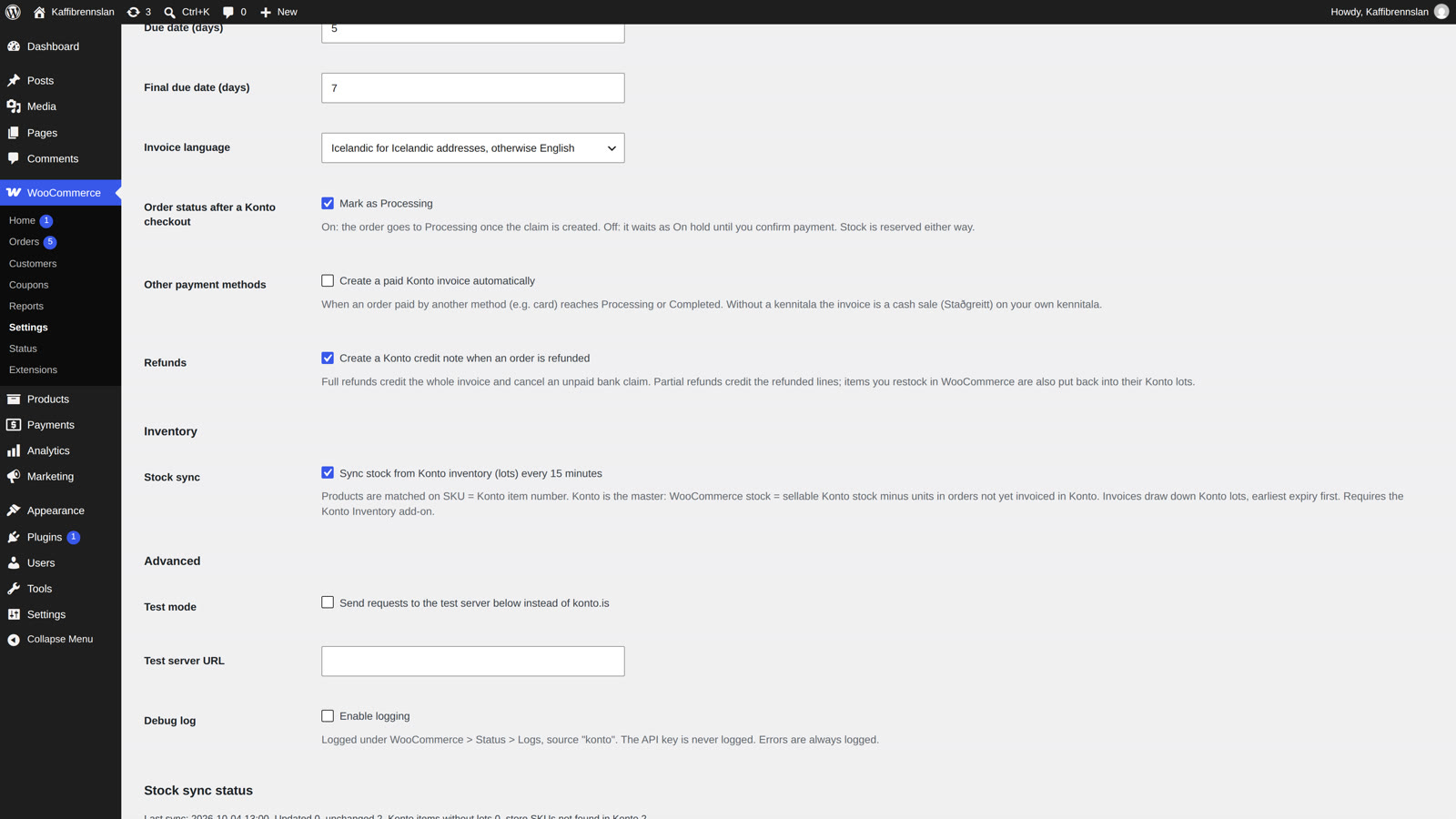
- 3
Check the sync status and trigger an immediate sync
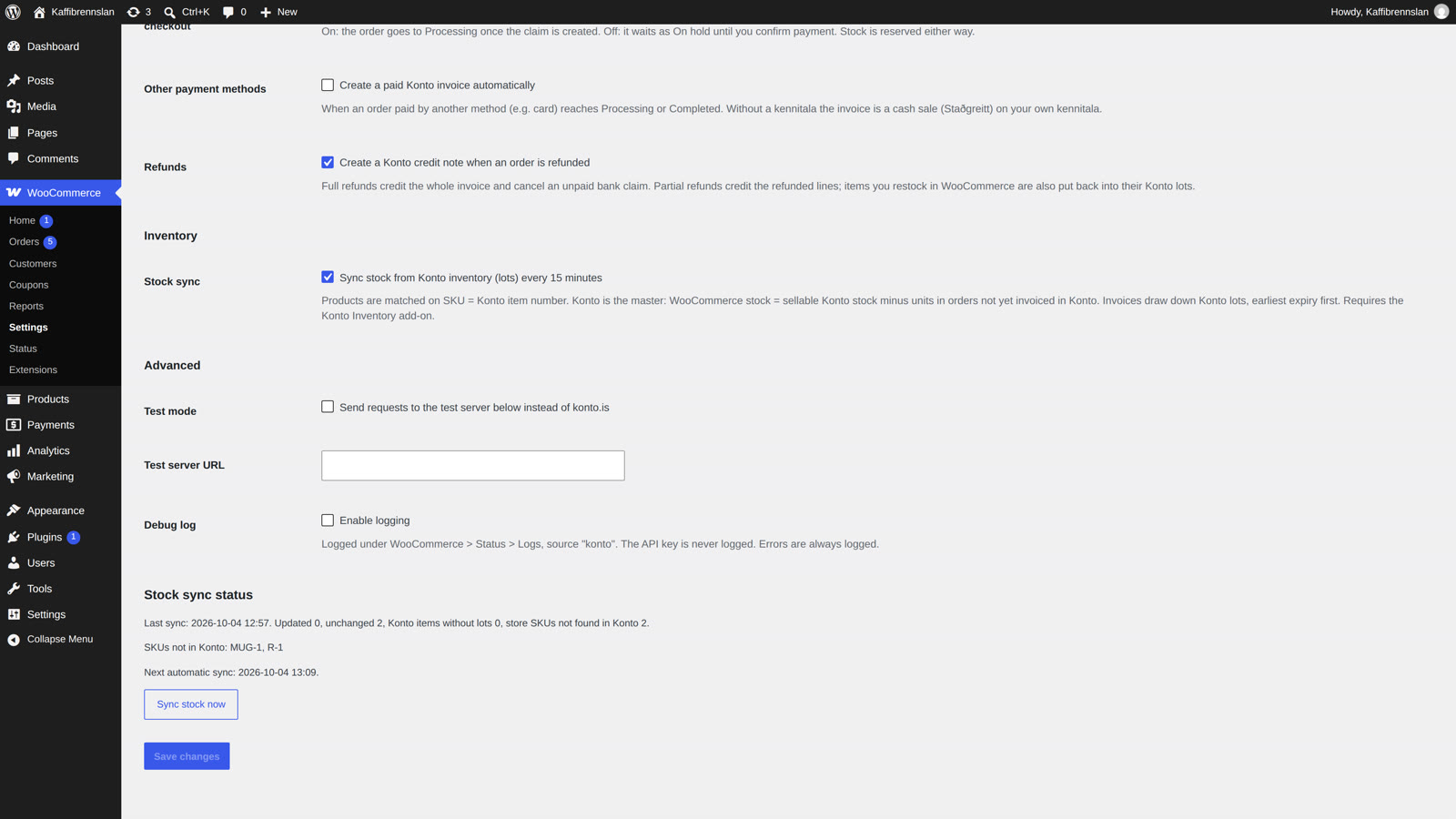
Just below on the same page you will see Stock sync status: when the last sync ran and how many products were matched to Konto. Click „Sync stock now” to run a sync immediately — useful after correcting or adding stock in Konto.
- 4
Confirm the stock level in the WooCommerce product list
Go to
WooCommerce → Products. The Stock column now shows the quantity from Konto — e.g. „In stock (33)”. If the figure looks wrong, check that the SKU on the product matches the item number in Konto exactly, then click „Sync stock now” in the settings.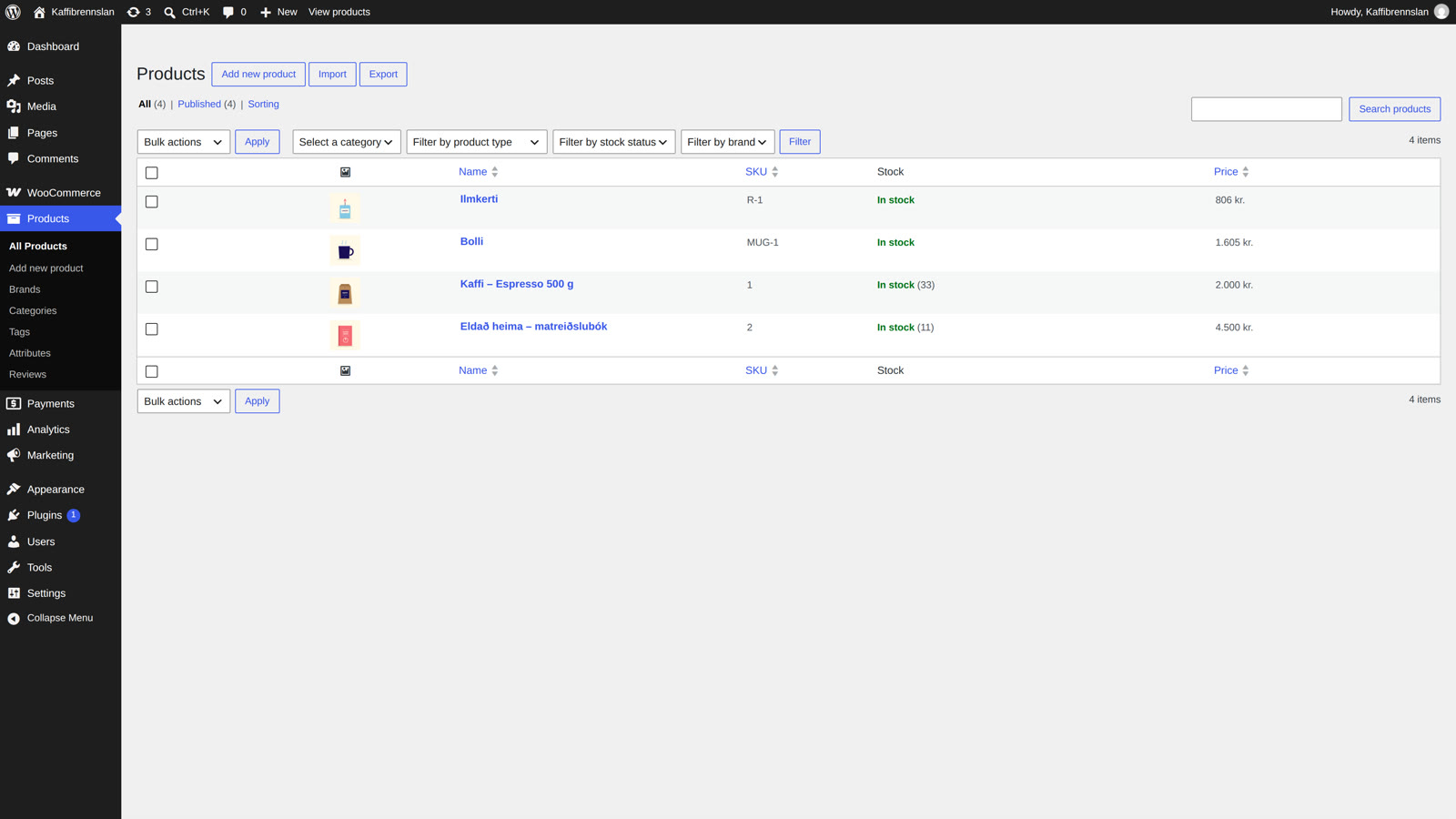
- 5
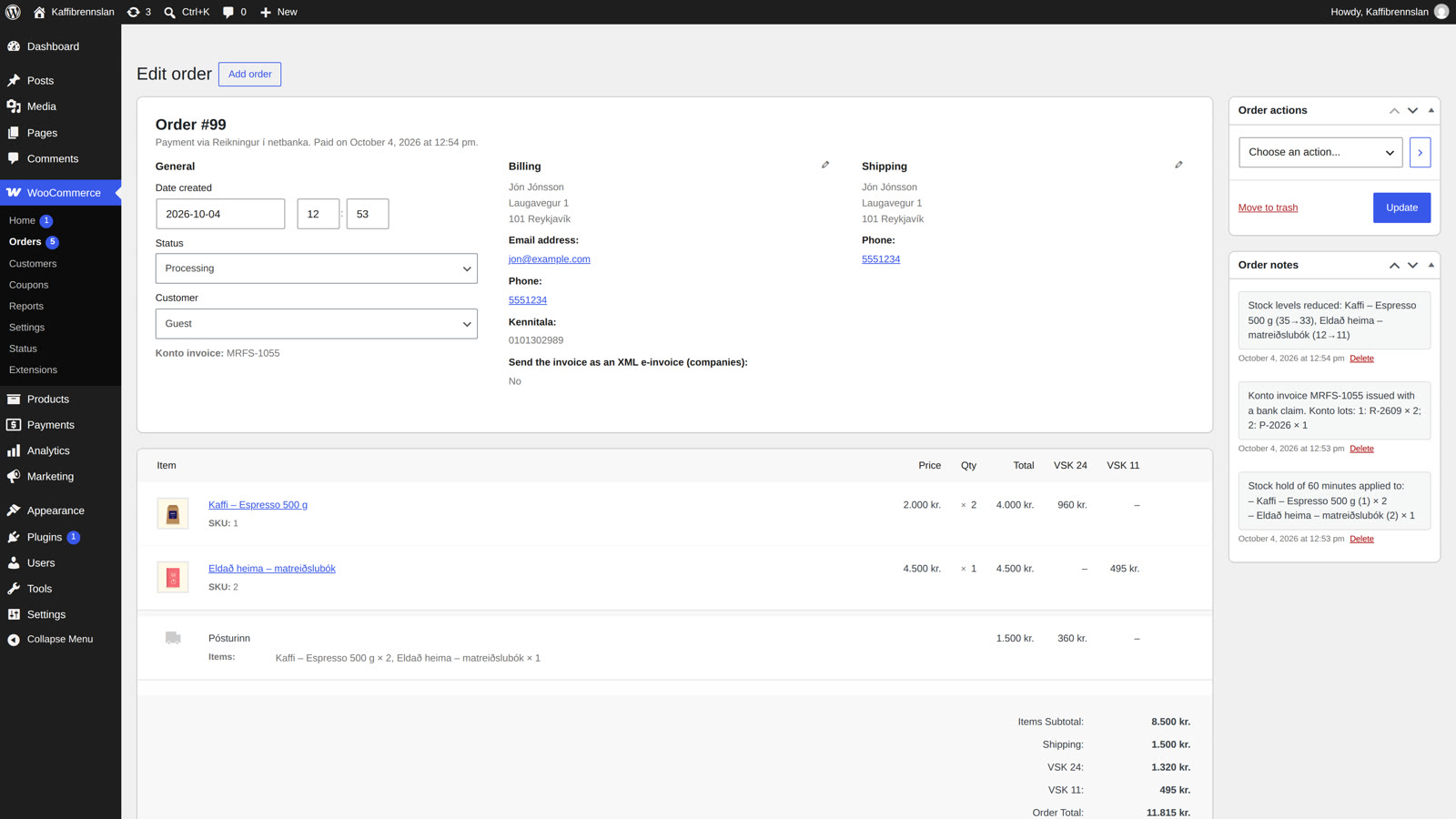
Konto lots in the order note
When a paid WooCommerce order reaches Konto, it draws stock from the correct lots in expiry order — earliest first (FEFO: First Expired, First Out). The WooCommerce order note records which lots were used, e.g. „Konto lots: 1: R-2609 × 2; 2: P-2026 × 1”. This provides full traceability for stock and expiry management.
The next part of the series covers refunds and credit notes in WooCommerce.


Tips
Konto is always the master
Never edit stock quantities manually in WooCommerce for products synced from Konto — Konto will overwrite the change at the next sync. Always update stock in Konto, either via lots or manual entry.
Update immediately after a correction in Konto
If you add a lot or correct stock in Konto and want WooCommerce to reflect it straight away, click “Sync stock now” in WooCommerce → Settings → Payments → Konto. Otherwise the update will arrive within 15 minutes.
Stock history now shows plain language
After the October 2026 update (KI-1404), the stock change history on the product page in Konto displays readable text — e.g. “Breytti Fjöldi úr 0 í 50” instead of the raw code qty_new. This makes it easier to trace changes.
Common questions
How often does stock sync from Konto to WooCommerce?
The sync runs automatically every 15 minutes. To update immediately, click “Sync stock now” in WooCommerce → Settings → Payments → Konto.
WooCommerce shows the wrong stock quantity — what do I do?
First check that the SKU on the product in WooCommerce matches the item number in Konto exactly. If they match, click “Sync stock now” and refresh the page. Also confirm that “Track stock quantity for this product” is enabled on the product.
Where do I find the item number in Konto?
Go to Products in Konto and open the relevant product. The item number appears at the top of the product page. That same number must be entered in the SKU field in WooCommerce.
What are lots in Konto and how do they work?
Lots are stock batches that can have an expiry date (best before) attached. When an order arrives from WooCommerce, Konto draws from lots in expiry order — earliest first (FEFO). This ensures older stock is always sold before newer stock.
Does WooCommerce automatically reduce stock in Konto when an order comes in?
Yes. When a paid WooCommerce order reaches Konto, it updates the stock and deducts from the correct lots. The stock level in WooCommerce is updated at the next sync — or immediately if you click “Sync stock now”.
What does “Konto lots: …” mean in WooCommerce order notes?
When Konto processes the order it records which lots were used and how many units were drawn from each. This provides full traceability for stock and expiry management.
Do I need a specific Konto plan to use stock sync?
The Konto WooCommerce plugin must be installed and active. See the setup guide if you have not completed those steps. No additional plan is required beyond what the plugin setup already needs.
Questions? support@konto.is