
The Tasklist in Konto
With the Konto Tasklist you can create tasks for your customers, log time and turn completed work into an invoice in just a few steps. The Tasklist is a separate add-on included in the Sprotar, Vöxtur and Sérlausnir subscriptions — if it is not active, go to Settings and enable it. This guide walks you through the entire flow: from opening the Tasklist to sending the invoice.
- 1
Open the Tasklist in Konto
On the dashboard you can see tiles for the main sections of the app. Click the “Tasklist” tile to open it. If the tile is not visible the add-on is not active — go to
Settingsand enable it there. The Tasklist is included in the Sprotar, Vöxtur and Sérlausnir subscriptions.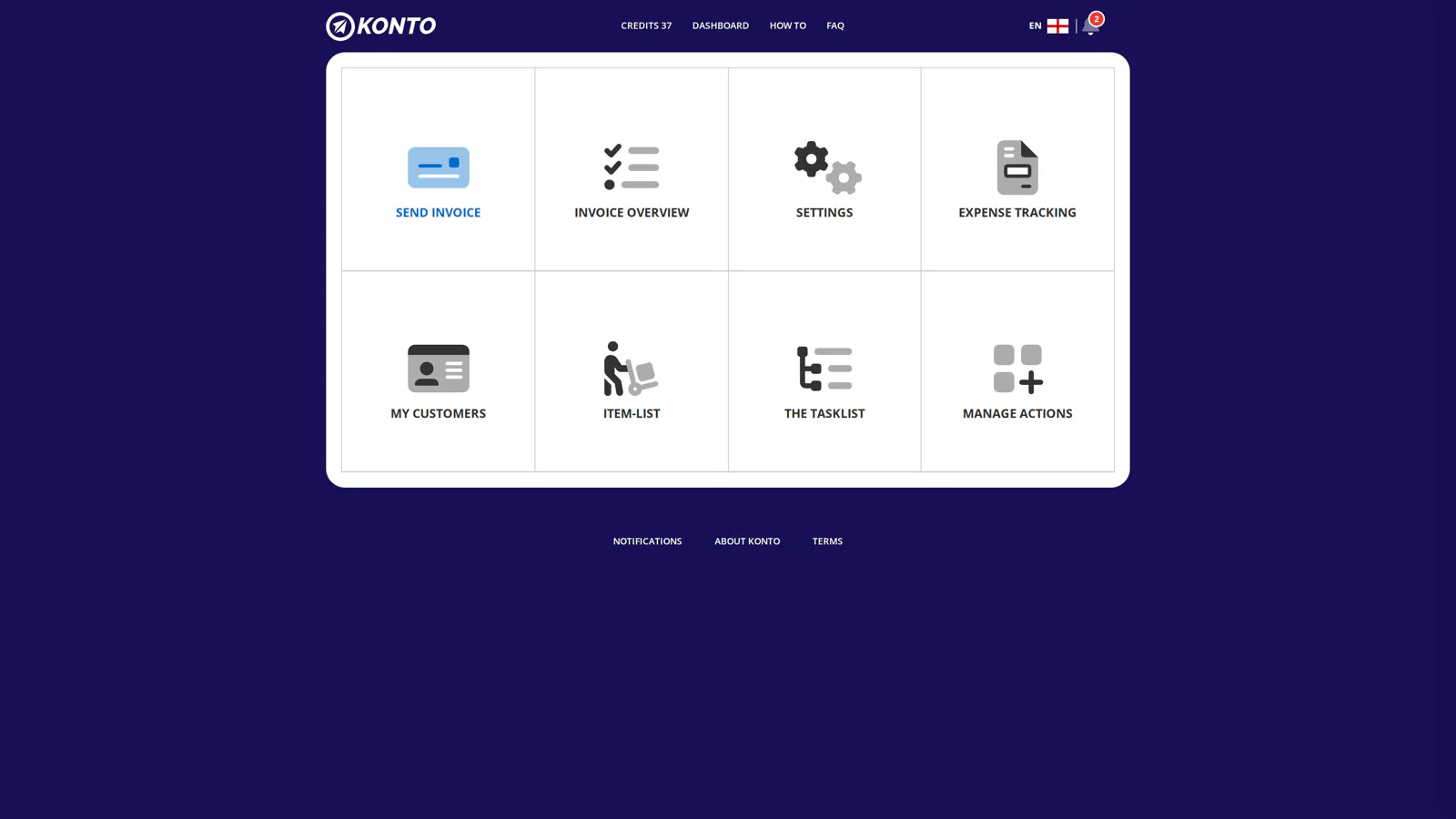
- 2
Create a new task
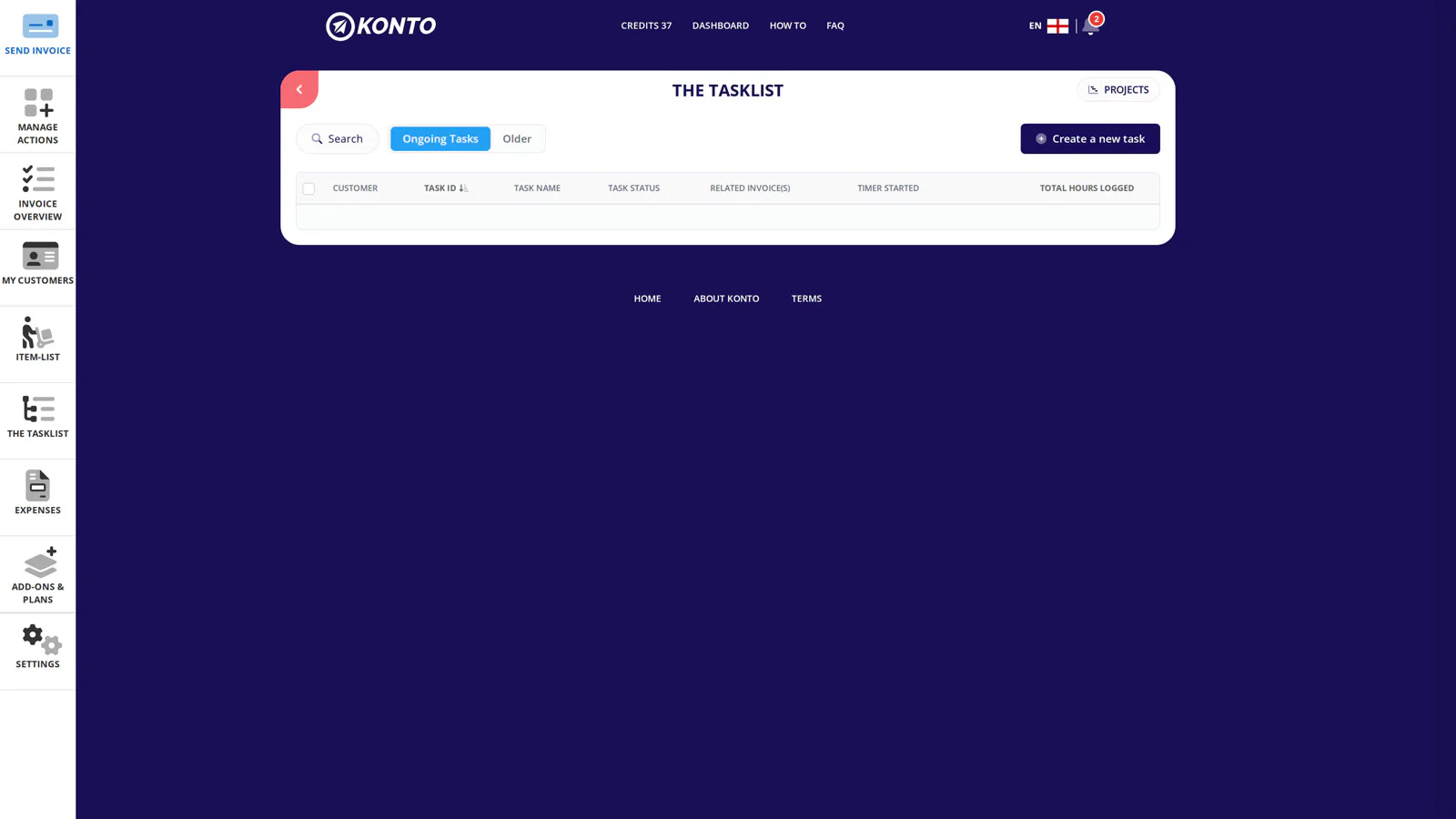
The Tasklist shows all registered tasks. Click “Create new task” to open the creation form.
- 3
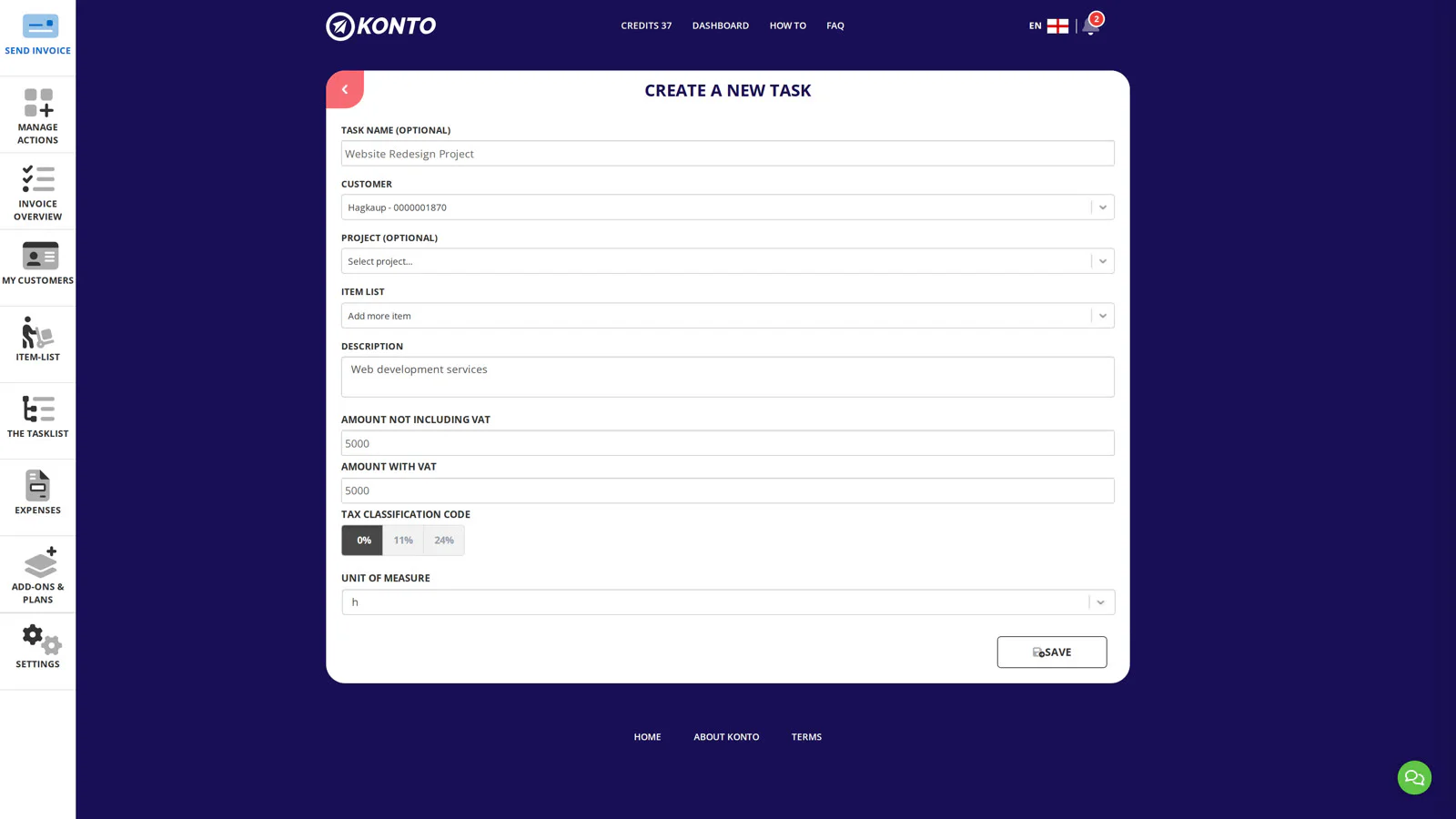
Fill in the name, customer and product
Name, customer and product are required fields — enter a task name, select a customer and choose a product from the product list. You can add a description and other details as needed. Click “Save” when you are ready.
- 4
Open the task from the list
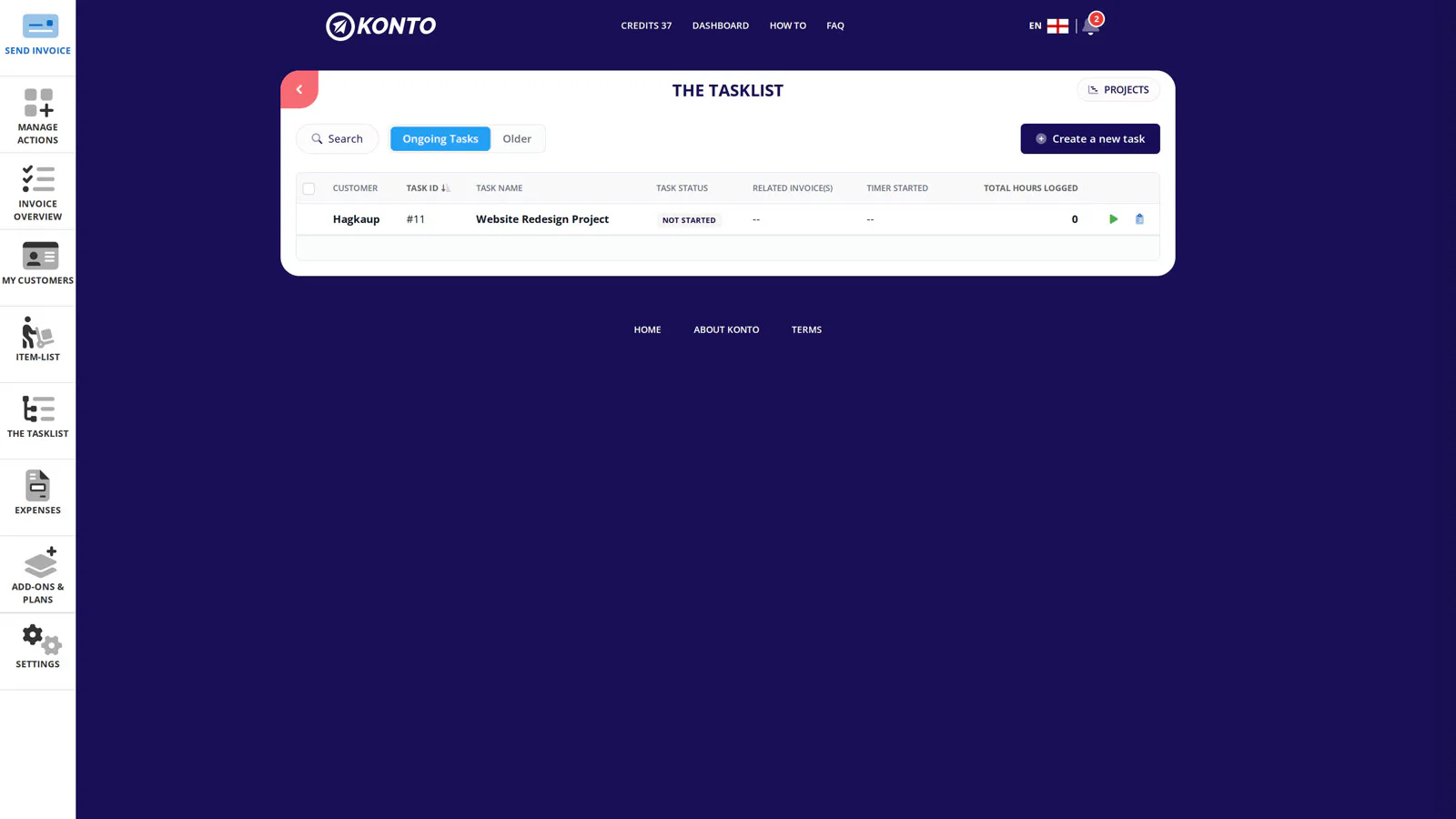
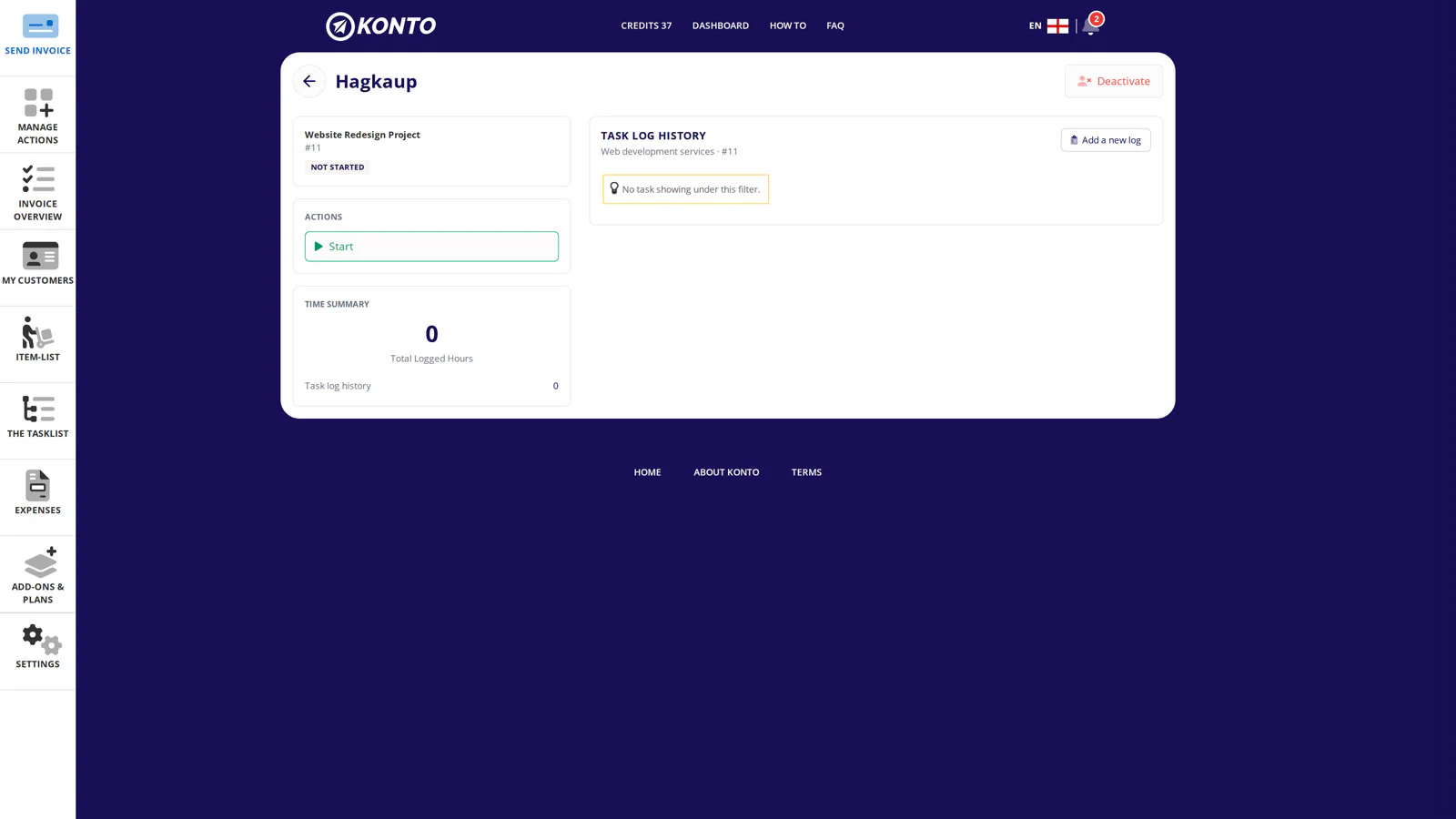
The new task now appears in the Tasklist. Click its name to open the detail view where you log time and track progress.
- 5
Add a time entry
In the detail view you can see logged time and other information. Click “Add time entry” to open the time logging dialog.
- 6
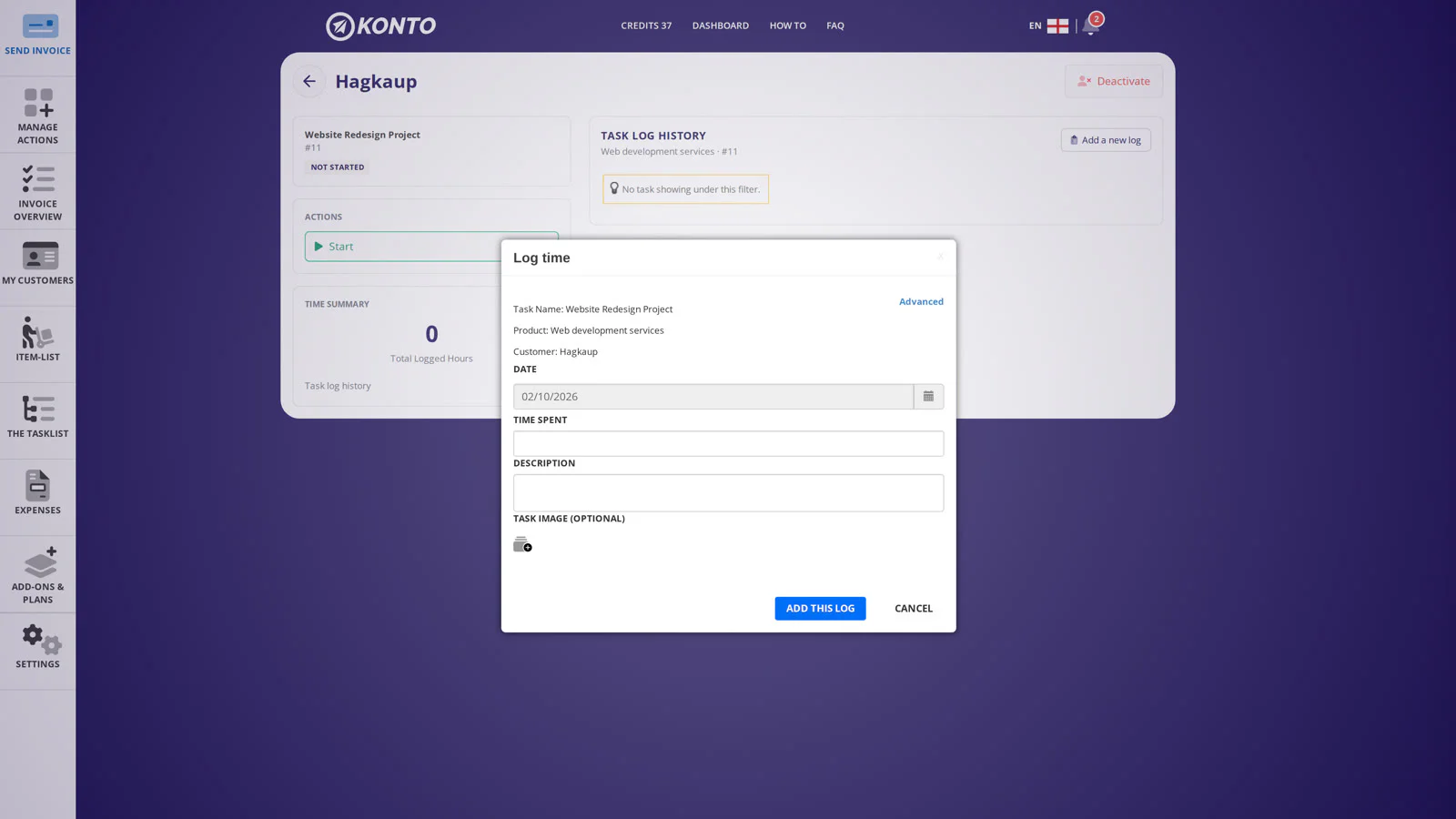
Simple time logging
In simple mode you enter the number of hours spent on the task directly. Want to break the time down by workers, hours per day and number of days? Click “Advanced” to switch to advanced mode.
- 7
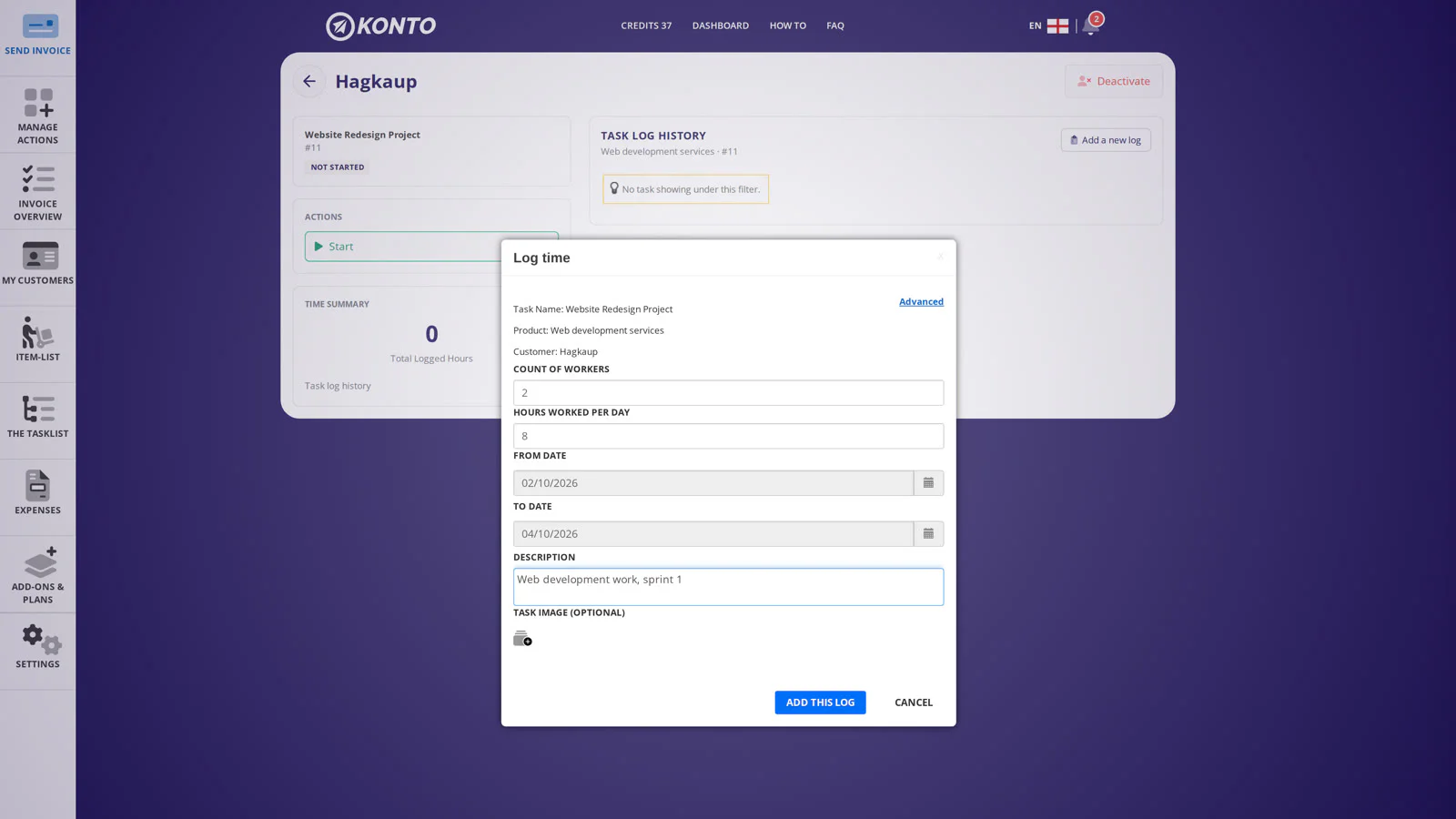
Advanced time logging: workers, hours and days
In advanced mode you specify three key fields:
- Number of workers — how many people worked on the task
- Hours per day — how many hours each worker worked per day
- From and to — the date range the work period covers
The app calculates the total number of hours automatically from these values. Click “Log this” to confirm the entry.
- 8
Create an invoice from the task
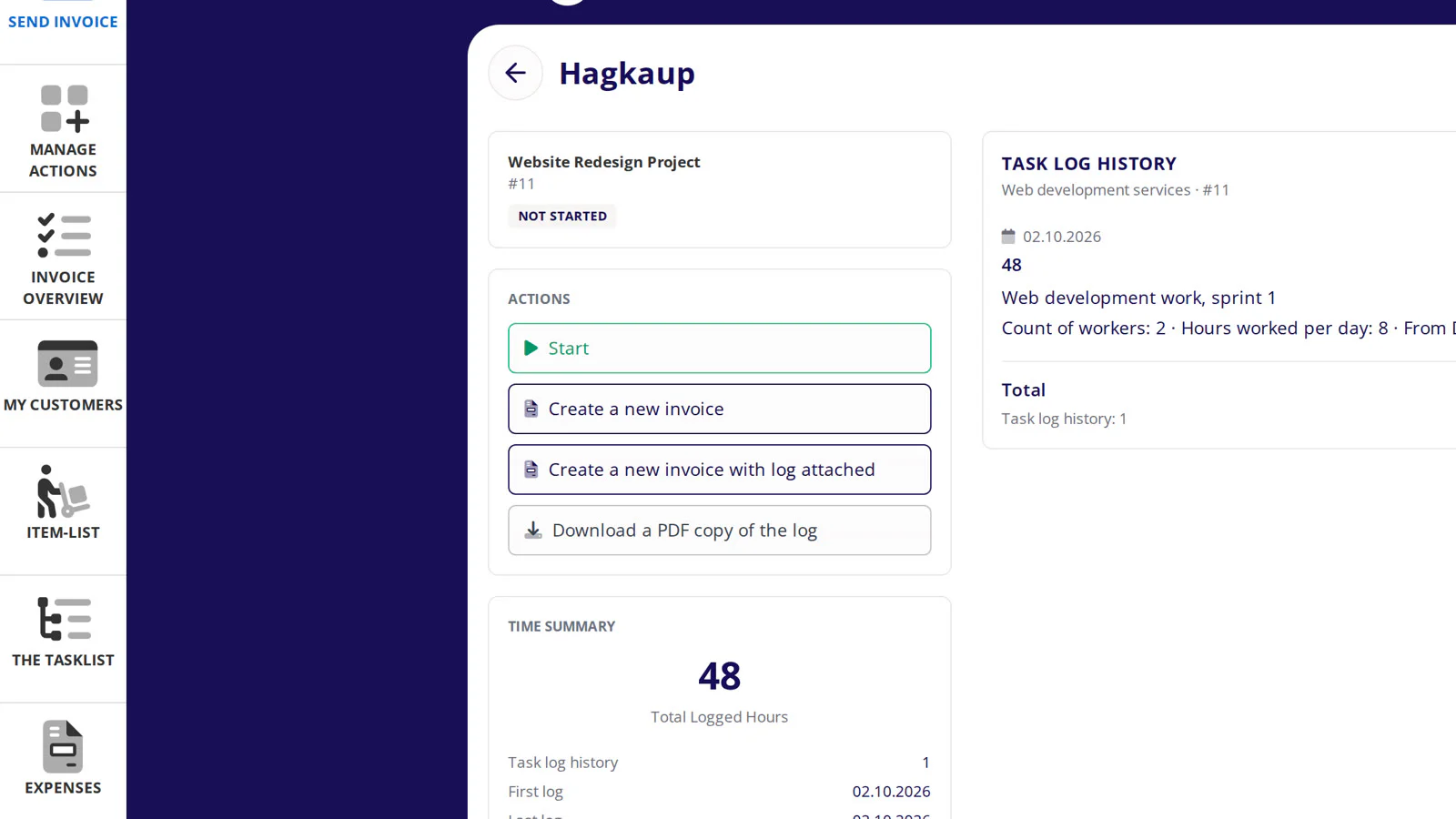
When time logging is complete you can see all logged entries in the detail view. Tip: You can also choose to include a PDF summary of the task’s time entries with the invoice — this gives the customer a precise overview of the work carried out.
- 9
Review and send the invoice
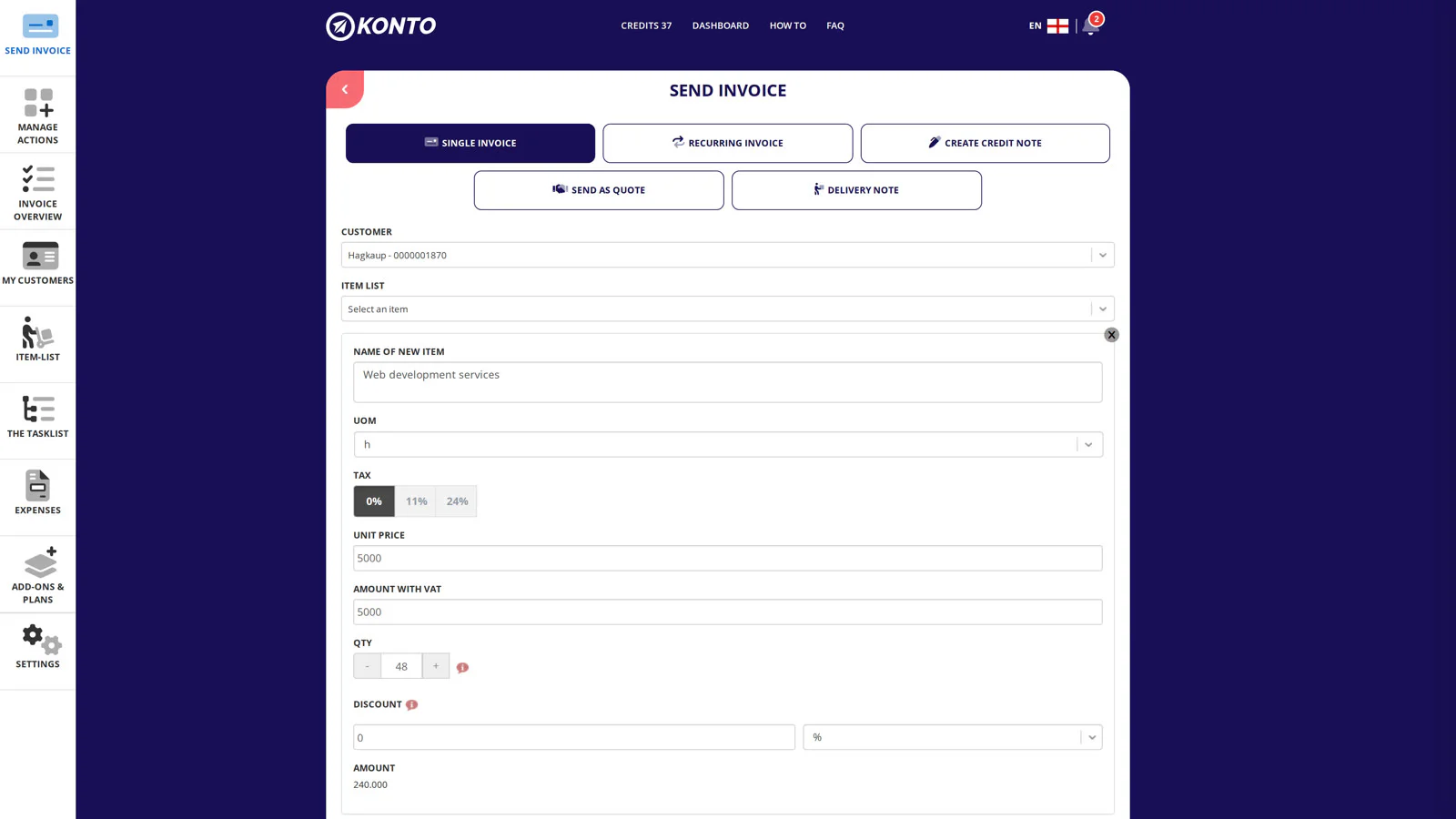
The invoice form opens automatically with information from the task — customer, time entries and amount. Review the invoice, make sure everything is correct and click “Send”.
Next in the series: Projects and project ID (part 2) and Extra users in the Tasklist (part 3).


Tips
The Tasklist add-on must be active
The Tasklist is a separate add-on included in the Sprotar, Vöxtur and Sérlausnir subscriptions. If the “Tasklist” tile is not visible on the dashboard, go to Settings and enable it there.
Advanced mode works well for teams
If several workers are working on the same task, advanced mode saves time — enter the number of workers, hours per day and dates, and the app calculates the total automatically.
The invoice is not sent straight away
“Create new invoice” opens the invoice form pre-filled with data from the task. The invoice is not sent until you click “Send” in the invoice form.
Common questions
Do I need a specific subscription to use the Konto Tasklist?
Yes, the Tasklist is a separate add-on included in the Sprotar, Vöxtur and Sérlausnir subscriptions. Go to Settings in Konto to enable it.
Can I log time on a task without creating an invoice?
Yes. You can add time entries at any time. An invoice is only created when you choose “Create new invoice” in the detail view.
Can I add multiple time entries to the same task?
Yes. You can add as many time entries as you need — all entries are collected together and displayed in the detail view.
Is the invoice sent immediately when I click “Create new invoice”?
No. Clicking “Create new invoice” opens the invoice form pre-filled with data from the task. You can review and edit it before sending.
Can I link a task to more than one customer?
Each task is linked to one customer. If you need to invoice multiple customers, create a separate task for each one.
How do I set up a project ID?
Project IDs are covered in part 2 of this series. See Projects and project ID in Konto for more.
Can I give other users access to the Tasklist?
Yes. See Extra users in the Tasklist (part 3) for instructions on managing access.
Questions? support@konto.is