
Create a project in Konto
This guide shows you how to create a project in Konto — from opening Projects and defining the scope, to linking tasks in the Tasklist. A project gathers everything related to a job in one place: scope, tasks, costs, invoices, files and a page for the customer. Projects is available on the Vöxtur and Sérlausnir plans — and the Tasklist is included automatically.
- 1
Create a project in Konto — open Projects in the menu
Go to
Actions and management → Projectsto open Projects. If you are already in the Tasklist you can click the “Projects” button at the top right — both paths lead to the same place.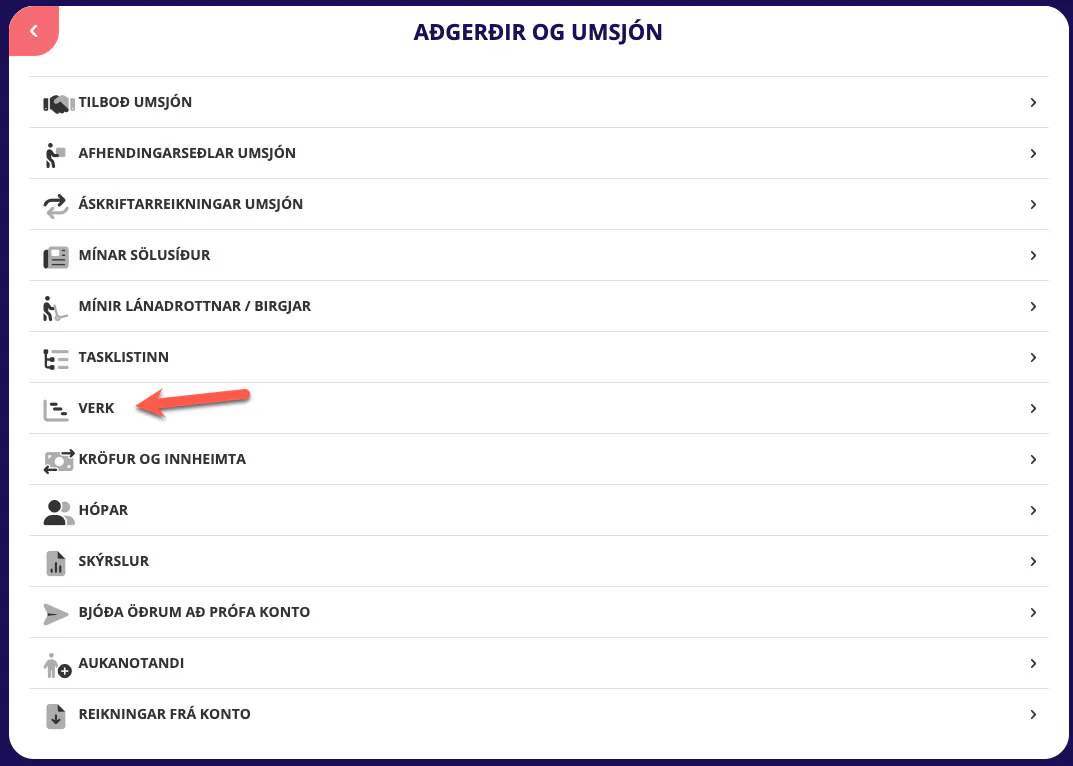
- 2
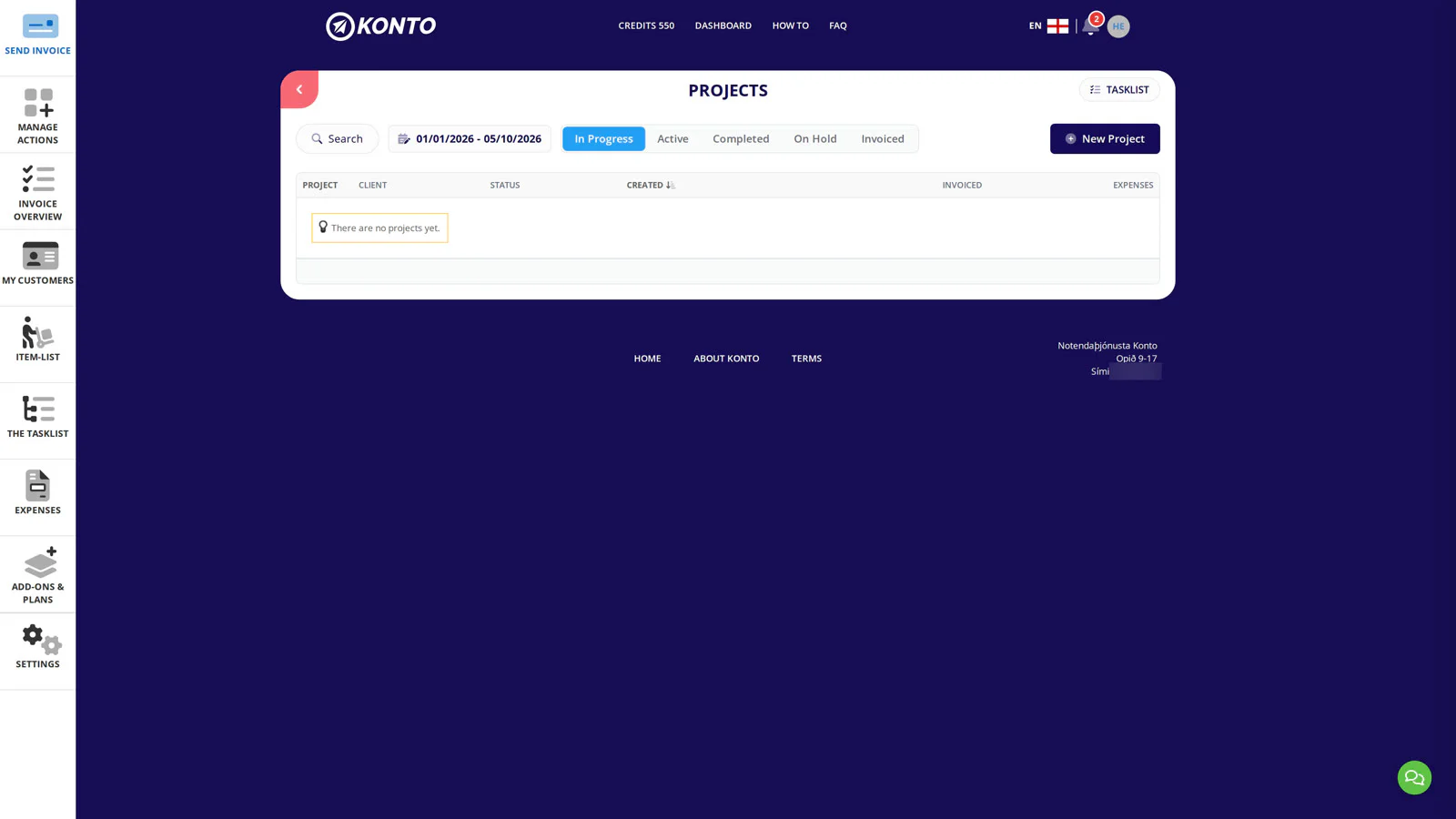
Projects overview — click “New project”
The overview shows all your company’s projects and their status: In progress, On hold, Completed or Invoiced. You can search by name or customer. Click “New project” to create a project in Konto.
- 3
Choose a starting point and fill in the project form fields
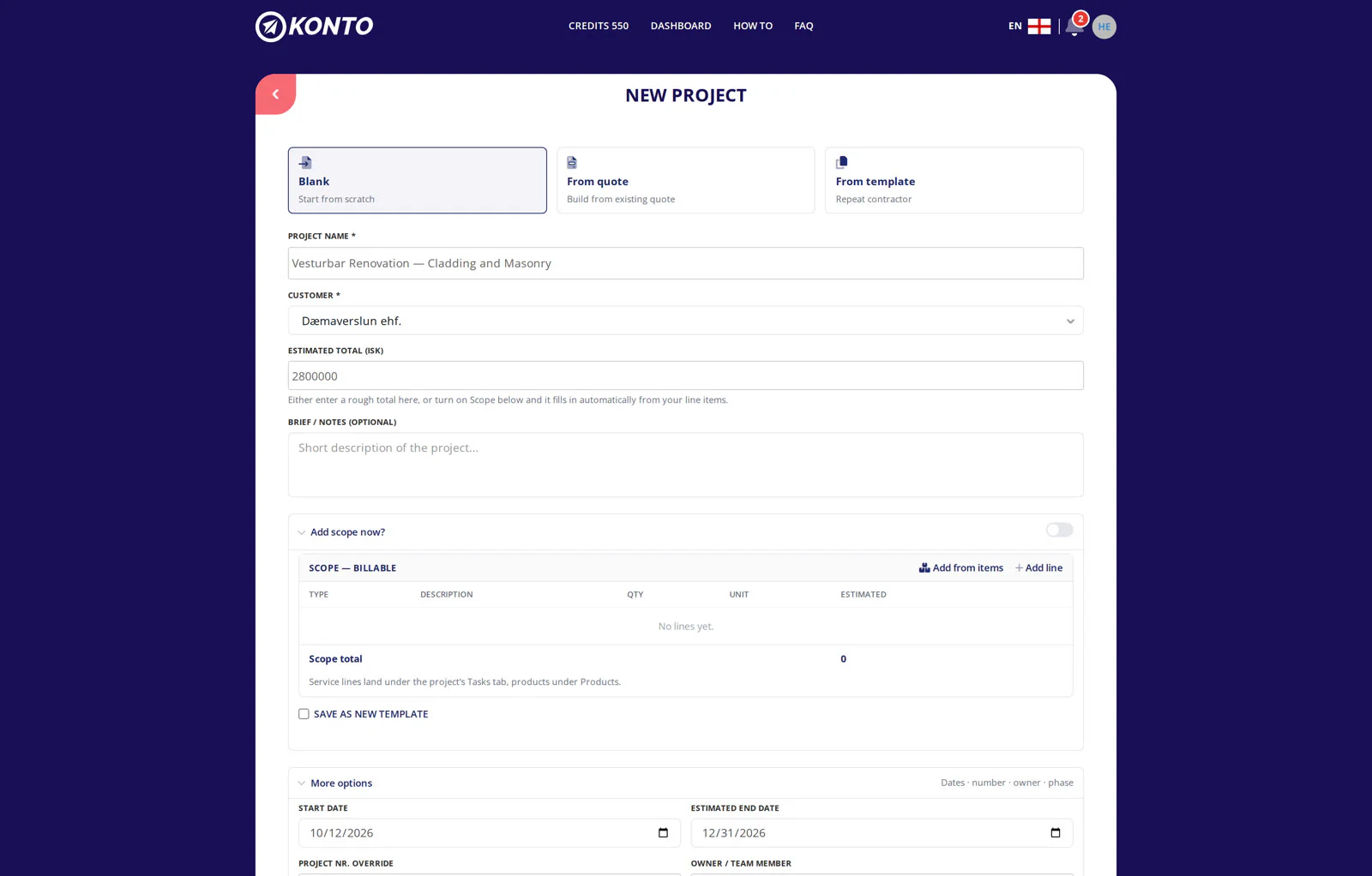
When you click “New project” you first choose whether the project starts from a template, a quote or as a blank project.
Then fill in the input fields on the form:
- Customer — select the customer this project belongs to.
- Project name — the name of the project, e.g. Roof replacement — Brekka 12 residents’ association.
- Project number — Konto fills this in automatically but you can change it. This number goes on the invoice as an accounting reference in the customer’s bookkeeping system.
- Start date and Estimated end date.
- Estimated total.
- 4
Add scope lines — services and products
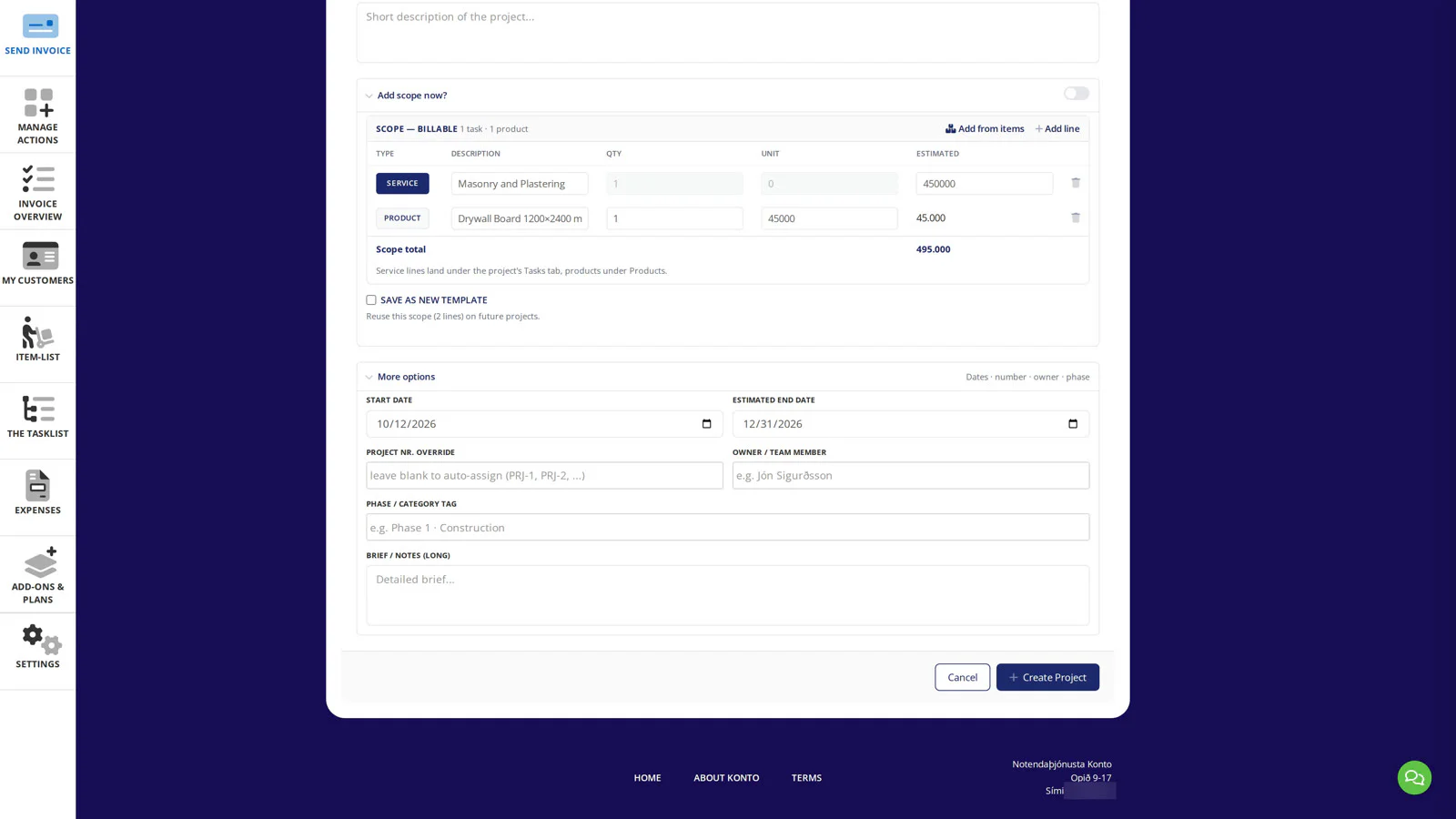
Click “Add product / line” to add lines to the scope:
- Service lines — select a service from the product catalogue. You can add multiple service lines, one per work element. After saving they appear on the “Tasks” tab of your project but not automatically in the Tasklist.
- Product lines — select products from the product catalogue.
For a recurring job, click “Save as new template” — you can then start a new project from a template or a quote.
- 5
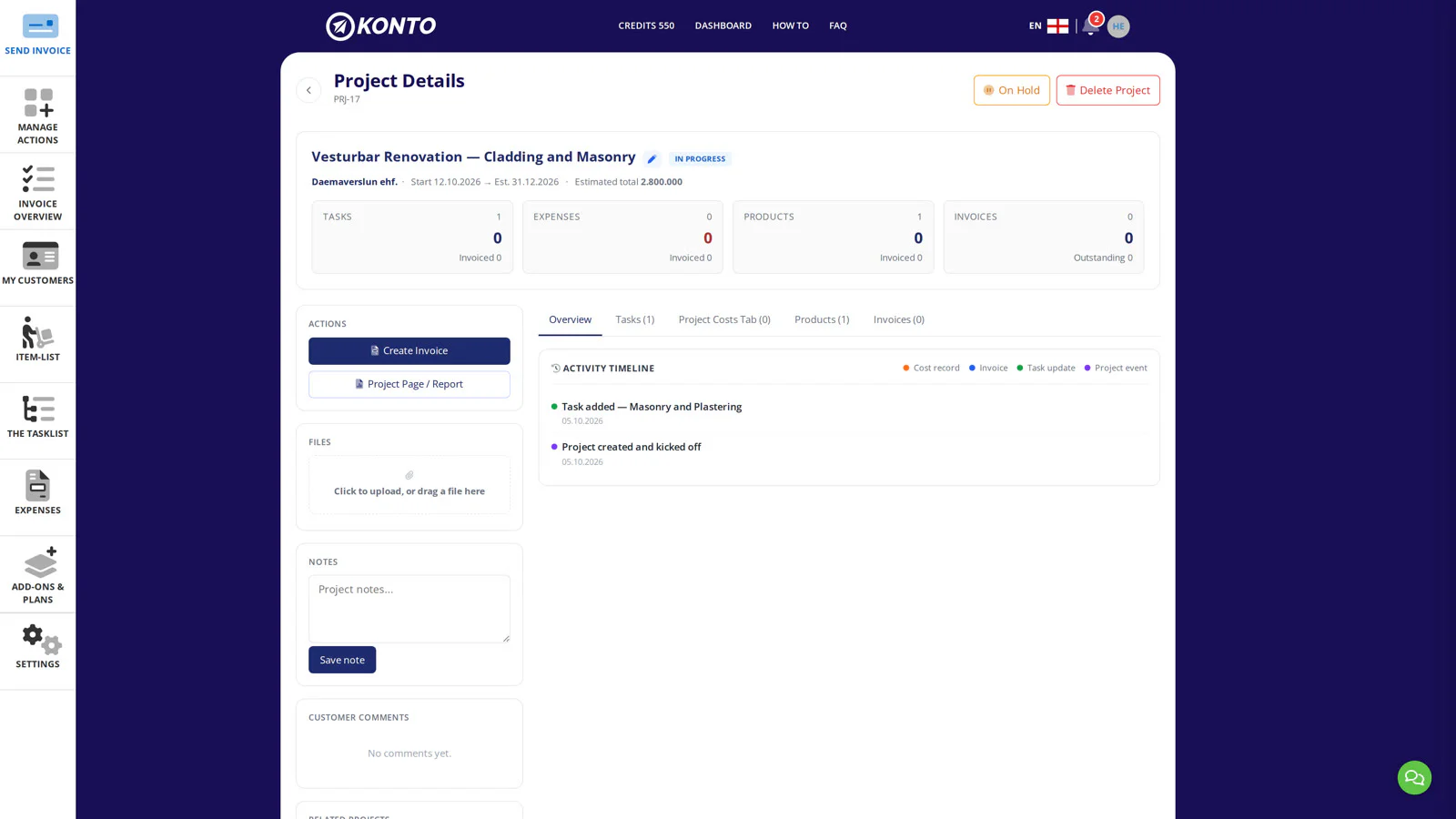
Project saved — Project details opens
After saving, Project details opens with a full overview of the project. At the top you see the key information:
- Customer and Project name
- Start date and Estimated end date
- Estimated total and Project number
- Status: In progress
Below you see all the scope lines you entered. The tabs at the top of the page — Tasks, Costs, Products and Invoices — give you access to all aspects of the project. The next steps introduce each tab briefly; part 3 — Tasks, costs and invoices — walks through them in detail.
- 6
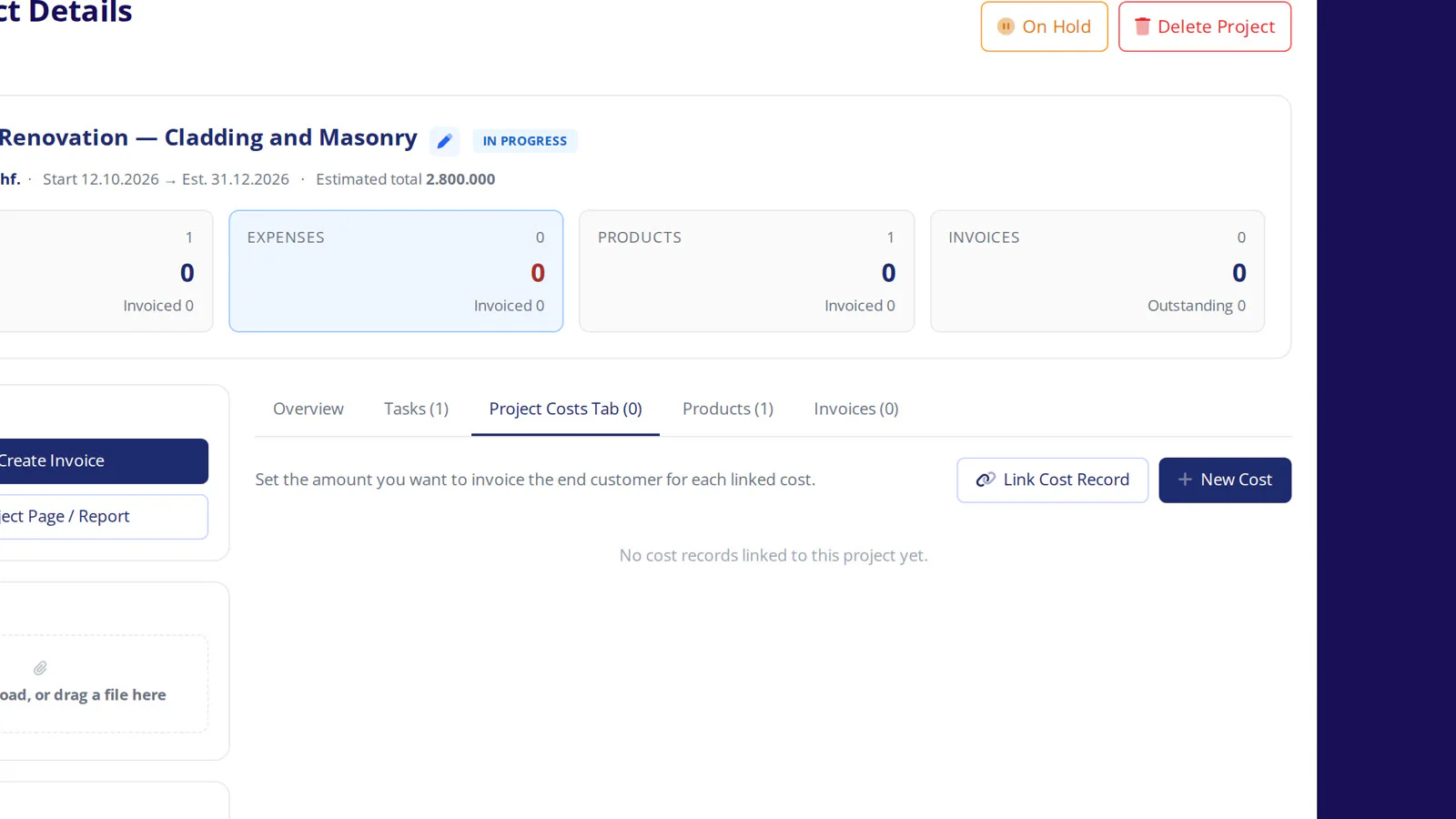
Costs tab — cost records on the project
On the Costs tab you find all cost records linked to the project — for example purchase invoices that have been approved and connected to the project. See part 3: Tasks, costs and invoices for details.
- 7
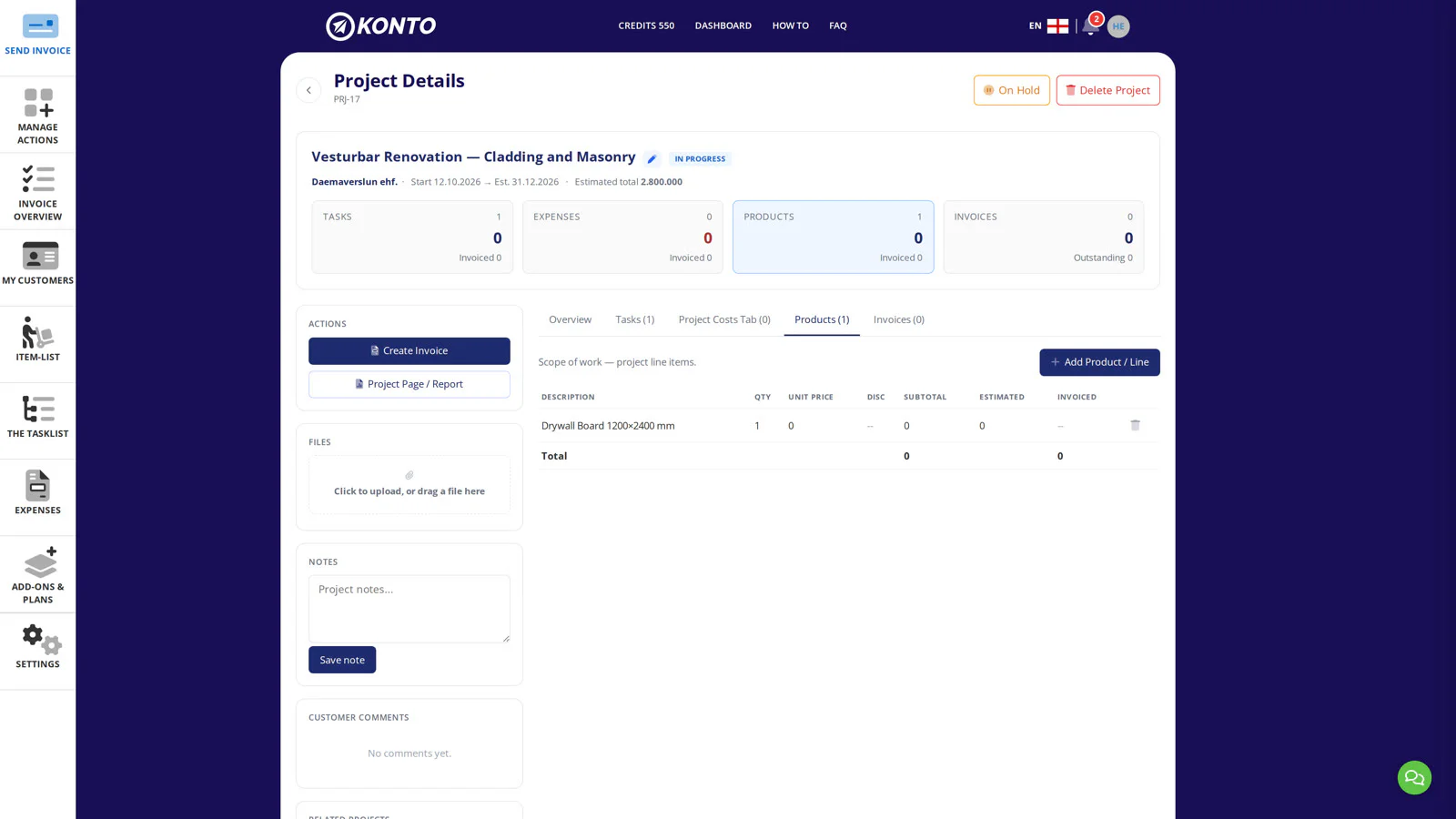
Products tab — products and services on the project
On the Products tab you see all products and services that are part of the project scope. See part 3 for details.
- 8
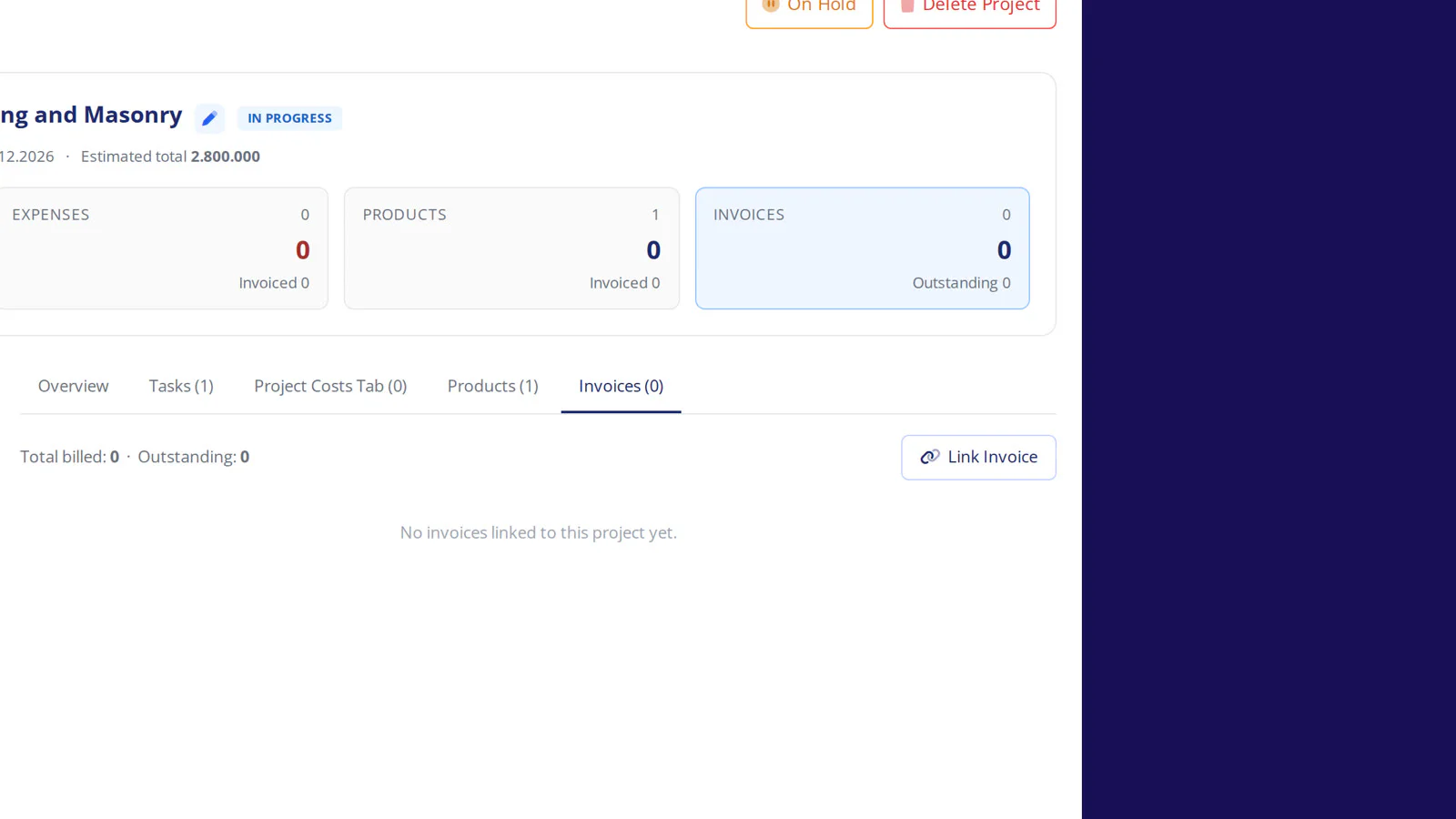
Invoices tab — sales invoices on the project
On the Invoices tab you see all sales invoices issued against the project. You can issue an invoice directly to the customer from here. See part 3 for details.
- 9
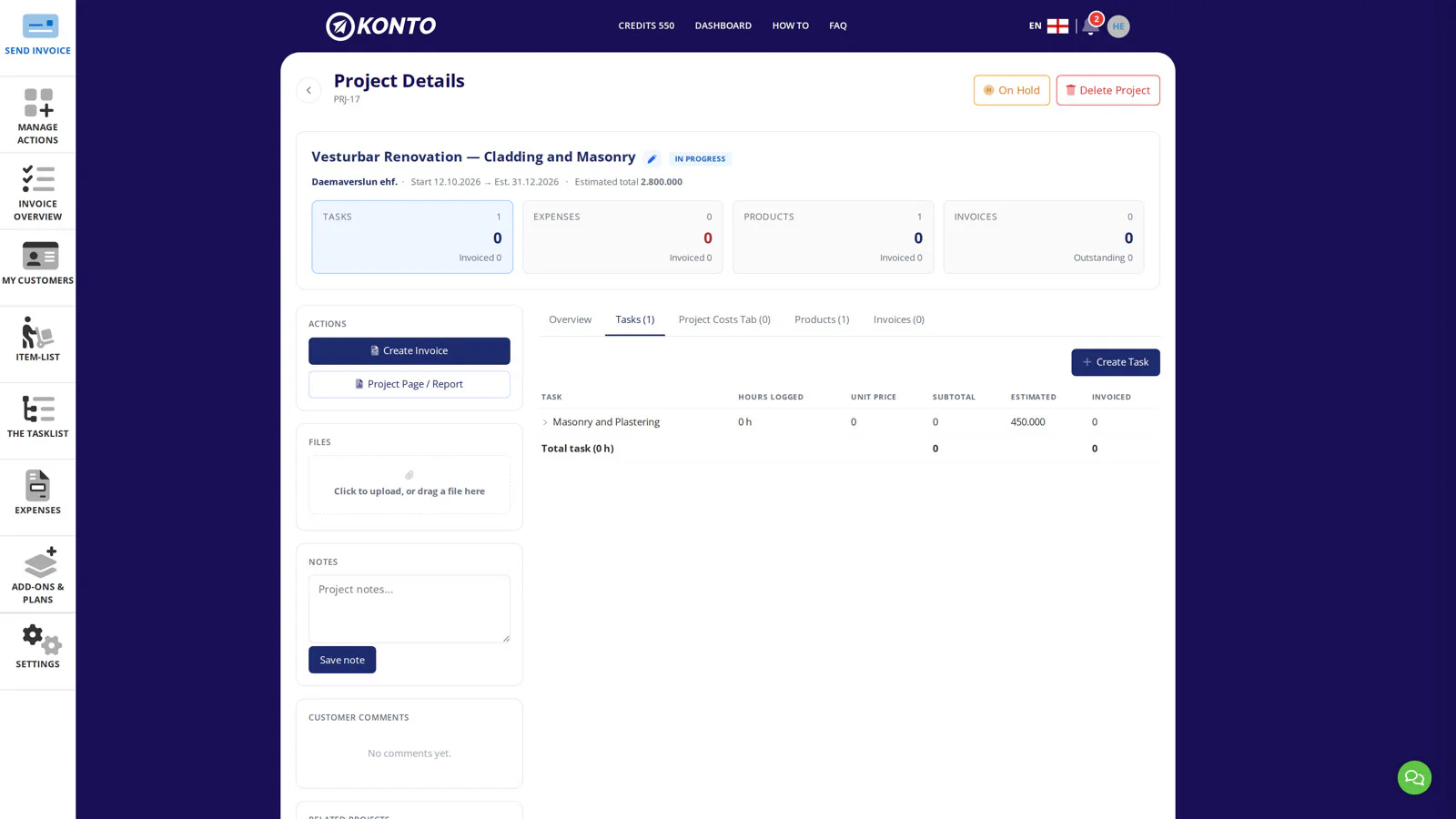
Tasks tab — tasks linked to the project
On the Tasks tab you see all tasks linked to the project. The tab is empty until tasks are linked — the next step shows how to create a task in the Tasklist and link it to the project.
- 10
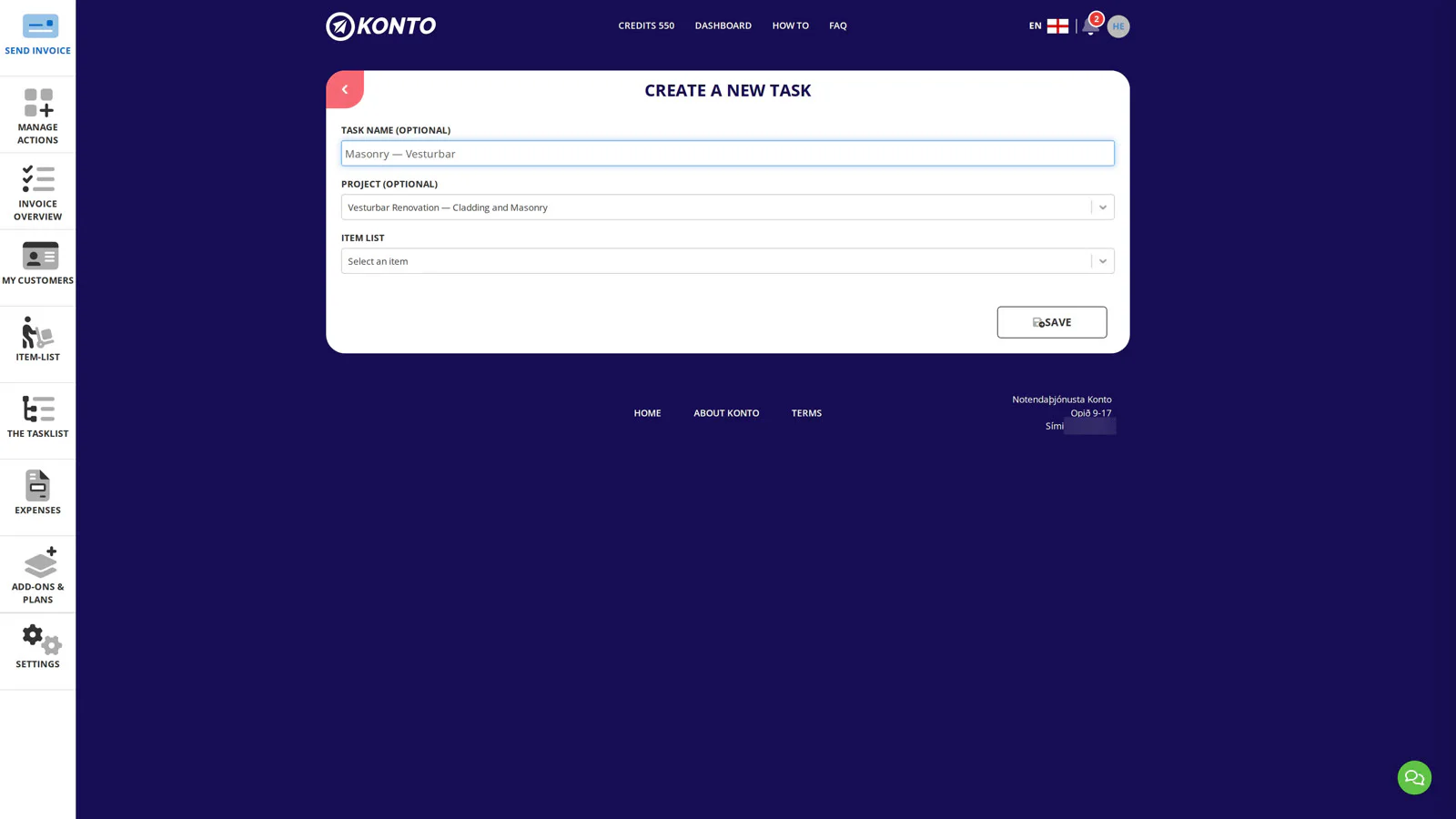
Link a task to the project in the Tasklist
Go to the Tasklist and click “Create new task”. Select the customer and then your project in the Project (optional) field. Select a service and save — the task appears both in the Tasklist and on the “Tasks” tab of your project.
- 11
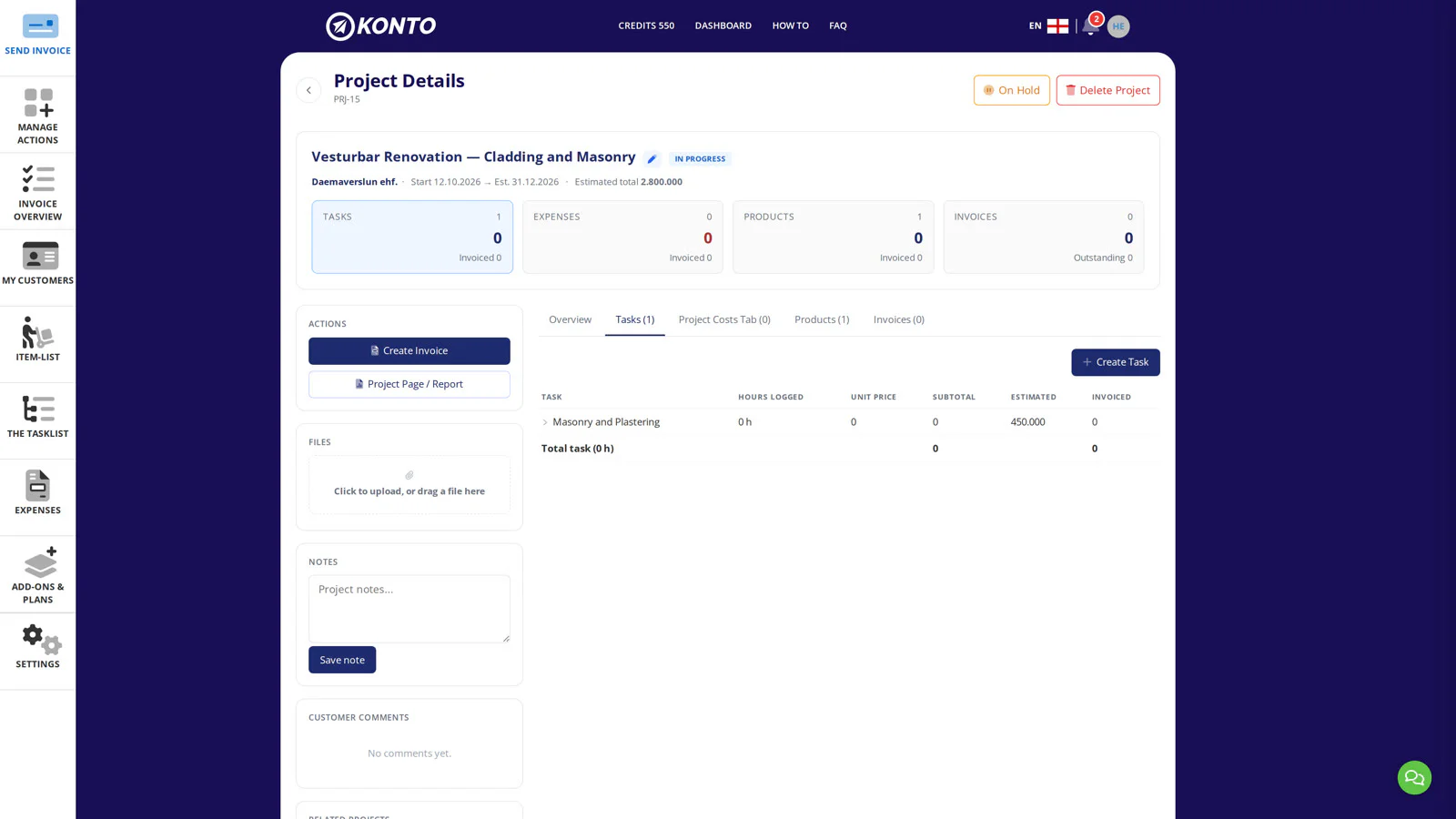
Add another task to the same project
On the “Tasks” tab of your project you can see all linked tasks. To add another task to the same project, go to the Tasklist, click “Create new task” and select the same project in “Project (optional)”. See part 1 on the Tasklist and time tracking to log time on tasks.


Tips
Templates save time for recurring projects
When the form is filled in, click “Save as new template”. Next time you create a project in Konto you can start directly from the template — customer, scope and project number are already filled in.
Projects and the Tasklist always go together
Everyone with the Projects add-on also gets the Tasklist automatically. Time logged in the Tasklist appears on the relevant project on the “Tasks” tab.
Common questions
How do I create a project in Konto?
Go to Actions and management → Projects and click “New project”. Select the customer, fill in “Project name”, the project number and dates, and save. Konto creates the project immediately and opens Project details.
Which plan includes Projects?
Projects is an add-on available on the Vöxtur and Sérlausnir plans. The Tasklist is included automatically with the Projects add-on.
What is the project number used for?
The project number goes on the invoice as an accounting reference and arrives in the customer’s bookkeeping system when the invoice is received. Konto fills it in automatically but you can change it before saving.
Does the Tasklist come with the Projects add-on?
Yes, everyone with the Projects add-on gets the Tasklist automatically. Time logs in the Tasklist appear on the relevant project under the “Tasks” tab.
How is a task linked to a project?
Create a task in the Tasklist and select your project in the “Project (optional)” field. The task will then appear both in the Tasklist and under the “Tasks” tab of your project.
Can service lines in the scope become tasks in the Tasklist?
Service lines added to a project scope appear on the “Tasks” tab of your project, but not automatically in the Tasklist. To have a task appear in the Tasklist you must create it directly there and select your project in “Project (optional)”.
Can I create a project from a quote or template?
Yes. When you open “New project” you can choose to start from a template or a quote instead of filling in the form from scratch.
Where do I see an overview of all projects?
Go to Actions and management → Projects. There you see all projects with their status and can search by name or customer.
Questions? support@konto.is