
Project page and project report for the customer
The project page and project report in Konto let you share a clear summary of the work with your customer — via a dedicated URL or as a PDF. The customer needs no login and can leave comments that you reply to directly in Konto. Make sure the project is set up with tasks, costs and invoices (part 3) — we won’t repeat those steps here.
- 1
Project page and report — open and choose what to show
Go to
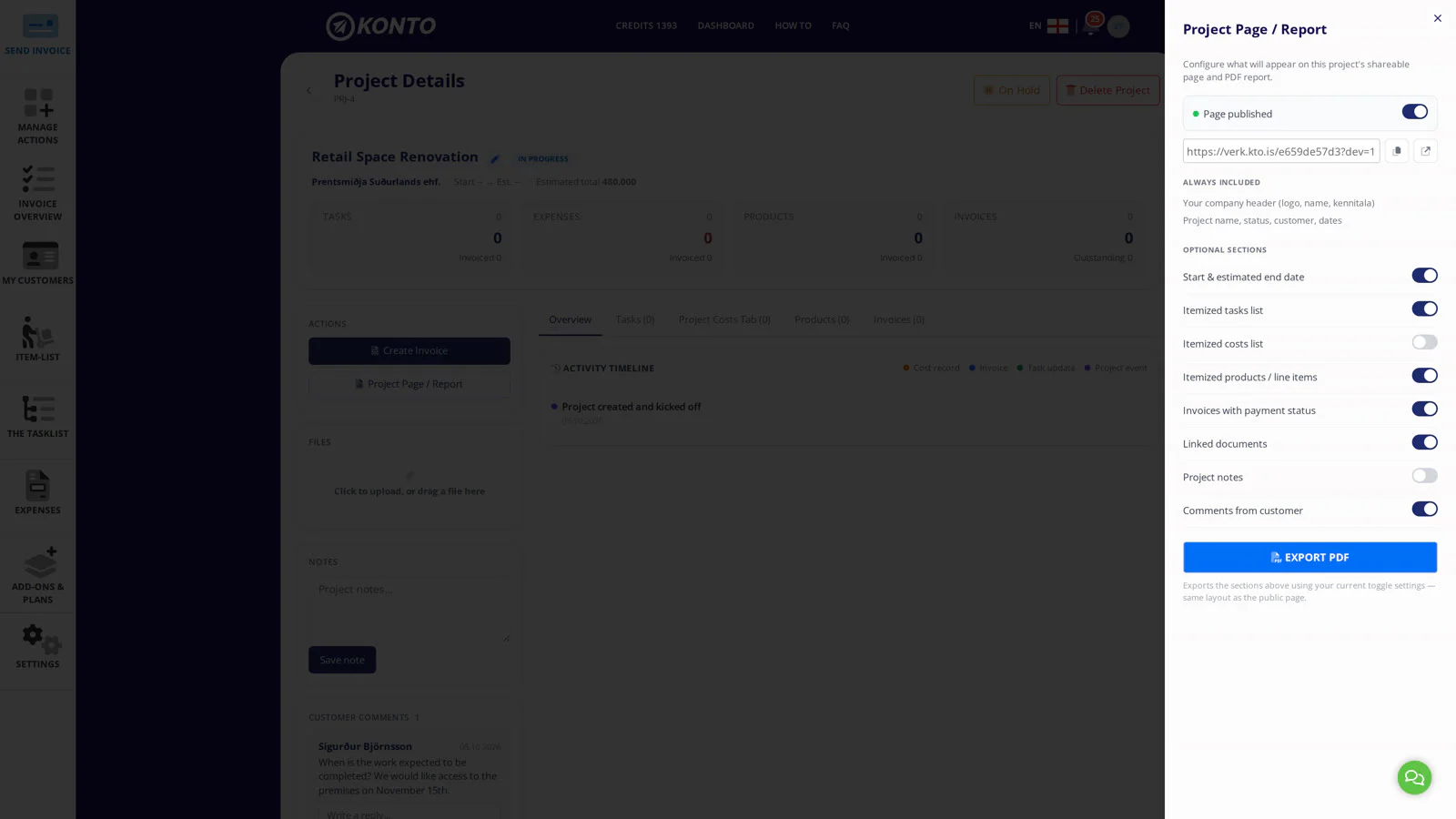
Aðgerðir og umsjón → Verkand open the project. On the project details page click “Aðgerðir” and select “Útbúa/breyta Verksíðu / Verkskýrslu”. Tick the sections you want to show the customer:- Tasks — itemised
- Work log report
- Costs
- Products / line items
- Invoices with payment status
The company header always appears. Click “Birta síðu” when you have made your choices.
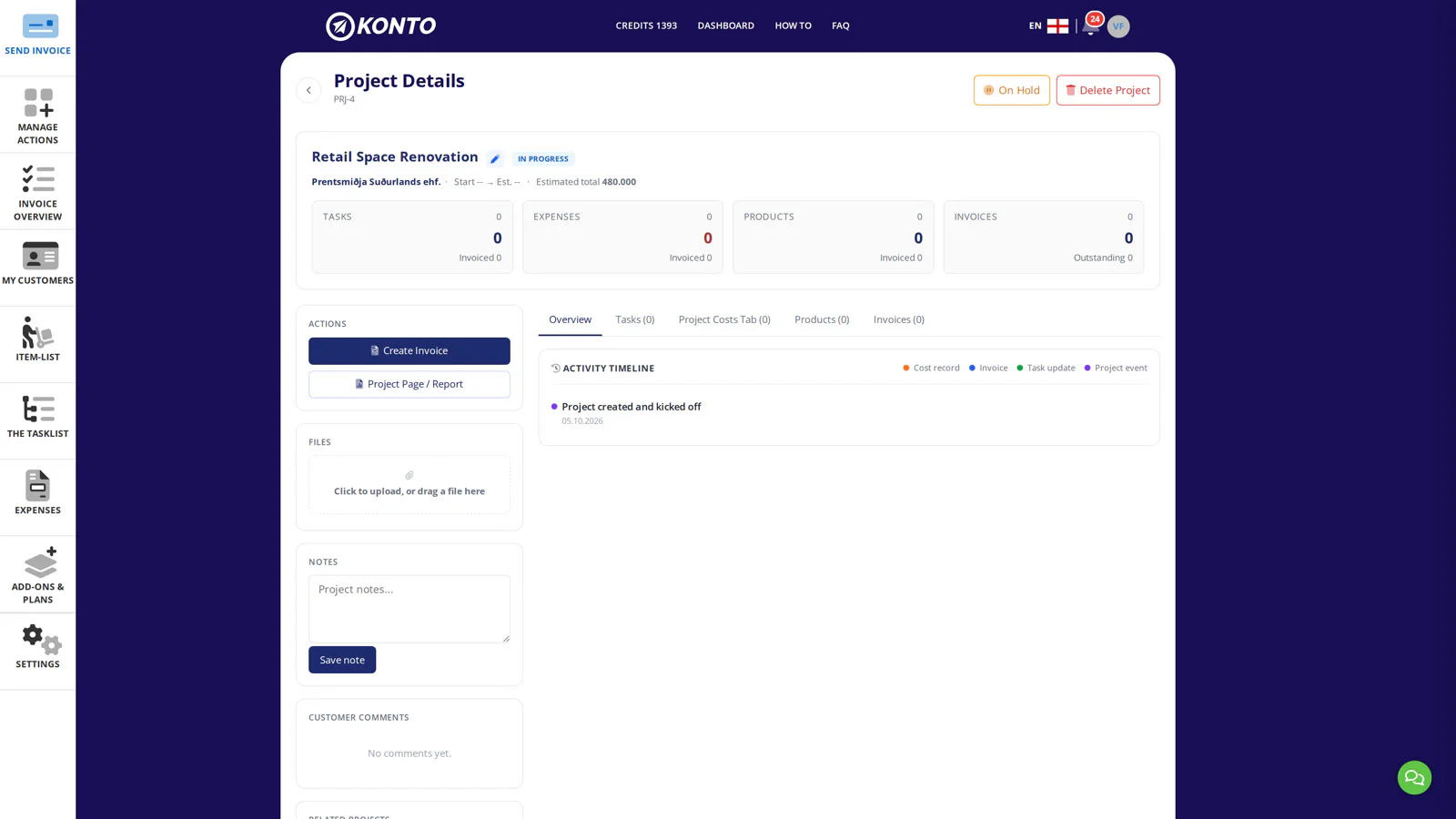
- 2
Share the project page link with the customer
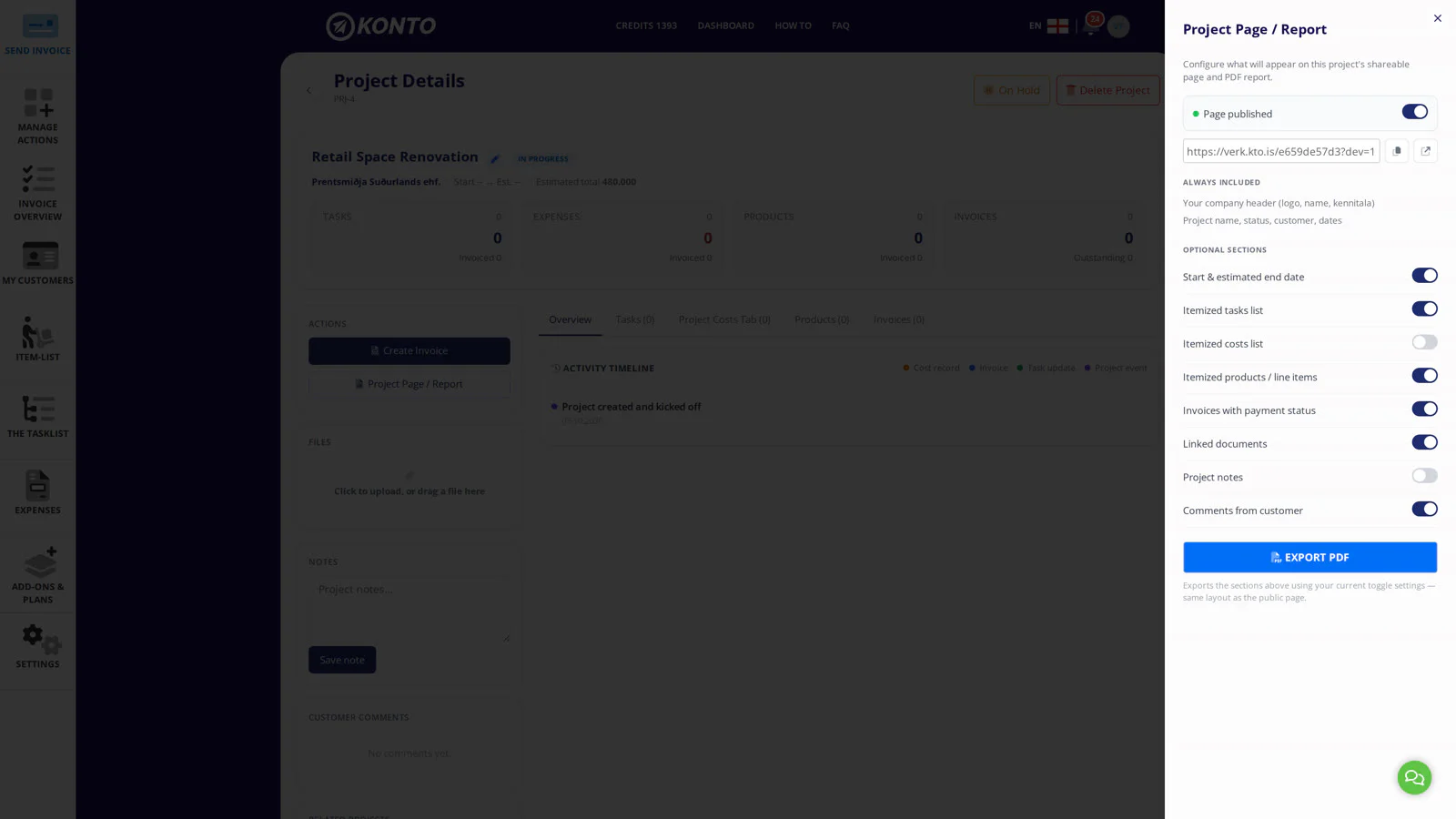
Once the page is published the link appears alongside the sections you chose in step 1. Click “Afrita hlekk” to copy it and send it to the customer — for example by email or SMS. You can also click “Opna síðu” to preview the page. The customer does not need a login to open it.
- 3
The customer views the page and writes a comment
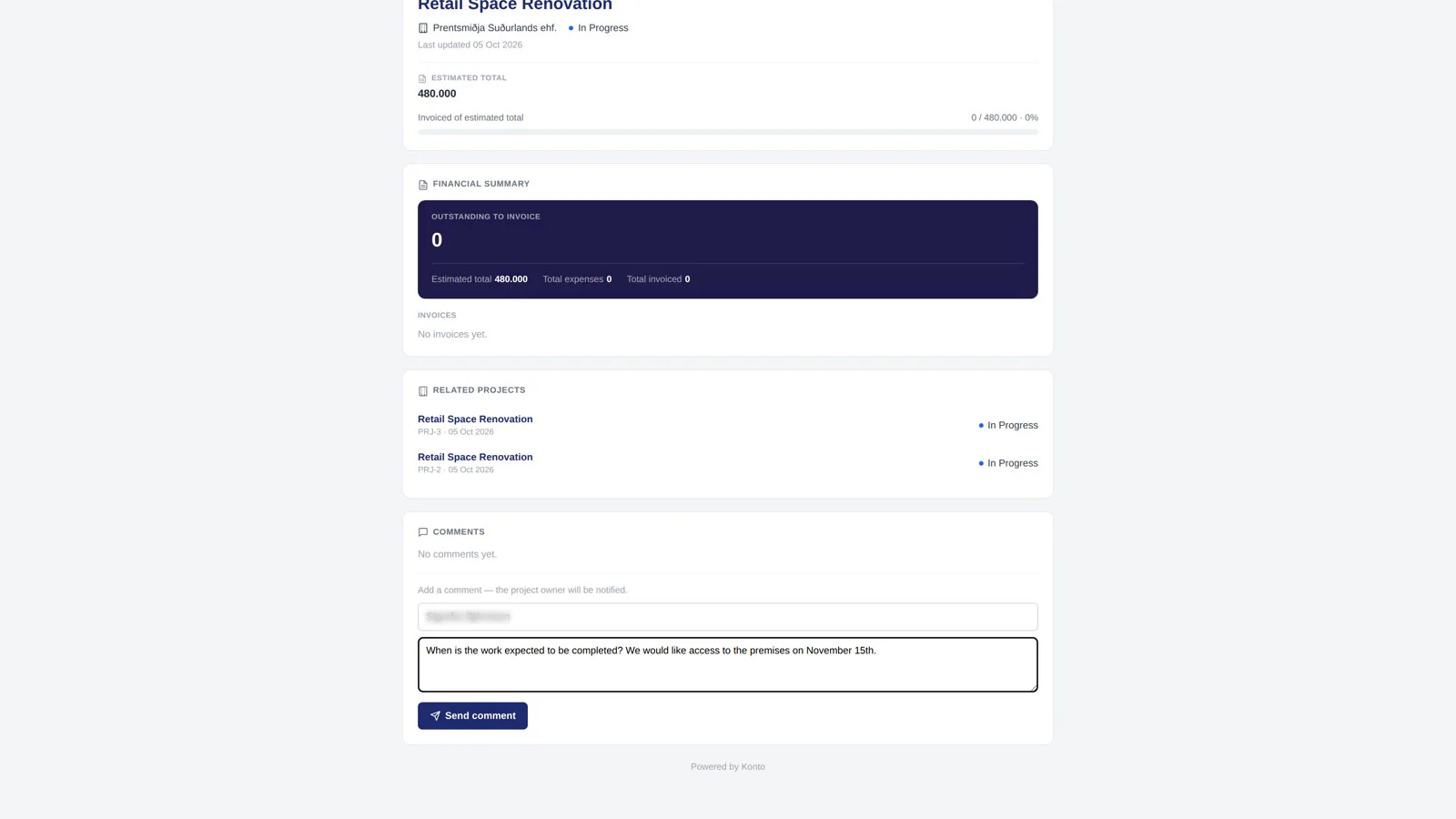
On the public page the customer sees all the information you selected in step 1 — tasks, work log, costs, products and invoices — and can review the project status without logging in. At the bottom of the page there is a comment field where they can type a question and click “Senda”. No login or Konto account is needed.
- 4
Reply to the customer’s comment in Konto
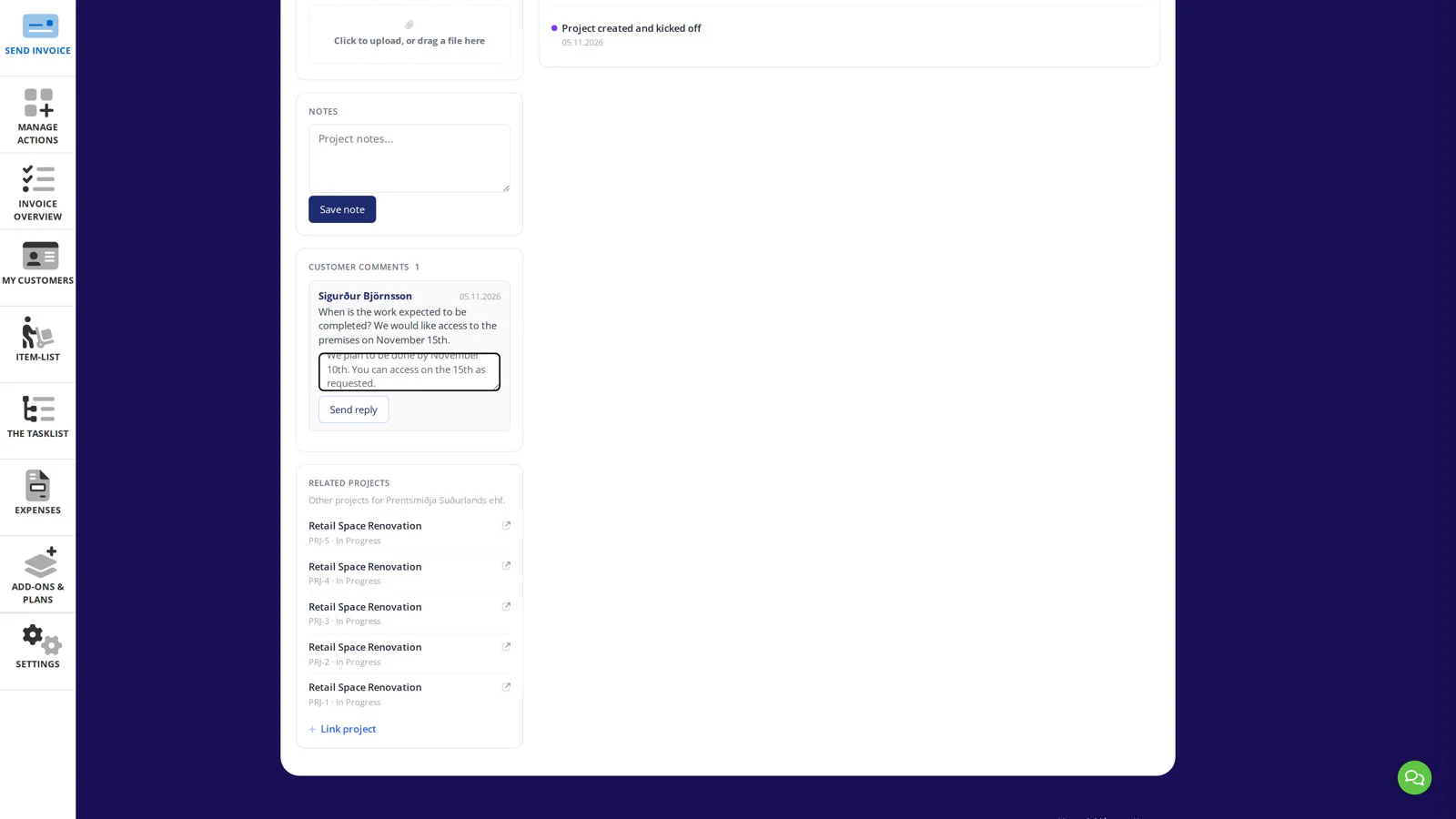
Back in Konto: open the project and find the new comment under Athugasemdir frá viðskiptavin. Click it, write a reply and send — the customer will see your reply on the project page.
- 5
Download the project report as a PDF
Click “Opna sem PDF-skjal” on the project page. The report opens in a new browser tab. You can save the file, print it or attach it to an email.
- 6
Add a link to the project page on an invoice
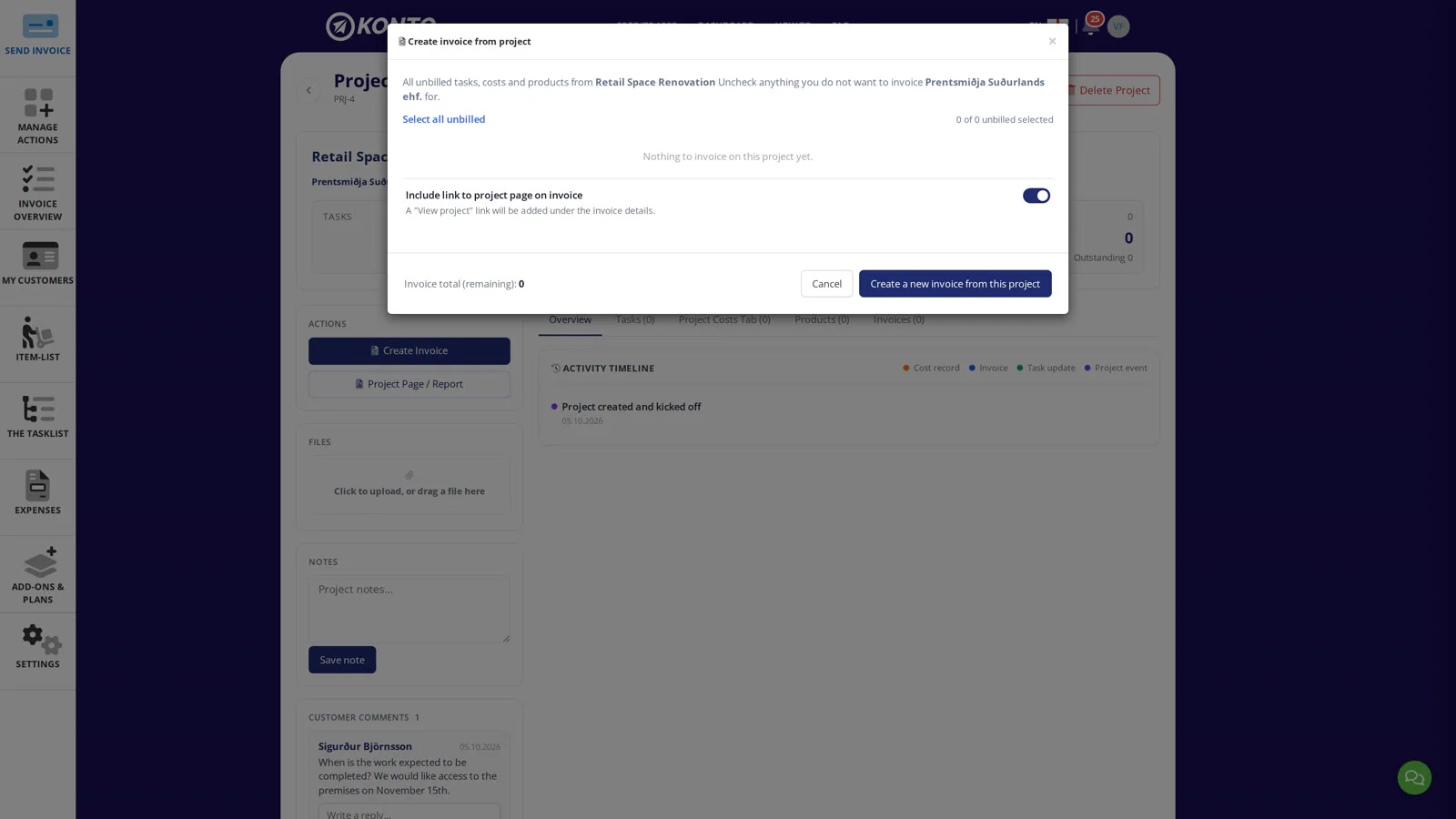
When creating an invoice from the project you can tick “Setja hlekk á verkefnasíðu á reikninginn”. A View project link will then appear under the invoice details when the customer opens the invoice — giving them direct access to the project page.
This is part 4 of 5. Continue to part 5 — extra users in Tasklistinn, or go back to part 3.


Tips
The project page updates automatically
Every change to the project — new tasks, new costs, a paid invoice — is reflected on the project page immediately. The customer always sees the latest status when they open the link.
PDF or project page?
Use the PDF when you need to send a document by email or print it, and the project page when you want the customer to follow changes in real time and ask questions.
Common questions
Does the customer need to log in to view the project page and report?
No. The project page is accessible to anyone with the link — no login or Konto account is required.
Can I choose what appears on the project page and report?
Yes. You choose whether tasks, the work log, costs, products and invoices are visible. The company header always appears regardless of what else is selected.
How do I know when the customer has left a comment?
Comments appear under “Athugasemdir frá viðskiptavin” on the project page in Konto. You can reply there directly and the customer will see your reply on the public page.
Does Tasklistinn come with the Verk add-on?
Yes. Everyone with the Verk add-on also gets Tasklistinn. Time logged in Tasklistinn appears on the project. Tasklistinn on its own is available as an add-on from the Sprotar plan.
Which plan includes Verk?
Verk is available from the Vöxtur plan (and Pro). Everyone using Verk also has access to Tasklistinn. See konto.is/verd.
Can I unpublish the project page when the job is done?
Yes. You can take the page offline at any time — the link will stop working until you publish it again.
How do I add a link to the project page on an invoice?
When creating an invoice from the project, tick “Setja hlekk á verkefnasíðu á reikninginn”. The link will then appear under the invoice details when the customer opens the invoice.
Questions? support@konto.is